
Create Structured Training Courses in Microsoft 365: A Step-by-Step Guide
_eH2jDg7dZ.png)
Employee training is most effective when learning follows a clear structure. Instead of asking employees to search through folders, emails, or disconnected documents, organizations can organize training into logical learning paths that guide learners from one topic to the next.
- Structured training courses improve learning, onboarding, and employee engagement.
- Microsoft 365 makes training accessible through Teams and SharePoint.
- Clear objectives, learning paths, assessments, and progress tracking improve training outcomes.
- LMS 365 simplifies training with automated assignments, certifications, and reporting.
For businesses already using Microsoft 365, there’s an opportunity to deliver training within the tools employees use every day. Rather than introducing another platform, organizations can build structured training courses directly within their Microsoft 365 environment, making learning more accessible and easier to manage.
Whether you’re onboarding new employees, delivering compliance training, or helping teams develop new skills, a structured course keeps learning organized, measurable, and engaging.
In this guide, you’ll learn how to create structured training courses in Microsoft 365, the best practices to follow, and how LMS 365 helps organizations manage the entire learning experience from one place.
What Are Structured Training Courses?
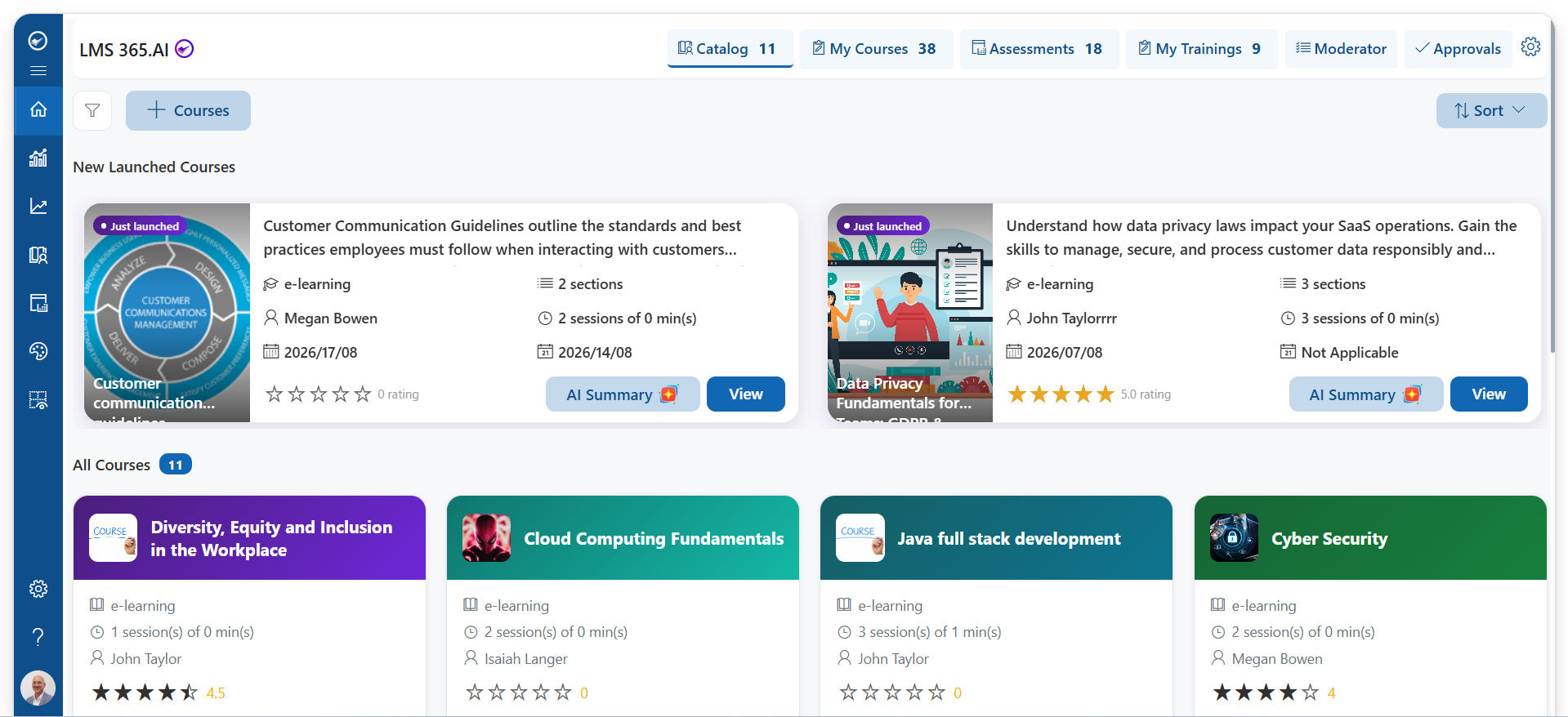
A structured training course is a learning program that organizes content into a logical sequence. Instead of presenting employees with a collection of unrelated files or videos, the course guides them through each lesson in the correct order, helping them build knowledge step by step.
A structured course may include:
- Learning modules
- Videos
- Documents
- Interactive content
- Quizzes and assessments
- Assignments
- Knowledge checks
- Completion certificates
For example, a new employee onboarding course could follow this sequence:
- Company introduction
- HR policies
- Security awareness training
- Microsoft Teams collaboration
- Role-specific training
- Final assessment
Employees complete each module before moving to the next, ensuring they understand the material and don’t miss important topics.
This approach improves knowledge retention and creates a more consistent learning experience across the organization.
Why Create Structured Training Courses in Microsoft 365?
Many organizations already rely on Microsoft 365 for communication, collaboration, and document management. Employees spend much of their workday in applications such as Microsoft Teams, SharePoint and Outlook.
Creating structured training courses within this familiar environment helps organizations deliver learning without disrupting employees’ daily workflows. It also makes training more accessible, organized, and easier to manage across the business.
Employees Learn Where They Already Work
When training is available inside Microsoft Teams or SharePoint, employees don’t need to switch between multiple systems or remember another login. Learning becomes a natural part of the workday, making it easier for employees to access courses whenever they need them. This convenience often leads to higher participation and course completion rates.
Centralized Learning Resources
Microsoft 365 allows organizations to store learning materials securely while keeping them easy to access. Training videos, presentations, policies, documents, and other resources can all be managed from one ecosystem. Having content in a central location also ensures employees always have access to the latest version of training materials.
Better Collaboration
Managers, subject matter experts, and trainers can collaborate on course content using familiar Microsoft tools before publishing it to learners. They can review documents, share feedback, and update materials together, making course development more efficient and ensuring information remains accurate.
Easier Content Updates
Business processes, company policies, and compliance requirements change regularly. Training materials stored within Microsoft 365 can be updated quickly without rebuilding an entire course. Employees can then access the most up-to-date content, helping maintain consistency across the organization.
Supports Hybrid and Remote Learning
Whether employees work from the office, remotely, or across multiple locations, Microsoft 365 makes training accessible from virtually anywhere. Learners can complete courses on their own schedule while organizations maintain a consistent training experience regardless of where employees are based.
Improved Learning Management
Structured courses help administrators organize training into clear learning paths instead of scattered files and folders. This makes it easier to assign courses, monitor learner progress, and ensure employees complete the right training at the right time.
Scales with Business Growth
As organizations expand, training requirements become more complex. Creating structured training courses in Microsoft 365 makes it easier to onboard new employees, introduce new processes, and deliver consistent learning across departments, teams, and locations without rebuilding the entire training program.
Still managing employee training with spreadsheets?
Book a demo to see how LMS 365 automates structured learning
Benefits of Structured Training Courses
Building structured learning experiences benefits both employees and the organization. By organizing content into logical learning paths, businesses can improve knowledge retention, simplify training management, and create a more consistent learning experience across teams.
Faster Employee Onboarding
New hires receive training in a logical sequence instead of searching through multiple folders or asking colleagues where to begin. A structured onboarding course introduces employees to company policies, tools, and role-specific responsibilities step by step. This helps new hires become productive faster while reducing the time managers spend answering repetitive questions.
Consistent Learning Experience
Every employee receives the same information, reducing inconsistencies across departments and locations. Standardized training ensures everyone follows the same processes, understands company policies, and meets organizational expectations. This consistency is especially valuable for businesses with remote or global teams.
Better Knowledge Retention
Breaking training into smaller modules helps employees absorb information more effectively than lengthy training sessions. Bite-sized lessons allow learners to focus on one topic at a time, making it easier to understand and remember key concepts. Adding quizzes and practical exercises further reinforces learning.
Improved Progress Tracking
Organizations can monitor course completion, quiz scores, certifications, and learner progress to identify employees who may need additional support. Real-time tracking also helps managers understand how training is progressing across teams and ensures mandatory courses are completed on time.
Simplified Compliance Training
For mandatory learning such as workplace safety, cybersecurity, or data protection, structured courses make it easier to assign training, track completion, and maintain records for audits. Automated reminders and completion reports help organizations stay compliant while reducing administrative effort.
Continuous Learning
Structured learning isn’t limited to onboarding. Organizations can create ongoing development programs for leadership, technical skills, customer service, sales enablement, and professional certifications. Providing continuous learning opportunities helps employees develop new skills and supports long-term career growth.
Increased Employee Engagement
A well-organized learning journey is more engaging than asking employees to navigate scattered documents and resources. Interactive modules, videos, assessments, and clearly defined learning paths encourage employees to stay motivated and complete their training.
Easier Training Management for Administrators
Structured courses simplify training administration by keeping learning content, assignments, and learner progress organized in one place. HR and learning teams can efficiently assign courses, monitor completion rates, update content, and generate reports without managing multiple disconnected systems.
What You Need Before Building a Training Course
Successful training starts long before content is uploaded into Microsoft 365.
Taking time to plan your course helps create a learning experience that is organized, relevant, and easy for employees to follow.
Define Your Learning Objectives
Start by identifying what learners should know or be able to do after completing the course.
For example:
- Understand company policies
- Complete cybersecurity best practices
- Learn a new software application
- Improve customer service skills
- Develop leadership capabilities
Clear objectives guide every decision throughout the course creation process.
Identify Your Audience
Training should match the needs of the learners.
Ask questions such as:
- Are they new employees?
- Existing staff?
- Managers?
- Sales teams?
- IT professionals?
- Frontline workers?
Knowing your audience helps determine the appropriate content, learning pace, and assessment methods.
Gather Your Training Materials
Before creating the course, collect all the resources you’ll need, including:
- Videos
- PDFs
- PowerPoint presentations
- Standard operating procedures
- Company policies
- Checklists
- External learning resources
- Assessments
Organizing materials early makes course development much smoother.
How to Create Structured Training Courses in Microsoft 365
Creating a structured training course involves more than uploading documents into a shared folder. An effective course follows a logical learning journey, helping employees build knowledge step by step while giving administrators visibility into learner progress.
Here’s a practical process for creating structured training courses in Microsoft 365.
Step 1: Define Your Course Goals
Start by identifying what employees should achieve by the end of the course.
Ask questions like:
- What problem does this training solve?
- Which skills should learners develop?
- Is this course mandatory or optional?
- How will success be measured?
For example, an onboarding course may aim to help new hires understand company policies, complete compliance training, and become productive within their first month.
Having clear objectives keeps the course focused and helps determine what content should be included. This is also a good stage to sketch your course outline in OneNote or a Word document so subject matter experts and managers can review the plan before any content is built.
Step 2: Organize Content into Learning Modules
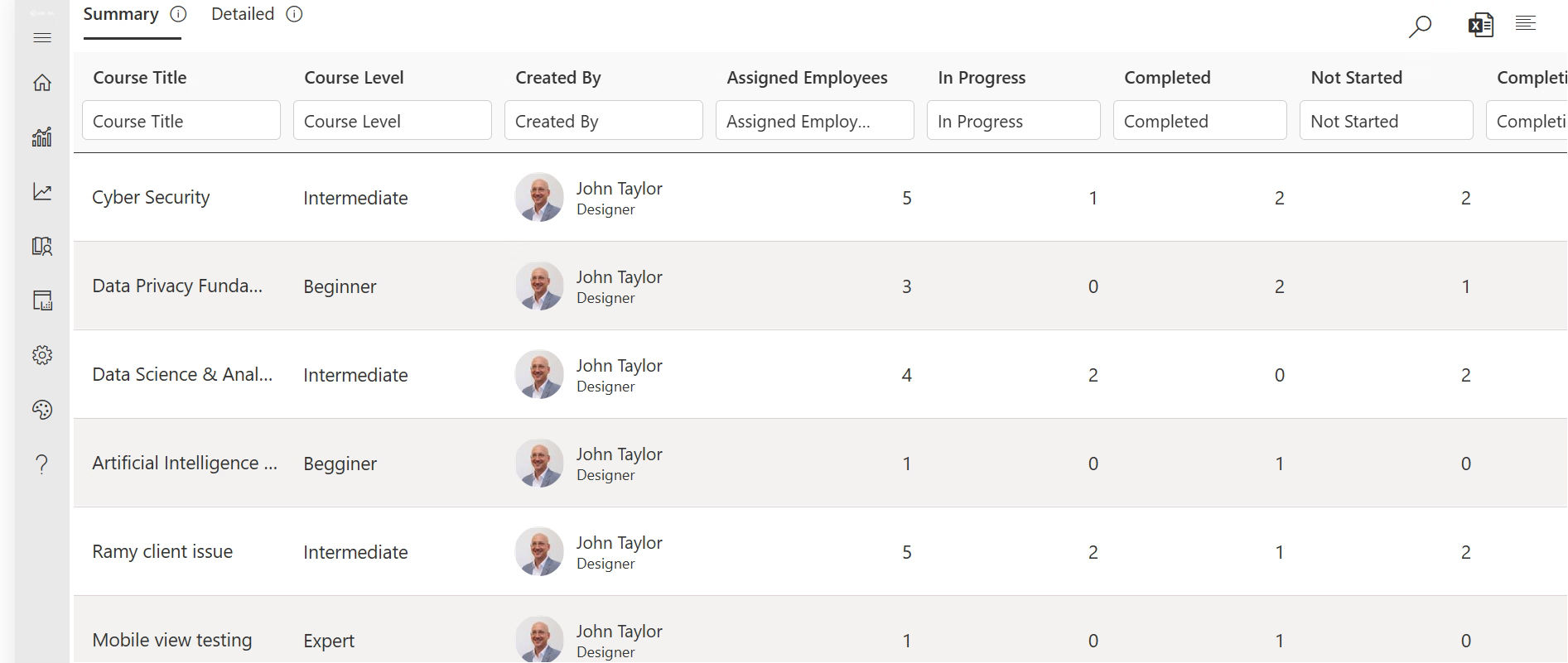
Instead of presenting learners with all the training materials at once, divide the course into smaller, easy-to-follow modules. In Microsoft 365, this typically means setting up a dedicated SharePoint site or document library for the course, with folders or metadata tags for each module, or creating a Teams channel with tabs where each tab represents a module in sequence.
For example:
Employee Onboarding Course
Module 1
- Welcome to the company
- Company culture
- Organizational structure
Module 2
- HR policies
- Workplace ethics
- Employee handbook
Module 3
- Microsoft Teams basics
- SharePoint navigation
- Internal communication tools
Module 4
- Role-specific responsibilities
- Department processes
- Best practices
Module 5
- Final assessment
- Course feedback
- Certificate of completion
Breaking training into modules helps employees focus on one topic at a time and makes learning less overwhelming.
Step 3: Add Different Types of Learning Content
Employees learn differently, so it’s beneficial to include a variety of content formats rather than relying on lengthy documents alone. For teams building custom learning interfaces, understanding how to open pdf file in react js can help support PDF and Office content within the same learning experience. Microsoft 365 gives you native tools for most of these formats: host training videos in Microsoft Stream, build presentations in PowerPoint, write guides in Word, and store everything centrally in SharePoint so it’s easy to link from Teams.
A structured course can combine:
- Training videos
- PDF guides
- PowerPoint presentations
- Interactive eLearning modules
- Recorded webinars
- Knowledge articles
- Microsoft Office documents
- External learning resources
Using different content formats keeps learners engaged while accommodating different learning preferences.
Step 4: Create Learning Paths
Not every employee needs the same training.
One of the biggest advantages of structured learning is the ability to create learning paths based on roles, departments, or job responsibilities. In native Microsoft 365, this usually means creating separate SharePoint document libraries or Teams channels per audience and manually directing employees to the right one, which is where dedicated learning path features start to matter.
For example:
New Employee Learning Path
- Company introduction
- HR onboarding
- IT setup
- Workplace safety
- Department orientation
Sales Team Learning Path
- Product knowledge
- CRM training
- Sales methodology
- Customer communication
- Competitive positioning
Manager Development Path
- Leadership fundamentals
- Performance reviews
- Coaching conversations
- Employee engagement
- Compliance responsibilities
Role-based learning ensures employees complete training that’s relevant to their work instead of spending time on unnecessary content.
Step 5: Include Assessments and Knowledge Checks
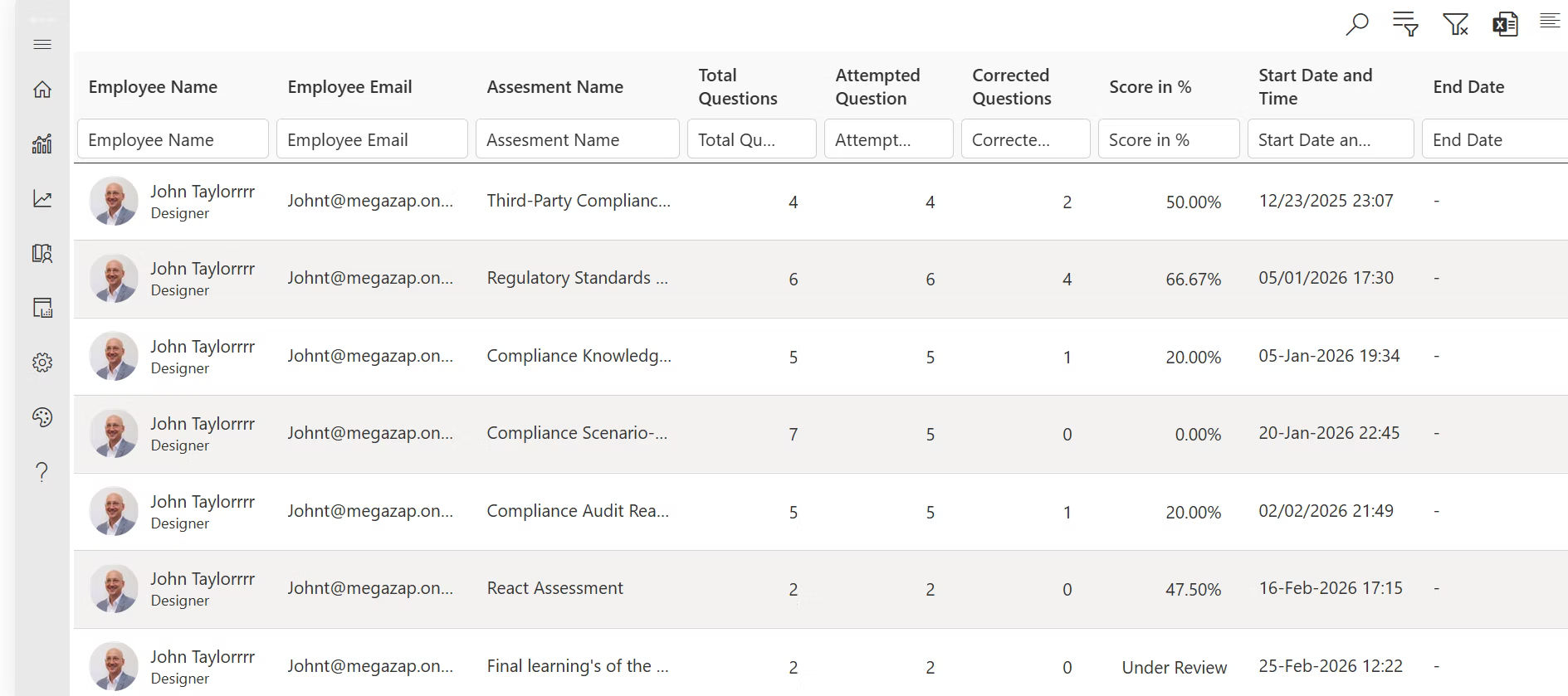
Learning shouldn’t end after employees watch a video or read a document. Microsoft Forms is the native way to build quizzes inside Microsoft 365 you can embed a Forms quiz directly into a SharePoint page or share it as a Teams tab at the end of a module.
Depending on the course, you can include:
- Multiple-choice quizzes
- True or false questions
- Fill-in-the-blank exercises
- Scenario-based questions
- Short-answer assessments
- Practical assignments
Knowledge checks also help identify topics that may require additional training or clarification.
Step 6: Assign Courses to the Right Learners
Once the course is ready, assign it to the appropriate audience. In Microsoft 365, this generally means managing access through SharePoint permissions or Microsoft 365 Groups, and sharing links via Teams or Outlook.
Assignments can be based on:
- Departments
- Job roles
- Locations
- Teams
- Individual employees
- New hires
For example, cybersecurity awareness training may be assigned to every employee, while leadership development is only assigned to managers.
Targeted assignments improve the learning experience and reduce unnecessary training.
Step 7: Track Learner Progress
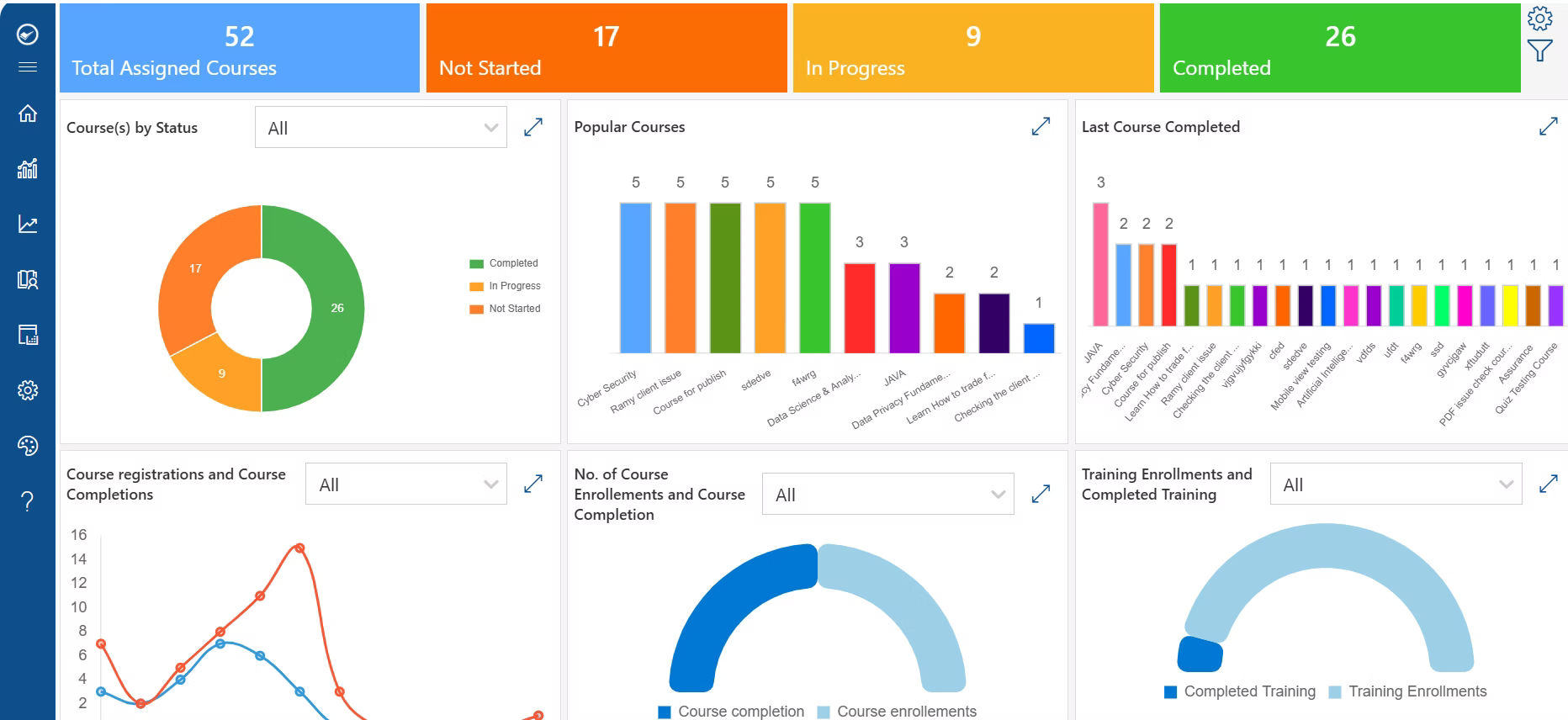
Creating the course is only the beginning.
Monitoring learner activity helps organizations understand how employees are progressing and whether training objectives are being achieved. Native Microsoft 365 tools offer limited visibility here SharePoint can show document views, and Forms can show quiz responses, but there’s no built-in way to see full course completion across modules. Power BI can help stitch together some of this reporting manually, though most organizations reach the limits of native tools at this stage.
Track metrics such as:
- Course enrollments
- Completion rates
- Quiz scores
- Time spent learning
- Certification status
- Expired certifications
- Overdue training
These insights help HR and learning teams identify employees who may need additional support while demonstrating training effectiveness.
Create structured training without the manual work.
LMS 365 lets you build learning paths, automate enrollments, assign certifications, and track learner progress all within Microsoft Teams and SharePoint.
Best Practices for Creating Structured Training Courses
A well-designed course is more than a collection of organized content. It should provide an engaging, easy-to-follow learning experience that helps employees achieve their learning objectives while keeping them motivated throughout the course.
Keep Modules Short
Instead of creating hour-long lessons, divide content into smaller modules that employees can complete in manageable sessions. Short lessons improve attention, reduce fatigue, and make it easier for learners to revisit specific topics when needed. Aim for focused modules that cover one concept or skill at a time to create a more effective learning experience.
Define Clear Learning Outcomes
At the beginning of each module, explain what employees will learn and why it matters. Clear learning outcomes set expectations and help learners understand the value of completing each section. When employees know what they are expected to achieve, they are more likely to stay engaged and apply their knowledge in the workplace.
Use a Variety of Content Formats
miCombining videos, documents, presentations, quizzes, and interactive activities creates a more engaging learning experience than relying on a single content type. Different formats cater to different learning preferences and help reinforce key concepts. A mix of visual, written, and interactive content also keeps learners interested throughout the course.
Build Courses for Different Roles
A one-size-fits-all approach rarely meets the needs of every employee. Create role-based learning paths that deliver relevant training to specific departments, job functions, or experience levels. Personalized learning helps employees focus on the skills and knowledge they need, improving both engagement and learning outcomes.
Include Regular Knowledge Checks
Don’t wait until the end of the course to assess learning. Add short quizzes, knowledge checks, or practical activities throughout the course to reinforce key concepts and measure understanding. Frequent assessments also help identify areas where learners may need additional support before progressing to the next module.
Review and Update Courses Regularly
Business processes, compliance requirements, technologies, and company policies evolve over time. Schedule regular reviews to ensure your training content remains accurate, relevant, and aligned with current business needs. Keeping courses up to date ensures employees always receive the latest information and best practices.
Make Courses Easy to Navigate
Use a clear course structure with logical module names, consistent formatting, and intuitive navigation. Employees should always know where they are in the learning journey and what comes next. A well-organized course reduces confusion and encourages learners to complete their training.
Track Performance and Gather Feedback
Monitor course completion rates, assessment results, and learner feedback to understand how well your training is performing. Insights from reports and employee feedback can help you improve course content, identify knowledge gaps, and continuously enhance the learning experience.
Common Mistakes to Avoid
Even well-planned training programs can lose effectiveness if certain mistakes are overlooked. Avoiding these common pitfalls can help create a more engaging learning experience, improve completion rates, and ensure employees gain the knowledge they need.
Uploading Content Without a Learning Structure
A collection of files isn’t a training course. Simply uploading documents, videos, or presentations without a clear sequence can leave employees unsure where to begin or what to complete next. Organize learning materials into structured modules and learning paths so learners can progress through the course in a logical order.
Making Courses Too Long
Lengthy courses often lead to lower completion rates and reduced learner engagement. Employees may struggle to stay focused if they’re expected to complete hours of training in a single session. Break complex topics into shorter, bite-sized modules that employees can complete at their own pace while maintaining better knowledge retention.
Skipping Assessments
Without quizzes or knowledge checks, it’s difficult to determine whether employees understood the training. Assessments reinforce learning, help identify knowledge gaps, and give administrators valuable insights into learner performance. Including short quizzes throughout the course is often more effective than relying on a single final assessment.
Ignoring Progress Tracking
If training isn’t monitored, organizations may struggle to identify incomplete courses or measure learning outcomes. Tracking course completion, assessment scores, certifications, and learner progress helps managers provide timely support and ensures mandatory training requirements are met.
Failing to Update Content
Outdated policies, procedures, or software instructions can quickly reduce the value of a training program. As business processes and compliance requirements evolve, training content should be reviewed and updated regularly. Keeping courses current ensures employees receive accurate information and continue to follow the latest best practices.
Creating the Same Course for Every Employee
Not every employee has the same responsibilities or learning needs. Delivering identical training to every role can result in irrelevant content and lower engagement. Instead, create role-based learning paths that provide employees with training tailored to their department, job function, or level of experience.
Overlooking Learner Feedback
Employee feedback is an important source of insight for improving training programs. Ignoring suggestions or course evaluations can make it difficult to identify unclear content, outdated materials, or areas where learners need additional support. Regularly collecting and acting on feedback helps keep training relevant, engaging, and effective.
Why LMS 365 Makes It Easy to Create Structured Training Courses in Microsoft 365
While Microsoft 365 provides a strong foundation for collaboration and content management, organizations often need additional capabilities to deliver structured learning at scale.
LMS 365 extends the Microsoft 365 ecosystem with dedicated learning management features that simplify course creation, learner management, and training administration.
With LMS 365, organizations can:
- Create structured learning paths for different roles and departments
- Deliver training directly within Microsoft Teams and SharePoint
- Build courses using videos, documents, SCORM packages, and Microsoft 365 content
- Create quizzes and assessments to measure knowledge
- Assign mandatory or optional learning
- Track learner progress, course completion, and certifications
- Generate reports for managers and administrators
- Automate reminders for overdue or expiring training
- Support instructor-led, virtual, and self-paced learning from a single platform
Because LMS 365 is built specifically for Microsoft 365, employees can access learning in a familiar environment without switching between multiple systems. This helps reduce friction, improve adoption, and make learning a natural part of the workday.
Still comparing LMS platforms?
See why organizations choose LMS 365 for structured employee training, learning paths, compliance, and Microsoft 365 integration.
Conclusion
Structured training courses give employees a clear, guided path to building new knowledge and skills, instead of leaving them to piece together scattered files and documents. For organizations already working in Microsoft 365, there’s a real opportunity to bring learning into the same environment employees use every day, cutting down on friction and improving adoption.
Getting there requires more than uploading content, though. Clear learning objectives, well-organized modules, role-based learning paths, and consistent progress tracking are what separate a true training program from a folder of files.
While Microsoft 365 provides a strong foundation, tools like LMS 365 make it possible to deliver structured, trackable, and scalable training without leaving the Microsoft ecosystem. Whether you’re building an onboarding program, rolling out compliance training, or developing your next generation of leaders, a structured approach supported by the right tools will help your training actually stick.
Frequently Asked Questions
Can I create training courses directly in Microsoft Teams or SharePoint?
Yes. Microsoft 365 allows you to store training materials in SharePoint document libraries and share them through Teams channels. However, native Microsoft 365 tools don’t include built-in course sequencing, quizzes, completion tracking, or certifications these require manual workarounds or an add-on like LMS 365.
Do I need a separate LMS if I already use Microsoft 365?
Not necessarily, but most organizations find that Microsoft 365 alone lacks structured learning paths, automated assessments, and progress reporting. A dedicated LMS built for Microsoft 365, such as LMS 365, adds these capabilities without requiring employees to leave the Microsoft ecosystem.
How long should a training module be?
Most learning experts recommend keeping individual modules between 5–15 minutes. Shorter modules improve completion rates and make it easier for employees to fit training into their workday.
Can I track whether employees actually complete the training?
Yes, with the right tools. While Microsoft 365 offers limited visibility into document views, a platform like LMS 365 provides detailed tracking on completions, quiz scores, time spent, and certification status.
Is this approach suitable for compliance training?
Yes. Structured courses with tracked completions and stored records are well-suited for compliance training, especially when audits require proof that employees completed mandatory learning.
Can I build role-specific training paths without duplicating content?
Yes. Learning paths can share common modules (like company policies) while adding role-specific modules on top, so you don’t need to rebuild shared content for every department.


_JiluXJRGNl.svg)























