
Step-by-Step Guide: How to Create an eLearning Course with LMS 365

What if you could build and deliver a complete eLearning course without ever leaving Microsoft Teams or SharePoint? That is exactly what LMS 365 makes possible, and it is changing how organizations train their people.
Creating an eLearning course with LMS 365 is simple because it works inside Microsoft 365 tools like Teams and SharePoint. You can build courses using your existing content such as PowerPoint, videos, and documents without needing technical skills. LMS 365 also helps you set goals, assign training automatically, and create learning paths so employees can learn step by step.
It also makes tracking and improving training easy. You can monitor progress, manage certifications, and get real-time insights using dashboards and Power BI. With features like mobile learning, AI-powered content creation, and built-in compliance tracking, LMS 365 helps organizations deliver training that is easy to access, effective, and aligned with business goals.
The global eLearning market is projected to reach $320.96 billion in 2025, reflecting an annual growth rate of around 14% from previous years. Approximately 90% of companies now offer online training to their employees. That means your competitors are already building eLearning programs. The real question is: are you building yours the smart way?
Most organizations waste months choosing, setting up, and learning a brand-new training platform only to find that their employees refuse to use it because it feels foreign and complicated. That is money, time, and motivation lost.
LMS 365 solves this problem at its root.
Here is what your team is losing right now without the right eLearning system:
- New employees who take weeks to get up to speed because onboarding is scattered
- Compliance gaps that put your business at legal and financial risk
- Skill shortages that slow down growth and performance
- Training records that live in spreadsheets, emails, and paper files
You do not need a new system that your team has to learn from scratch. You need eLearning that works inside the tools they already use every day.
What Is an eLearning Course?
An eLearning course is a structured way of delivering training or knowledge online instead of in a traditional classroom. It allows learners to access content through digital platforms using devices like laptops or mobile phones, making learning available anytime and anywhere.
Unlike traditional training, an eLearning course is designed to guide learners through a clear journey. It combines different types of content such as videos, presentations, documents, and quizzes to help learners understand and apply what they learn in a practical way.
What makes eLearning effective is its flexibility and consistency. Every learner receives the same quality of training, but at their own pace. At the same time, organizations can track progress, measure performance, and ensure that learning is actually happening.
Today, eLearning courses are used for everything from onboarding new employees to compliance training and skill development. Instead of being a one-time activity, learning becomes a continuous process that fits naturally into the way people work.
Why eLearning Is Important
eLearning has moved from being an optional training method to a core part of how organizations develop their people. As workplaces become more digital and distributed, traditional training methods struggle to keep up with the speed and flexibility that modern teams need.
Here’s why eLearning has become essential:
- Accessibility and Flexibility — Employees can learn at their own pace and on their own schedule, without being limited by location or fixed training sessions.
- Consistency in Training — Every learner receives the same content and experience, reducing gaps in knowledge across teams.
- Time and Cost Efficiency — Organizations can deliver one course to many learners without repeating sessions, saving both time and resources.
- Real-Time Tracking and Insights — Progress, completion, and performance can be monitored easily, helping teams improve training outcomes.
- Continuous Learning Culture — Content can be updated regularly, allowing employees to keep learning and adapting without interrupting their work.
In today’s fast-moving environment, organizations that invest in eLearning are better prepared to adapt, grow, and stay competitive.
If your organization already uses Microsoft 365, LMS 365 is almost certainly the right eLearning solution for you.
10 Simple Steps to Create an eLearning Course Using LMS 365
Learn how to create an eLearning course in 10 simple steps using LMS 365. From setup to course delivery, follow a clear process to build effective and engaging training.
Step 1: Set Up LMS 365 Inside Your Microsoft 365 Environment
The very first step is getting LMS 365 up and running and this is where it immediately impresses.
Unlike traditional LMS platforms that require months of technical setup, LMS 365 can be implemented in minutes, not months, thanks to its deep integration with Microsoft 365. It uses your existing infrastructure, single sign-on, and familiar tools, eliminating complex setup and enabling organizations to launch training programs almost instantly.
Here is what the setup involves:
- Install LMS 365 from Microsoft AppSource or Azure Marketplace
- Add it as a tab in Microsoft Teams or as a SharePoint web part on your intranet
- Connect it to your Azure Active Directory user accounts sync automatically
- Configure your learning portal with your company branding (colors, logo, layout)
- Set administrator roles and permissions
That is it. Your learners do not need to download anything or create new accounts. They simply open Teams or visit your SharePoint and LMS 365 is already there, waiting for them.
Pro Tip: Most organizations set up LMS 365 as a dedicated tab in their main Teams workspace so that learning is always one click away during the workday.
Step 2: Define Your Learning Objectives Before Building Anything
This step applies to every eLearning course ever created, and LMS 365 makes it easy to structure your goals before you start building.
Ask yourself:
- What should employees be able to do after completing this course?
- Is this course for onboarding, compliance, upskilling, or product knowledge?
- Who are the learners new hires, managers, a specific department, or everyone?
- How will you measure success?
Use action-based language for your objectives:
- “Complete the workplace safety checklist without supervisor assistance”
- “Identify the 3-step customer complaint resolution process”
- “Apply data protection policies when handling customer information”
Step 3: Know Your Audience LMS 365 Makes This Data-Driven
One of LMS 365’s greatest strengths is that it already knows your learners before you build a single course.
Because LMS 365 connects to your Azure Active Directory and HR systems like Workday and BambooHR, it pulls in employee data automatically department, role, location, hire date, and more.
This means you can:
- Automatically enroll specific employees based on their job role the moment they are added to your system
- Target content to particular departments, teams, or Microsoft 365 groups
- Personalize learning paths based on each employee’s current skills, role, or career goals
- Identify skill gaps across your entire workforce before you even launch a course
More than 54% of students prefer flexible learning schedules. With LMS 365, every learner gets training that fits their role and schedule not a one-size-fits-all experience.
Step 4: Build Your Course Using LMS 365's AI-Powered Course Creator
This is where LMS 365 truly transforms the eLearning creation process.
Traditional course creation is slow, expensive, and technical. You need instructional designers, developers, and authoring tools that take weeks to master. LMS 365 changes all of that with its AI-powered course creator that lives right inside Microsoft 365.
How course creation works in LMS 365:
Step 1 Create the Course Outline
Define your course title, description, learning objectives, and module structure. LMS 365 uses AI to suggest content structure based on your topic and target audience.
Step 2 Build the Learning Content
Add your content using the Module Builder. LMS 365 supports all of these content types natively:
- Videos (including Microsoft Stream videos)
- PowerPoint presentations (your existing Office files work directly)
- Word documents and PDFs
- SCORM and xAPI packages from other authoring tools
- Microsoft Forms for interactive quizzes
- Microsoft Sway for rich multimedia pages
- Live webinar sessions via Microsoft Teams Meetings
Step 3 Add AI-Generated Questions
LMS 365’s AI automatically generates quiz questions based on your course content. This saves hours of assessment writing and ensures questions align with what learners actually studied.
Step 4 Create an AI Course Introduction
The system generates a personalized course introduction for each learner explaining what the course covers, why it matters, and what they will achieve. This has been proven to boost course starts and completion rates.
The biggest advantage: Your existing Microsoft content PowerPoints, Word docs, Teams recordings, Stream videos all become eLearning content immediately. No conversion, no reformatting. This is something no other LMS can match.
LMS 365’s user-friendly tools significantly cut down the time and resources typically required to create and manage courses. With drag-and-drop authoring and intuitive interfaces, even non-technical users can design effective training programs without needing help from instructional designers or IT staff.
Step 5: Structure Your Courses into Learning Paths
Individual courses are powerful. But a connected series of courses a learning path is transformational.
In LMS 365, you can organize courses into structured learning programs with:
- Prerequisites — Learners must complete Course A before accessing Course B
- Sequenced modules — Content unfolds in a logical, scaffolded order
- Blended learning — Combine online modules with in-person classroom sessions or live Teams webinars
- Role-based paths — Different tracks for sales teams, IT staff, managers, and new hires
- Certification programs — Employees earn certificates upon completing a full learning path
This is especially powerful for onboarding. LMS 365 can automatically assign a complete onboarding learning path the moment a new employee appears in your Active Directory before their first day even begins.
Adaptive platforms generate an improvement in 25 to 60% of retention compared to traditional methods. Structured, sequential learning paths are a key reason why LMS 365 users see training stick.
Step 6: Add Assessments, Certificates, and Compliance Tracking
This is where LMS 365 becomes an absolute essential for compliance-heavy industries healthcare, finance, manufacturing, legal, and more.
Assessments in LMS 365:
- Multiple-choice, true/false, and open-ended quiz questions
- Passing score thresholds you define (e.g., 80% to pass)
- Instant automated feedback when a learner answers correctly or incorrectly
- Retake options so learners are not penalized for trying to learn
- AI-generated questions created from your course content automatically
Certification Management:
- Auto-generate branded completion certificates with your company logo and colors
- Set certificate expiry dates (e.g., annual safety recertification)
- Trigger automatic re-enrollment reminders before a certificate expires
- Learners can download and share their certificates directly
Compliance Tracking:
- Real-time dashboards show who has completed, who is in progress, and who has not started
- Automatic email reminders to learners and their managers for overdue training
- Full audit trails with timestamps essential for regulatory inspections
- Track learning progress by individual user, team, department, or the entire company
LMS 365 automates tracking compliance, ensuring employees are meeting training and certification requirements without manual oversight. Your HR and compliance teams stop chasing people and start focusing on strategy.
Step 7: Deliver Training Where Your Learners Already Are
The biggest barrier to eLearning adoption is not content quality. It is friction. When employees have to log into a separate system, remember new passwords, and navigate an unfamiliar interface, they simply do not do it.
LMS 365 eliminates this barrier completely.
Inside Microsoft Teams: Employees can find courses, watch training videos, take quizzes, and check their progress without ever leaving Teams. The LMS 365 Teams bot can even notify learners about new courses, overdue training, and completed certifications right in their daily chat feed.
Inside SharePoint: Embed a learning portal directly on your company intranet. Learners do not even know they have entered a different application it feels like a natural part of their SharePoint home page.
Inside Outlook: Send training assignments and reminders directly through email workflows, keeping learning visible in the tool employees check most often.
On Mobile: The LMS 365 mobile app lets learners study on the go. It even offers offline access so employees can complete training during a commute or in a remote location with no internet, with results syncing automatically when they reconnect.
On Any Device: Whether on a laptop, tablet, or phone, LMS 365 is fully responsive. Mobile learning is not an afterthought it is built in from day one.
Step 8: Track Results and Improve with Power BI Analytics
Building a course is only half the job. Knowing whether it is working is where most organizations fall short.
LMS 365 gives you two powerful layers of analytics:
Built-In Reporting Dashboard: Track completed lessons, monitor learner progress, and see what needs attention. Everything stays clear and on track. Administrators get real-time snapshots of course completion rates, assessment scores, time spent learning, and drop-off points.
Microsoft Power BI Integration: For deeper analysis, LMS 365 connects directly to Power BI. This allows you to:
- Build custom learning dashboards with visual charts and graphs
- Cross-reference training completion with performance metrics from other HR systems
- Identify which departments have skill gaps and need targeted training
- Share learning insights with senior leadership in clear, visual reports
- Run audit reports that satisfy regulatory requirements instantly
Using this data, you can identify which lessons learners struggle with, which courses have low completion rates, and what content needs to be updated or improved.
E-learning enables tracking and assessment of learner progress, providing valuable data for personalized instruction and continuous improvement. LMS 365 makes this data available in real time, in the tools you already use.
Step 9: Integrate LMS 365 with Microsoft Teams
LMS 365 brings training directly into the platform your employees use every day Microsoft Teams. This seamless integration ensures that learning is part of the workflow, not an extra task.
With LMS 365 inside Teams, you can:
- Access courses, learning paths, and training materials without leaving Teams
- Receive real-time notifications about assigned courses, deadlines, and completions
- Join live training sessions and webinars directly through Teams meetings
- Track progress and complete assessments within the same workspace
By embedding LMS 365 into Teams, employees no longer need to remember separate logins or switch platforms to complete their training. Learning becomes natural, easy, and immediately actionable, which significantly boosts course engagement and completion rates.
Step 10: Launch, Scale, and Keep Improving
You have built your courses, set up your learning paths, and configured your tracking. Now it is time to go live.
Before launch, run a pilot test:
- Invite a small group of real learners from your target audience
- Test across all devices desktop, mobile, and tablet
- Check that videos play, quizzes work, and certificates generate correctly
- Gather feedback on content clarity, pacing, and navigation
- Review completion data and identify any drop-off points
After launch, monitor these key metrics in your LMS 365 dashboard:
- Completion rate per course and per team
- Average quiz scores and assessment pass rates
- Time-to-completion (is the course taking too long or too short?)
- Learner satisfaction scores from post-course surveys
- Compliance status are all required certifications up to date?
Use this data to improve your courses on a regular cycle. The best training programs are never finished they get sharper, more relevant, and more effective over time.
Common Tools to Create an eLearning Course
Selecting the right tool plays a critical role in how effectively you create, deliver, and manage your eLearning courses. The ideal platform should not only support content creation but also ensure smooth delivery, learner engagement, and performance tracking.
Today, organizations can choose from a wide range of tools from fully integrated learning platforms to specialized course authoring software. Below are some of the most widely used tools for creating eLearning courses, along with where each one fits best.
1. LMS 365
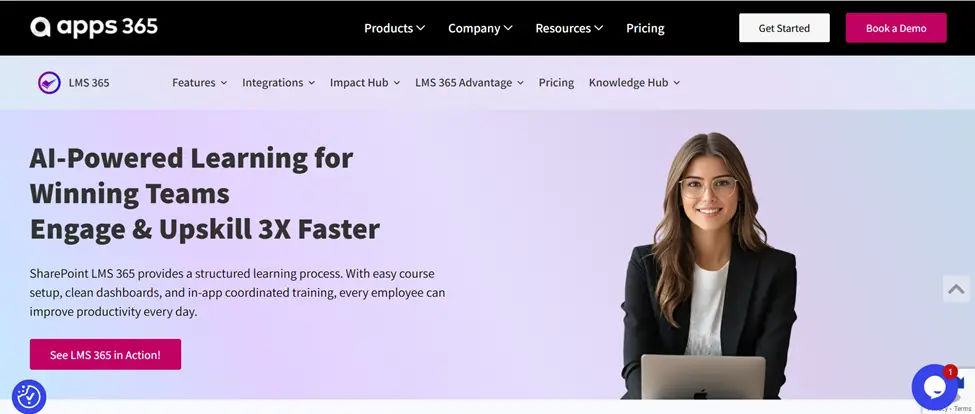
LMS 365 is a cloud-based learning management system built directly within Microsoft 365. Unlike traditional LMS platforms that require separate logins and environments, LMS 365 integrates seamlessly with tools like Microsoft Teams, SharePoint, and Outlook.
This makes it a powerful option for organizations that want to create and deliver training without disrupting existing workflows.
Overview:
A fully integrated LMS that allows organizations to build, manage, and track eLearning courses inside their Microsoft environment.
Best For:
Mid-sized to large organizations already using Microsoft 365
Key Features:
- AI-powered course creation and content suggestions
- Native integration with Teams, SharePoint, and Outlook
- Automated enrollment based on roles and departments
- Built-in compliance tracking and certification management
- Power BI integration for advanced analytics and reporting
Why It Stands Out:
LMS 365 removes the need for a separate learning platform. Employees can access training directly within the tools they already use daily, which significantly improves adoption and completion rates.
2. Articulate 360
Articulate 360 is one of the most popular eLearning authoring tools used by instructional designers to create highly interactive and visually engaging courses. It includes tools like Storyline (for advanced interactivity) and Rise (for responsive, web-based courses).
Overview:
A comprehensive authoring suite designed for creating professional, interactive eLearning content.
Best For:
Instructional designers and organizations focused on high-quality course design
Key Features:
- Drag-and-drop course builder
- Interactive elements like quizzes, branching scenarios, and animations
- Pre-built templates and content blocks
- Responsive course design for mobile and desktop
- Collaboration tools for team-based content development
Why It Stands Out:
Articulate 360 gives full creative control over course design, making it ideal for organizations that want visually rich and highly customized learning experiences.
3. iSpring Suite
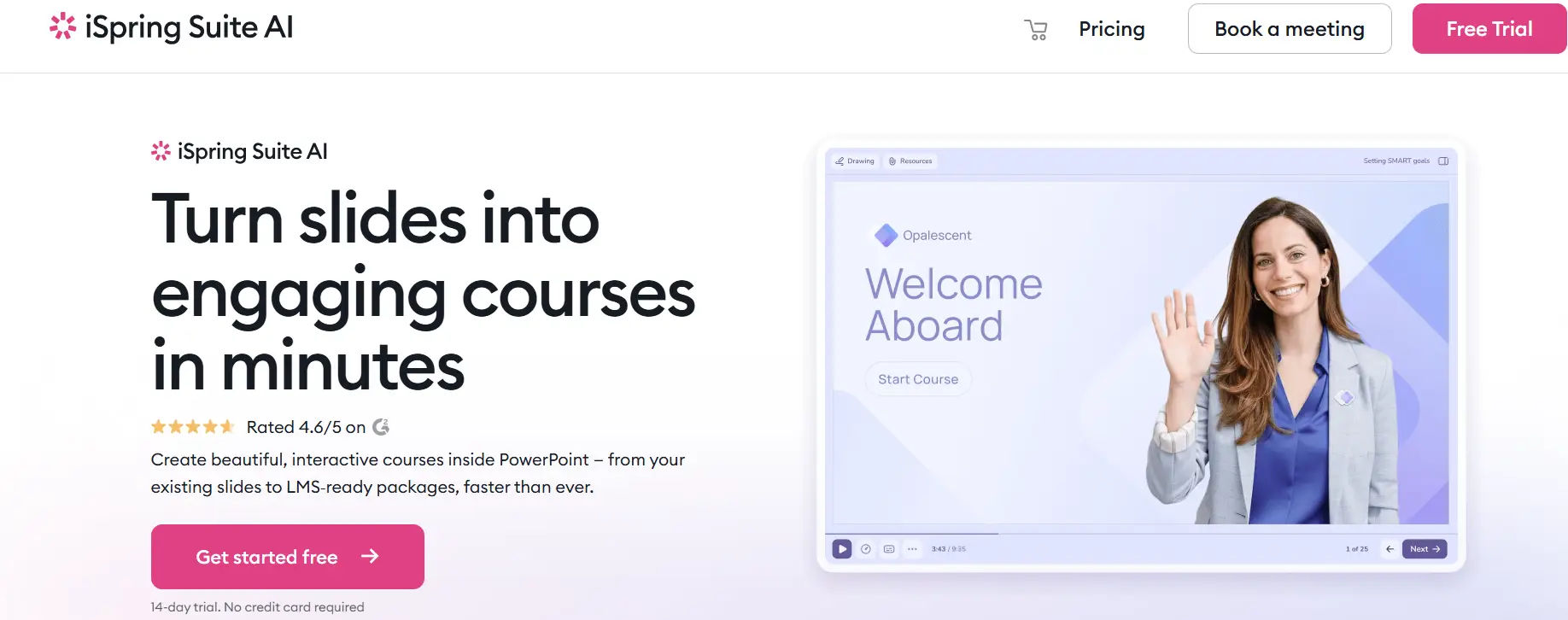
iSpring Suite is a simple and powerful eLearning authoring tool that works directly with PowerPoint. It is widely used by companies that want to create professional training content quickly without needing advanced design skills.
Overview:
An easy-to-use eLearning tool that converts PowerPoint presentations into interactive online courses.
Best For:
Employee training, onboarding programs, and soft skills training content
Key Features:
- Converts PowerPoint slides into interactive courses
- Built-in quiz maker with multiple question types
- Video lectures and screen recording options
- Role-play simulations for real-life scenarios
- Mobile-friendly and LMS compatible
Why It Stands Out:
iSpring Suite stands out for its simplicity and speed. It allows teams to create engaging training content using familiar tools, which reduces learning time and increases adoption. It is especially useful for organizations that want quick and effective training without complex software.
4. TalentLMS
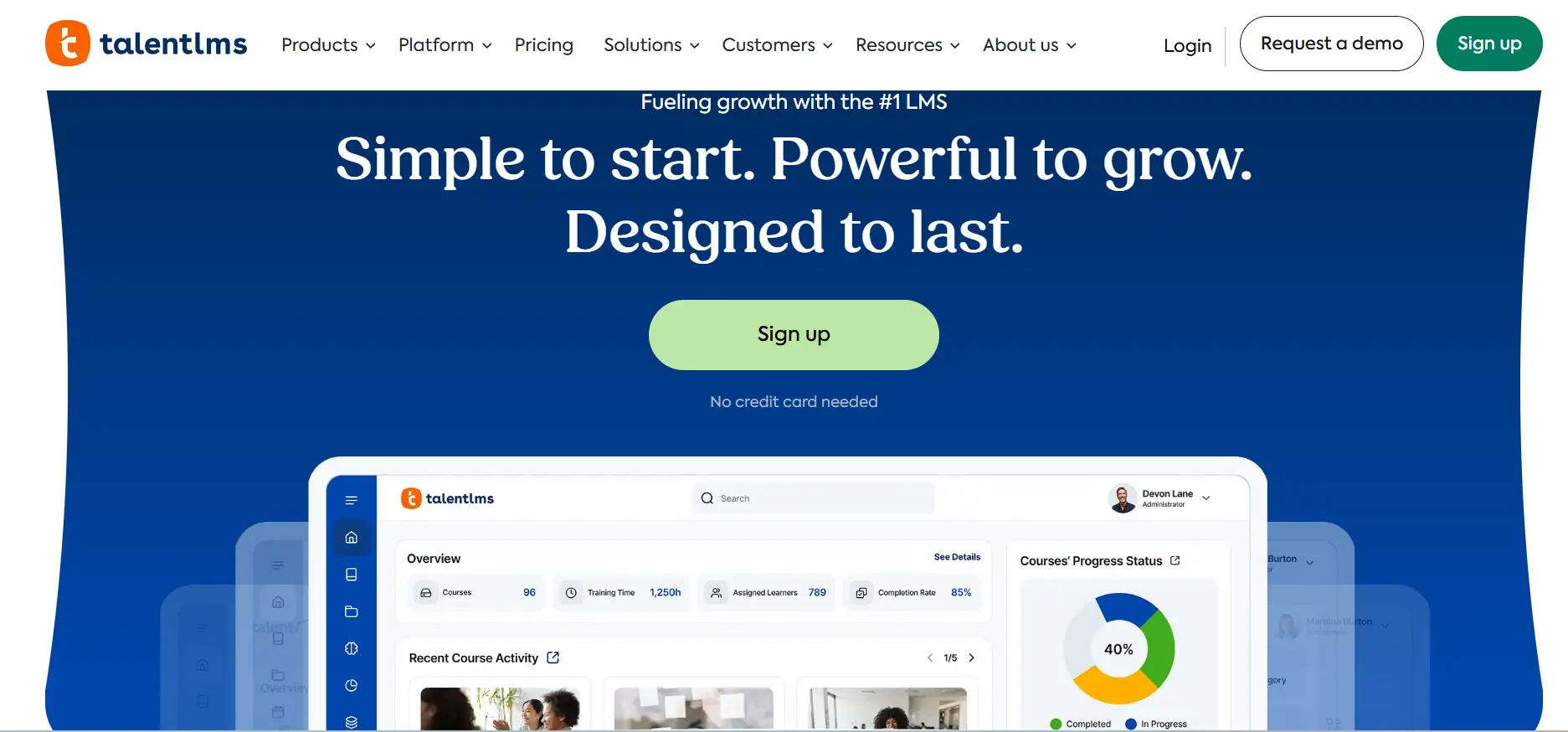
TalentLMS is a cloud-based LMS designed for simplicity and quick deployment. It provides essential course creation and management features without requiring extensive technical expertise.
Overview:
A user-friendly LMS that enables organizations to create and deliver courses quickly.
Best For:
Small to mid-sized businesses looking for an easy-to-use solution
Key Features:
- Simple course builder with multimedia support
- Built-in quizzes and assessments
- Gamification features like badges and leaderboards
- Reporting and learner tracking
- Integration with third-party tools
Why It Stands Out:
TalentLMS is easy to set up and use, making it a great choice for organizations that want to launch training programs quickly without a steep learning curve.
5. Thinkific
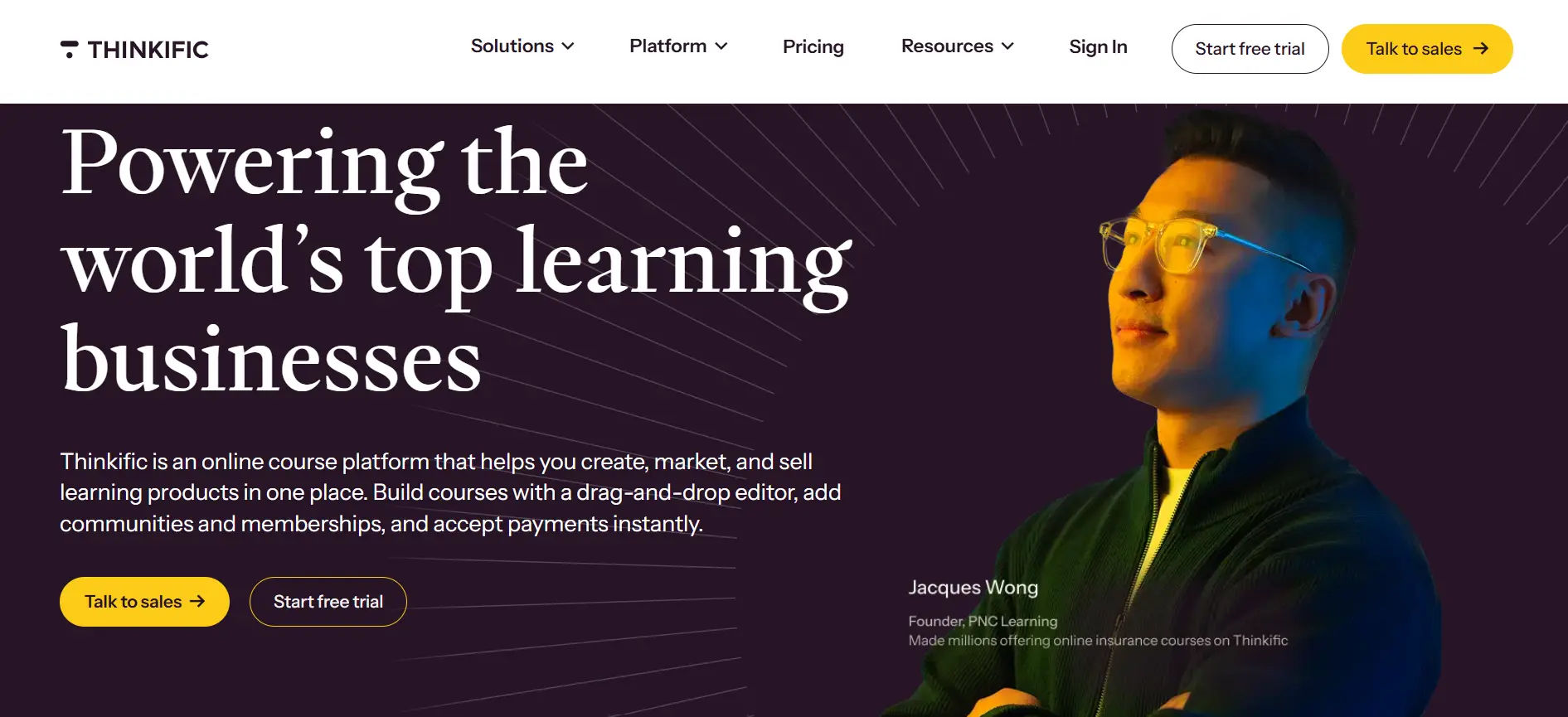
Thinkific is a platform designed primarily for individuals, educators, and businesses that want to create and sell online courses. It focuses on content delivery and monetization rather than internal corporate training.
Overview:
An all-in-one platform for creating, marketing, and selling online courses.
Best For:
Entrepreneurs, coaches, and training businesses
Key Features:
- Course builder with multimedia content support
- Customizable course websites and landing pages
- Payment processing and subscription options
- Student progress tracking
- Marketing and sales tools
Why It Stands Out:
Thinkific combines course creation with monetization tools, making it ideal for those looking to generate revenue from their eLearning content.
Key Features of LMS 365
LMS 365 is designed to simplify how organizations create, deliver, and manage learning. Instead of relying on multiple tools, it brings everything into one connected system inside Microsoft 365, making training more accessible, structured, and measurable.
Here’s a closer look at the key features that make LMS 365 a powerful eLearning solution:
- AI-powered course creation — Build courses faster with intelligent suggestions that help you structure content, generate assessments, and create engaging learning experiences without needing technical expertise.
- Microsoft 365 native integration — Seamlessly works within Microsoft Teams, SharePoint, Outlook, and Copilot, allowing learners to access training without switching between platforms.
- Single sign-on access — Learners can log in using their existing Microsoft credentials, removing the need for additional passwords and reducing access friction.
- Automated enrollment — Assign courses automatically based on roles, departments, or user groups, ensuring the right people receive the right training at the right time.
- Compliance and certification management — Track mandatory training, manage certification expiry dates, and maintain audit-ready records with automated reminders and reporting.
- Mobile learning with offline access — Enable employees to learn anytime, anywhere, even without an internet connection, with progress syncing once they are back online.
- Advanced analytics with Power BI — Go beyond basic reporting with detailed insights into learner progress, course effectiveness, and skill gaps using interactive dashboards.
- Gamification elements — Increase learner engagement with badges, leaderboards, and milestones that encourage participation and completion.
- Blended learning support — Combine online courses with instructor-led sessions and live webinars through Microsoft Teams for a more flexible learning experience.
- SCORM and xAPI compatibility — Import and use content from other authoring tools, making it easy to reuse existing training materials without starting from scratch.
- Scalability for growing organizations — Whether you have a small team or a global workforce, LMS 365 scales effortlessly to support your learning needs.
Common Mistakes to Avoid When Using LMS 365
Even with a powerful platform, these errors can limit your results:
- Skipping the objectives step — Courses without clear goals become content dumps
- Not using automated enrollment — Manual assignment creates gaps and delays
- Ignoring the Power BI integration — Built-in reports are good, but Power BI unlocks real insights
- Creating courses that are too long — Break content into 5 to 10-minute microlearning modules
- Forgetting mobile learners — Always test your course on a phone before publishing
- Never updating content — Set a calendar reminder to review each course at least once a year
- Underestimating content creation time — AI tools help, but plan for realistic development timelines
Conclusion
Investing in eLearning is one of the smartest moves your organization can make. LMS 365 makes training simple, effective, and measurable by embedding learning directly into Microsoft 365. No new platforms, no complex IT setup, and no manual tracking just automated enrollment, real-time progress tracking, and seamless access for employees. With LMS 365, your team can close skill gaps, meet compliance requirements, and build a culture of continuous learning.
See LMS 365 in action with a free demo, learn how to create your first AI-powered course, enroll your team automatically, track certifications in real time, and deliver training employees actually complete.
Frequently Asked Questions
What exactly is LMS 365 and how is it different from other LMS platforms?
LMS 365 is a cloud-based Learning Management System built natively inside Microsoft 365. Unlike standalone LMS platforms, it runs directly within Microsoft Teams, SharePoint, and Outlook tools your employees already use every day. There is no new software to install, no new logins to manage, and no complex IT setup required. Learners access training in the same environment where they do their daily work, which dramatically increases adoption and completion rates.
Does my organization need Microsoft 365 to use LMS 365?
Yes. LMS 365 is designed specifically for organizations already using Microsoft 365 (formerly Office 365). If your team uses Teams and SharePoint, LMS 365 integrates seamlessly with your existing environment. It leverages your Azure Active Directory, existing security policies, and Microsoft licensing making it the most cost-effective and easiest LMS to deploy for Microsoft-based organizations.
How long does it take to set up LMS 365?
LMS 365 can be implemented in minutes, not months. Because it uses your existing Microsoft 365 infrastructure including Azure Active Directory for user management and Teams or SharePoint for delivery there is no complex installation or data migration. Most organizations have their first course live within hours of setup.
Can non-technical employees create courses in LMS 365?
Absolutely. LMS 365’s drag-and-drop course builder and AI-powered authoring tools are designed for non-technical users. Subject matter experts, HR managers, and team leaders can build professional eLearning courses without any coding or instructional design background. AI-generated course introductions and quiz questions further speed up the process.
How does LMS 365 handle compliance training and certifications?
LMS 365 includes full compliance management capabilities. You can set certificate expiry dates, configure automatic re-enrollment reminders before certifications lapse, generate full audit trails with timestamps, and view real-time compliance dashboards across your entire organization. This makes LMS 365 particularly strong for industries with strict regulatory requirements such as healthcare, finance, and manufacturing.
What types of content can I use in LMS 365 courses?
LMS 365 supports a wide range of content types including videos (Microsoft Stream), PowerPoint presentations, Word documents, PDFs, Microsoft Forms quizzes, SCORM packages, xAPI content, Microsoft Sway pages, and live Teams webinar sessions. Your existing Office files work directly inside LMS 365 with no conversion needed, which is a significant time saver.
How does LMS 365 report on learner progress and training effectiveness?
LMS 365 has built-in reporting dashboards that show completion rates, assessment scores, time-on-course, and compliance status in real time. For deeper analytics, it connects directly to Microsoft Power BI, allowing administrators to build custom visual dashboards, identify skill gaps across departments, and produce audit-ready compliance reports.
How is LMS 365 priced?
LMS 365 uses a per-user subscription model, billed annually. Plans include Standard, Professional, and Select tiers with the Standard plan covering core LMS features including AI course creation, automated enrollment, and reporting. The Professional plan adds advanced skill management, external learner access, and advanced AI tools. Pricing scales with the number of users, making it affordable for both small businesses and large enterprises. Contact the LMS 365 team for a personalized quote based on your organization size and requirements.


_JiluXJRGNl.svg)