
Most project budgets don’t fail in one dramatic moment. They leak. A contractor invoice here, a travel claim there, a software subscription nobody remembers approving. By the time someone finally opens the spreadsheet, the gap between plan and reality has been widening for weeks.
That slow leak is exactly what project budget management software is built to catch. If your numbers still live in a spreadsheet and a handful of email threads, this guide is for you.
- Project budget management software tracks planned versus actual spend in one place, so overruns surface while you can still do something about them.
- Budgeting sets the plan. Budget management keeps that plan honest every week. You need both.
- Judge tools on real-time tracking, approvals, receipt capture, reporting, and integrations before you look at price.
- The 10 tools below span Microsoft 365-native, project management, professional services, and accounting options, so you can match the tool to how your team actually works.
What Is Project Budget Management Software?
Project Budgeting vs. Project Budget Management: Key Differences
These two terms get used as if they mean the same thing. They don’t, and the difference shapes what you should buy.
| Project Budgeting | Project Budget Management |
Core question | What do we expect this to cost? | What is it costing right now, and what do we do about it? |
Timing | Mostly before work starts | Ongoing, from kickoff to close |
Main activity | Estimating costs, setting limits by phase or category, getting sign-off | Logging actual spend, approving or rejecting new costs, adjusting when reality shifts |
Nature | A forecast | A live comparison of plan versus actual |
Data needed | Estimates and assumptions | Timely, shared, trustworthy data |
Spreadsheet fit | Decent | Struggles, because someone has to remember to update the sheet and everyone else has to trust that they did |
What to look for in software | Tools to build and approve the plan | Tools that carry the plan into daily tracking and approvals |
So the practical takeaway is simple. If a tool only helps you build the budget, you’ve bought half a solution. Budgeting sets the number, but management is where most projects quietly succeed or fail, and it’s the question that comes up in every status meeting, so it deserves the better tooling.
Why Teams Need Project Budget Management Software
Spreadsheets are fine until they aren’t. Here’s where they usually give out, and what dedicated software changes.
- Costs show up late. When expenses are entered weeks after they happen, you’re steering by old information. Software captures spend close to when it occurs.
- Nobody sees the same numbers. Project managers, finance, and stakeholders each end up with their own version. A shared system gives everyone one source.
- Approvals get lost. Email approvals are easy to miss and hard to audit. Built-in workflows leave a clear record of who approved what.
- Receipts go missing. Chasing paper or screenshots eats time. Digital capture keeps proof attached to the claim.
- Reporting is manual. Building status reports by hand is slow and error-prone. Good software generates them from live data.
None of this is glamorous. In my view, the value of these tools is boring in the best way: fewer surprises, fewer end-of-month scrambles, and fewer awkward conversations with a client or sponsor about why the number moved.
Key Features to Look for in Project Budget Management Software
Feature lists get long fast. These are the ones that matter most.
- Real-time budget vs. actual tracking. This is the core. You should see planned and actual spend side by side, ideally by phase, category, or task.
- Expense capture and receipt scanning. Spend that’s hard to log won’t get logged. Look for simple submission, mobile access, and receipt capture.
- Approval workflows. Configurable approvals, based on amount, department, or reporting line, keep spending inside the limits you set.
- Alerts and thresholds. A warning at 80% of budget beats a surprise at 110%. Make sure alerts are configurable.
- Reporting and dashboards. You’ll need clear reports for sponsors and finance. Check that you can filter, export, and share them without extra tools.
- Integrations. The tool should connect with your accounting system and collaboration tools. Otherwise you’ve just built another silo.
- Multi-currency support. If vendors or travelers work across borders, you’ll want automatic currency conversion so reports stay consistent.
- Security and access control. Budgets are sensitive. Role-based access, audit trails, and clear data ownership matter, especially in regulated industries.
- Ease of use. If people dodge a clunky tool, your data will be incomplete, and incomplete data is worse than a messy spreadsheet.
Expense 365: A Smarter Way to Manage Project Budgets in Microsoft 365
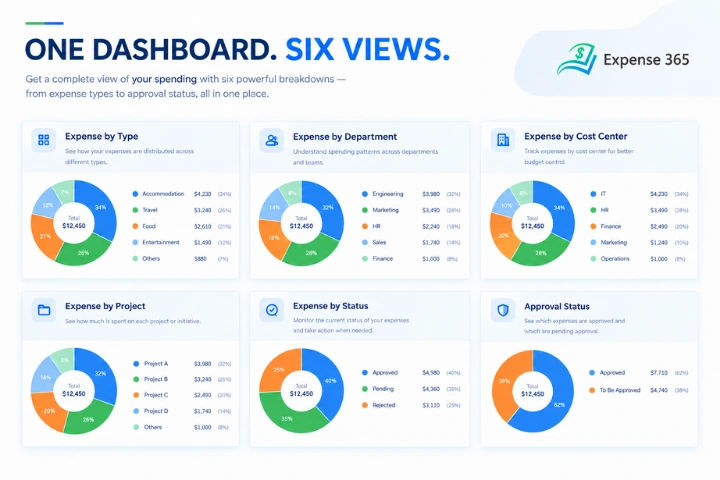
Expense 365 It’s an expense Tracking software made for the Microsoft 365 ecosystem, which makes it a natural fit for project teams that already live in Teams, SharePoint and Outlook.
Here’s how it helps on the budget side. Employees submit expenses and upload receipts and AI-powered scanning pulls the details out for them. Approvals follow multi-level workflows that can be set by expense value, department, or reporting hierarchy. Records and receipts are stored in SharePoint, so your data stays inside your Microsoft 365 environment. It also handles multiple currencies and corporate card management and it integrates with Teams, Azure and Dynamics 365.
Security is a real selling point. It’s Microsoft 365 Certified, backed by SOC 2 compliance and supports GCC and GCC High environments.
To be fair about scope, Expense 365 is a app to track spending, not a full project planning suite. It’s strongest at controlling the spending side of a project budget. Teams that need task scheduling or time-based billing will want to pair it with a project management tool.
10 Best Project Budget Management Software in 2026
Tool | Best for | Key budget feature |
Expense 365 | Microsoft 365 teams needing project budget and expense control | Track project budgets against actual expenses, monitor spending and receive alerts when costs exceed planned limits. |
Smartsheet | Custom budget dashboards and automation | Budget rollups, forecasts and dashboards |
ClickUp | All-in-one tasks, docs and budget tracking | Custom budget fields, dashboards and cost formulas |
Teamwork | Agencies and client project profitability | Time-based budget tracking and live project margins |
Wrike | Enterprise work and project financials | Project budgets, resource planning and financial dashboards |
Productive | Agency utilization, budgets and profitability | Project budgets, billing rates and profitability tracking |
QuickBooks | Project accounting and job costing | Job costing, project budgets and financial reports |
Scoro | End-to-end business and financial management | Budgets, forecasts, margins and financial reporting |
Zoho Projects | Affordable project budget tracking | Project budgets, timesheets and billing rates |
Microsoft Project | Enterprise scheduling and portfolio budgeting | Project scheduling, resource planning and portfolio budgets |
Expense 365 is expense tracking software, built natively for Microsoft 365, so submissions, approvals and records stay inside Teams, SharePoint and Outlook. It lets project teams track budgets across multiple projects and get real-time alerts when spend nears a limit. It’s a strong pick for controlling the spending side of a project budget.
Key features:
- Multiple project budget tracking: Monitor budgets for several projects side by side in one place.
- Real-time spend reporting: See current spending without waiting for a month-end report.
- Real-time budget alerts: Get notified as spend approaches or crosses a budget limit.
- Multi-level approvals by value, department, or hierarchy: Route each expense to the right approver based on amount, team, or reporting line.
- Customizable expense categories: Adjust categories to match how your projects classify costs.
- Multi-currency support with real-time conversion: Handle international receipts with current exchange rates in your reports.
- Sync with Xero, QuickBooks and Zoho books: Pass billing data to your accounting software automatically
Expense 365 is the best choice for Microsoft 365 teams that want to track project expenses against budgets, monitor budget utilization, automate approvals and receive alerts before overspending.
Still finding out about budget overruns after the money is spent?
Microsoft Project is Microsoft’s long-standing planning and scheduling tool. It suits teams that want detailed plans with cost estimates attached and it fits neatly into Microsoft 365. One competitor roundup flags real-time collaboration as a gap, so test that in a trial.
Key features:
- Built-in cost estimation: Attach cost estimates to tasks and resources while you plan.
- Budget forecasting: Project the likely final cost from the plan and current progress.
- Financial reports on cost variances: Compare planned and actual cost to see where you’ve drifted.
- Gantt-based scheduling: Lay out tasks and dependencies on a visual timeline.
- Resource assignments: Assign people to tasks so labor cost stays tied to the plan.
- Microsoft 365 integration: Works alongside the Microsoft tools your team already uses.
Zoho Projects is a project management software that includes project budgeting, earned value management and timesheets. It’s a good match for teams already using other Zoho apps and it connects neatly with Zoho Expense.
Key features:
- Project budgets: Set a budget per project and track hours, costs and forecasts against it.
- Earned value management (EVM): Measure progress against cost and schedule to judge project health.
- Time logs: Record time against tasks as the work happens.
- Timesheets: Roll logged time into timesheets for review and costing.
- Tasks, durations and subtasks: Break work into tasks with set durations to plan effort.
- Integration with Zoho Expense: Connect expense data from Zoho’s expense tool to your projects.
Smartsheet is a spreadsheet-style work management platform, so the grid feels familiar to Excel users. Its project time tracking software, fee and expense budgets sit in its resource management tools. Multi-currency support is limited.
Key features:
- Time, fee and expense budgets: Budget labor hours, labor dollars and non-labor costs separately.
- Predefined and custom expense categories: Estimate and track specific costs such as vendors or travel.
- Budgeted versus actual spend in Gantt view: See budget and actual cost right next to the schedule.
- Custom cost columns with formulas: Calculate totals and variances the way you would in a spreadsheet.
- Automated approval workflows: Route cost requests for sign-off without manual follow-up.
- Conditional formatting for over-budget items: Highlight rows that exceed budget at a glance.
ClickUp puts tasks, docs and dashboards in one workspace, so costs can sit next to the work. Budgeting is flexible but largely something you build with custom fields and views. Expect a learning curve at first.
Key features:
- Custom fields for estimated and actual costs: Record costs and billing rates directly on each task.
- Dashboards for spend versus forecast: Chart actual spending against your forecast in one view.
- Budget burn-rate views: Show how quickly the budget is being used up.
- Table view for budget versus actuals: Compare budgets to actuals and group expenses by cost type or approval status.
- Billable time tracking with alerts: Track billable hours and get warned when tasks run past estimates.
- QuickBooks and Xero integrations: Connect cost data to your accounting system
Teamwork is built for client-facing teams that bill for their time. It focuses on time budgets and billable hours and its free plan covers five users. Some advanced features need higher-tier plans.
Key features:
- Time budgets in total hours: Set a total-hours target for each project.
- Custom and repeating budget periods: Apply a budget to a date range or repeat it weekly or monthly.
- Billable, non-billable, or all-time usage: Choose which logged time counts against the budget.
- Alerts at set usage percentages: Notify members by email or mobile push when usage hits a threshold.
- Billable and non-billable rates: Set rates so logged time converts into cost or revenue.
- Invoices from time entries: Turn logged time into client invoices.
fields on top of task effort and time tracking. Budgeting sits on higher-tier plans, so confirm availability for your account.
Key features:
- Financial fields for planned and actual fees and costs: Auto-calculate planned and actual fees and costs on each project.
- Default hourly rates by user and job role: Set standard rates once and reuse them everywhere.
- Custom rates per project: Override the defaults when a project has its own pricing.
- Billable time settings: Mark which time counts as billable.
- Time tracking tied to budgets: Feed logged time straight into budget progress.
- Permissions controlling who sees financials: Limit who can view financial details.
Productive is a professional services platform that shows spend and profitability in real time. It supports fixed-price, hourly and retainer budgets, which suits agencies and consultancies. One roundup notes a learning curve.
Key features:
- Fixed-price, hourly and non-billable budgets: Match the budget type to how the work is priced.
- One-off budgets and retainers: Cover single projects and recurring monthly work.
- Rate cards and project phases: Apply default or client-specific rates and split large projects into phases.
- Overrun and profit-margin forecasts: Predict where budget and margin are heading.
- Custom budget threshold alerts: Trigger automated alerts when a budget threshold is reached.
- Purchase orders and expense approval: Request third-party services and approve team-submitted expenses.
QuickBooks is accounting software first, with a Projects feature in QuickBooks Online. It tracks income, costs and profit per project, which is practical when finance already lives there. It won’t replace a planning tool.
Key features:
- Income, cost and profit margin per project: See at a glance whether each project is making money.
- Labor costs from payroll or hourly rates: Base labor cost on actual payroll or estimated hourly rates.
- Labor separated from other project costs: Keep people costs apart from other spend.
- Project timesheets: Log employee hours against specific projects.
- Invoices from billable timesheets: Bill clients directly from tracked time.
- Customizable project reports: Adjust reports, including which labor cost method they use.
Scoro combines project, resource and financial management for consultancies, agencies and similar service firms. It connects estimates, billing and profitability in one workflow. One roundup says integrations beyond accounting tools are limited.
Key features:
- Estimating and budgeting app: Plan project costs before work starts.
- Effort, price and margin by deliverable: Model each deliverable in a matrix view.
- Cost and revenue targets per project: Set targets for each project and measure results against them.
- Client billing and invoicing: Issue invoices from the same system.
- Profitability by client, project, or team: See which clients, projects, or teams are profitable.
- Sync with Xero, QuickBooks and Sage Intacct: Pass billing data to your accounting software automatically.
How to Choose the Right Project Budget Management Software
Start with the problem, not the product. Is your trouble late expense capture, weak approvals, or poor visibility across projects? Different tools fix different things.
Then work through a few questions:
- Where does your team already work? A tool inside your existing ecosystem gets adopted faster.
- Who needs access? Finance, project managers and executives need different views.
- How complex is your spend? Simple expenses and multi-vendor, multi-currency projects call for different depth.
- What must it connect to? Accounting and collaboration tools top the list.
- What will it cost at scale? Ask about minimum seats, per-user pricing and add-ons.
Then run a trial on one live project instead of a demo script. Two weeks of real use will tell you more than any sales call.
Get a walkthrough of how it keeps every project budget in check.
Best Practices for Implementing Project Budget Management Software
Buying the tool is the easy part. Getting people to use it is the real work. A few habits help:
- Start with one project: Prove it works, then roll it out.
- Define categories first: Messy categories make messy reports.
- Set approval rules early: Decide who approves what and at which amounts.
- Train for the daily habit: Submitting an expense should take a minute, so show people how.
- Review weekly: A short budget check-in catches drift while it’s still small.
- Tune your alerts: Start with sensible thresholds, then adjust after a month.
Conclusion
Budgets rarely fall apart because of one big mistake. They erode through small, untracked ones, which is why the right software matters more than a better spreadsheet. Focus on real-time tracking, simple approvals and a tool your team will actually open. Then test it on a real project. If your team works in Microsoft 365, Expense 365 is worth a look and the free trial makes that easy.
Frequently Asked Questions
What is project budget management software?
It’s software that plans, tracks and controls project costs. It records actual spend against the approved budget, so you can spot overruns early and keep approvals and reporting in one place.
How is it different from project management software?
Project management tools focus on tasks and schedules. Budget software focuses on cost. Many project management tools include budget features, but the depth varies, so check what’s actually included.
Can Excel handle project budgets?
For a small project with one person updating it, often yes. It tends to break down once several people submit costs, approvals matter, or you need live reporting.
Do I need a separate expense tool if my project management software has budgets
Not always. If your costs are mostly labor, built-in budgets may be enough. If you handle many receipts, travel claims and approvals, a dedicated expense tool gives you tighter control and a cleaner audit trail.