Project Management Tools Guide: Features, Comparisons and Best Options

Managing multiple projects can become difficult when tasks, deadlines, files, and team updates are spread across different systems. A manager may spend hours asking for progress updates while employees struggle to understand which tasks matter most. The right project management software helps teams organize work, assign responsibilities, monitor deadlines, and identify problems before they affect delivery.
- The best project management tools are those that fit your team’s work, existing systems, and reporting requirements.
- Start by identifying business challenges before comparing vendors.
- Prioritize clear task ownership, useful project views, reporting, and relevant integrations.
- Test the software with a real project before making a wider commitment.
- For organizations already using Microsoft 365, Task 365 is one option worth evaluating alongside other project management platforms.
However, choosing a tool is not always easy. Some platforms focus on simple task tracking, while others support complex projects, reporting, automation, and resource planning. This project management tools guide explains essential features, compares popular solutions, and shows how to select and implement software that fits your business.
What Are Project Management Tools?
- Project management tools are software applications that help individuals and teams plan, organize, assign, track, and complete project activities. They provide a shared workspace where employees can understand their responsibilities, review deadlines, and update progress.
- For example, a marketing team preparing a product launch may need to coordinate content, design, website updates, advertising, and approvals. Without a shared system, project information can become scattered across emails, spreadsheets, and chat conversations.
- Project management software brings these activities together so managers can understand project progress without requesting constant updates.
Common uses include:
- Planning projects and milestones
- Assigning tasks to employees
- Tracking deadlines and priorities
- Managing project documents
- Monitoring team workloads
- Reviewing project performance
- Automating recurring activities
The goal is not simply to complete more tasks. It is to make project responsibilities, progress, and potential delays easier to manage.
How Do Project Management Tools Work?
Most project management platforms follow a basic process.
Step 1: Create a project
- Start by defining the objective, expected results, deadline, and project owner.
Step 2: Break work into tasks
- Divide the project into smaller activities that employees can complete and track.
Step 3: Assign responsibilities
- Give each task an owner, priority, and target completion date.
Step 4: Track progress
- Employees update task statuses while managers review dashboards, boards, or timelines.
Step 5: Manage changes
- When deadlines shift or new work appears, update assignments and communicate the changes.
Step 6: Review results
- Compare completed work against project goals and identify lessons for future projects.
A consistent process helps teams maintain reliable records and reduces confusion about ownership.
Key Features to Look for in Project Management Tools
Not every organization needs the same features. Start with the problems your team faces most often.
1. Task Management
Task management helps teams create assignments, set priorities, add due dates, and monitor completion.
Look for clear ownership, task descriptions, comments, attachments, and status updates.
2. Project Planning and Scheduling
Planning tools help managers organize activities and identify important milestones.
Calendar and timeline views make it easier to understand when work should begin and finish.
For projects with connected activities, dependency tracking is especially useful.
3. Team Collaboration
Project collaboration features connect conversations, documents, and updates with relevant tasks.
This helps employees find project information without searching through long email threads.
4. Workflow Automation
Automation reduces repetitive administrative work.
Common examples include deadline reminders, approval notifications, task assignments, and status updates.
Before buying, check whether automation is included in the subscription or requires additional services.
5. Dashboards and Reporting
Project dashboards help managers review work without opening every individual task.
Useful metrics include overdue tasks, upcoming deadlines, completed milestones, and outstanding approvals.
6. Multiple Project Tracking
Organizations managing several projects need visibility across different teams and departments.
Multi-project views help leaders compare progress, identify competing priorities, and allocate attention where needed.
7. Integrations and Access Controls
Choose software that works with your existing communication, document, and business applications.
Also review user permissions, data storage, audit requirements, and administrative controls.
A long feature list is less valuable than features employees can use consistently.
Best Project Management Tools to Consider

Task 365
Task 365 is designed for organizations working within Microsoft 365.
It supports task assignments, project tracking, multiple views, dashboards, and connections with Microsoft Teams, SharePoint, and Planner.
It is worth evaluating when teams want to manage work within their existing Microsoft environment.
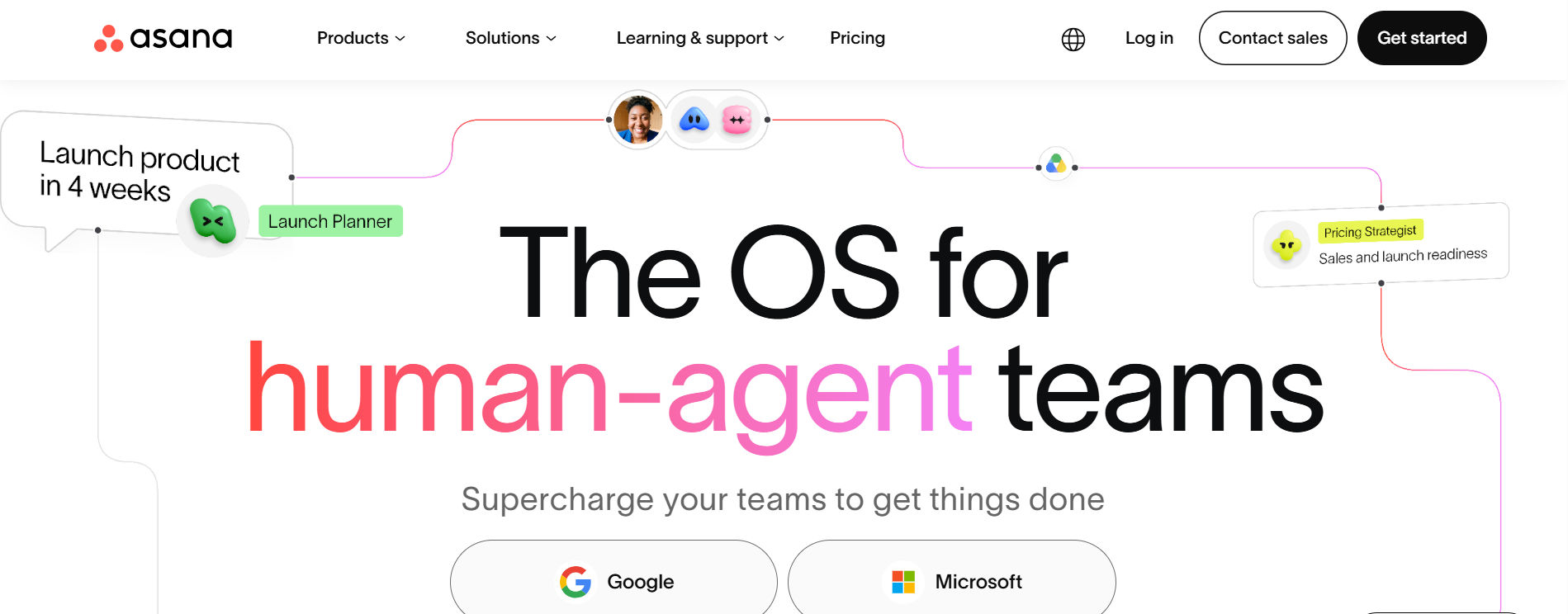
Asana
Asana supports structured project coordination across departments.
It is useful for marketing campaigns, operational projects, and work involving multiple stakeholders.
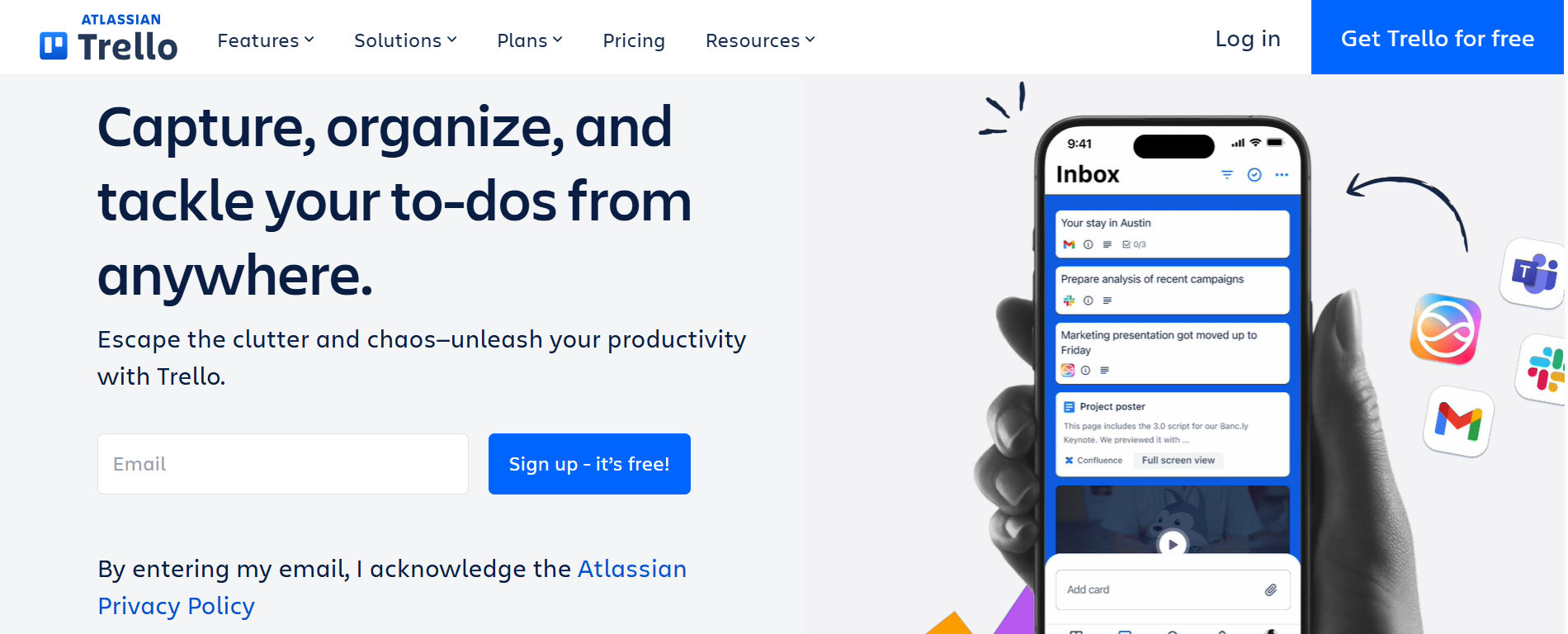
Trello
Trello uses visual boards to organize tasks into stages.
It is a practical option for teams that prefer a simple approach to tracking work.
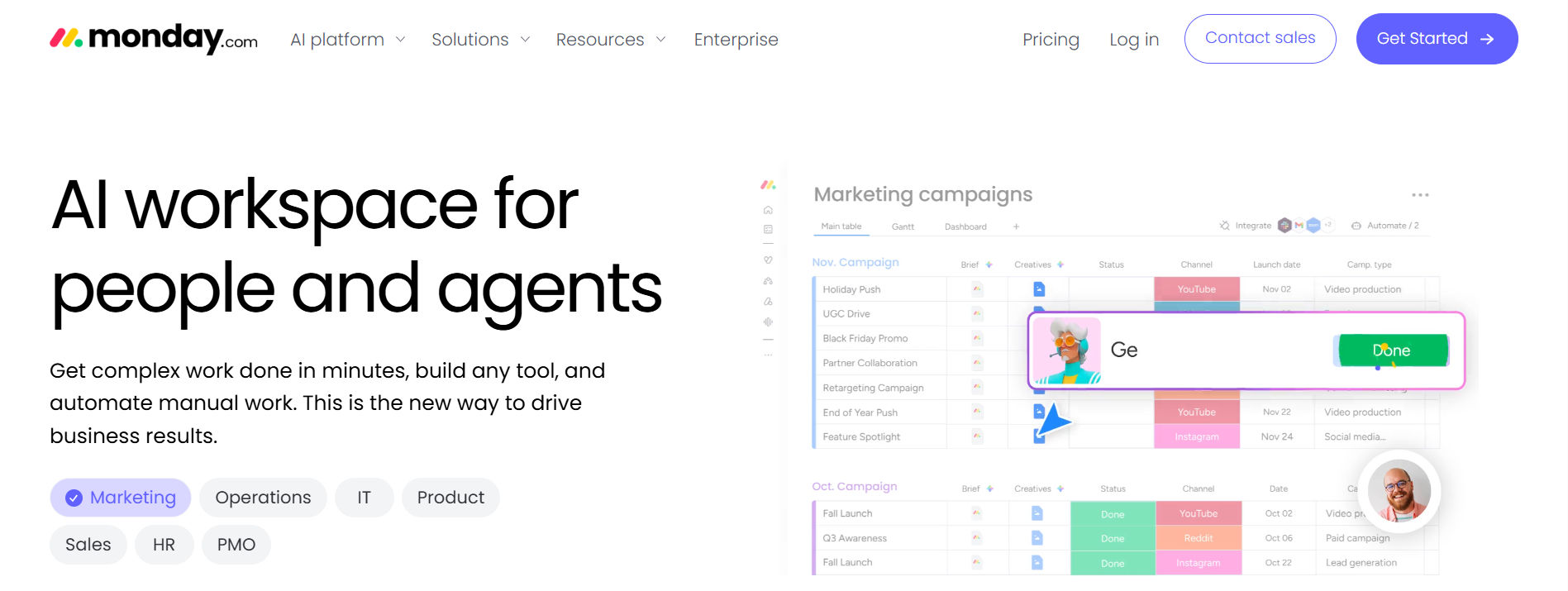
Monday.com
Monday.com offers customizable workflows, project boards, and reporting.
It may suit organizations that need different processes across departments.
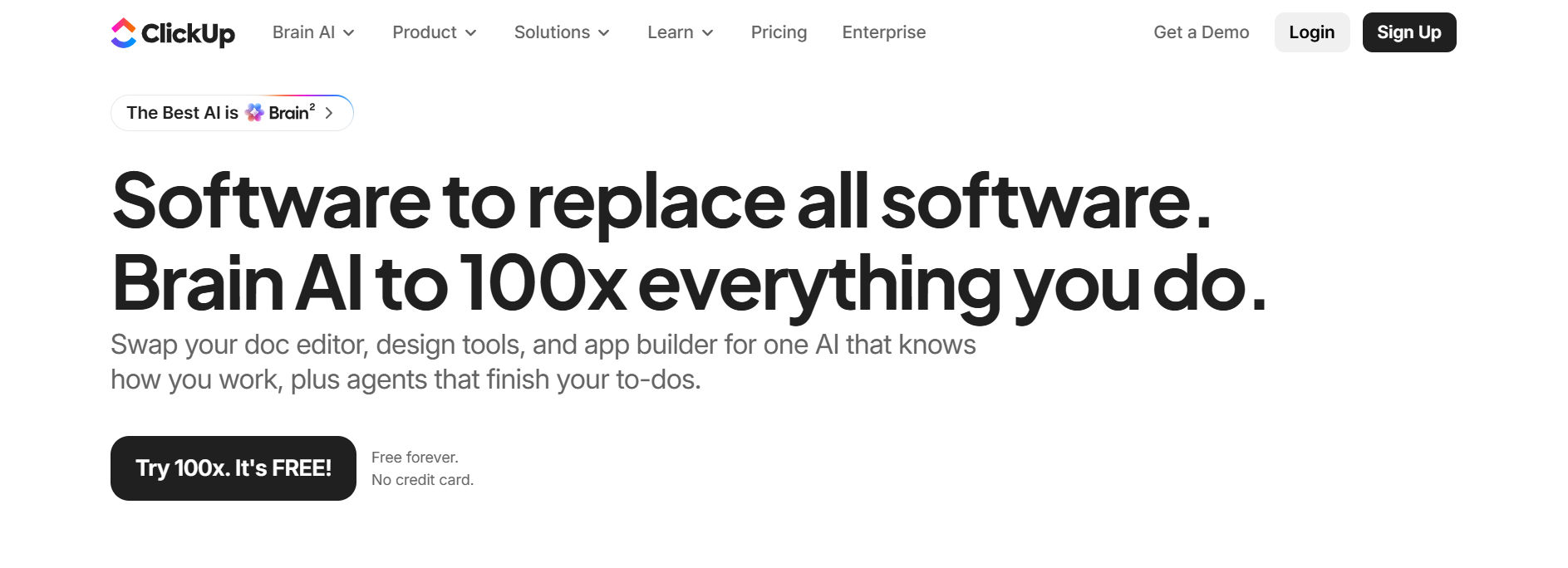
ClickUp
ClickUp combines task management, documents, dashboards, and several planning views.
Teams should evaluate how much configuration and training they need.
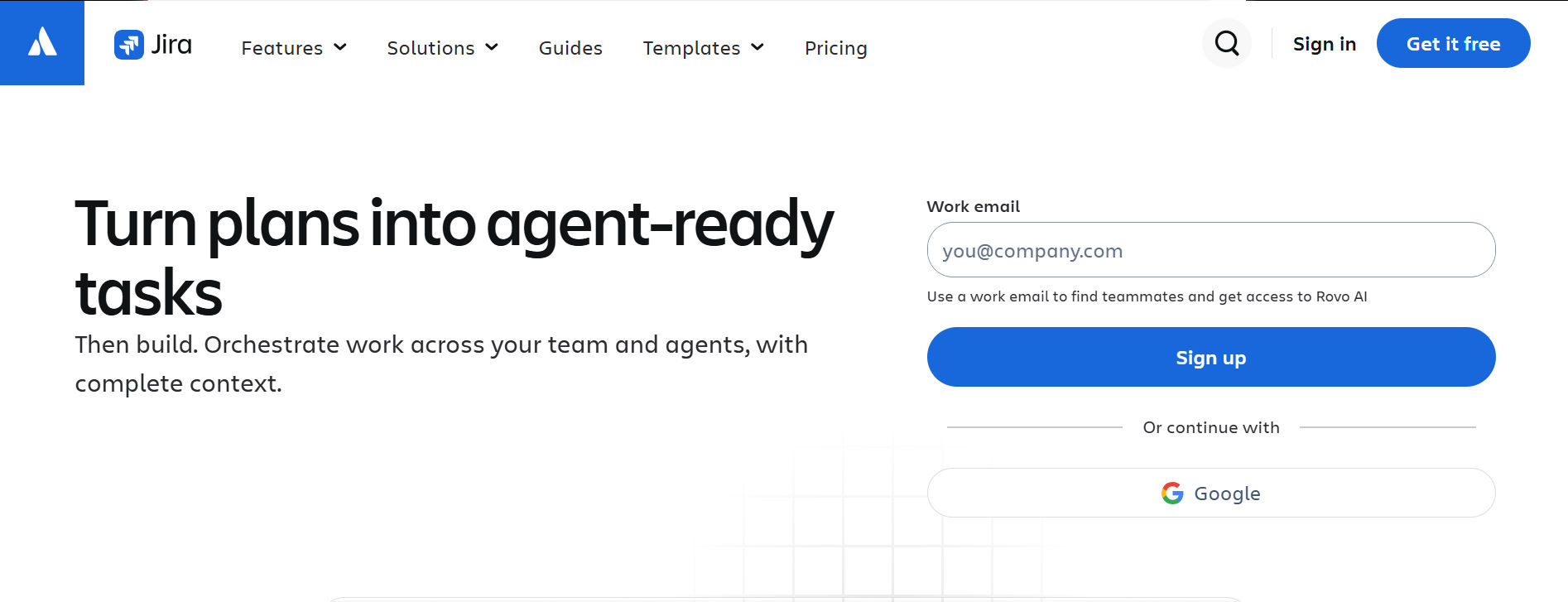
Jira
Jira focuses on software development and issue tracking.
It is commonly considered by engineering teams using agile project methods.
Microsoft Planner
Microsoft Planner helps Microsoft 365 users organize tasks, assignments, and team plans.
Organizations should compare its available capabilities against their reporting and project complexity requirements.
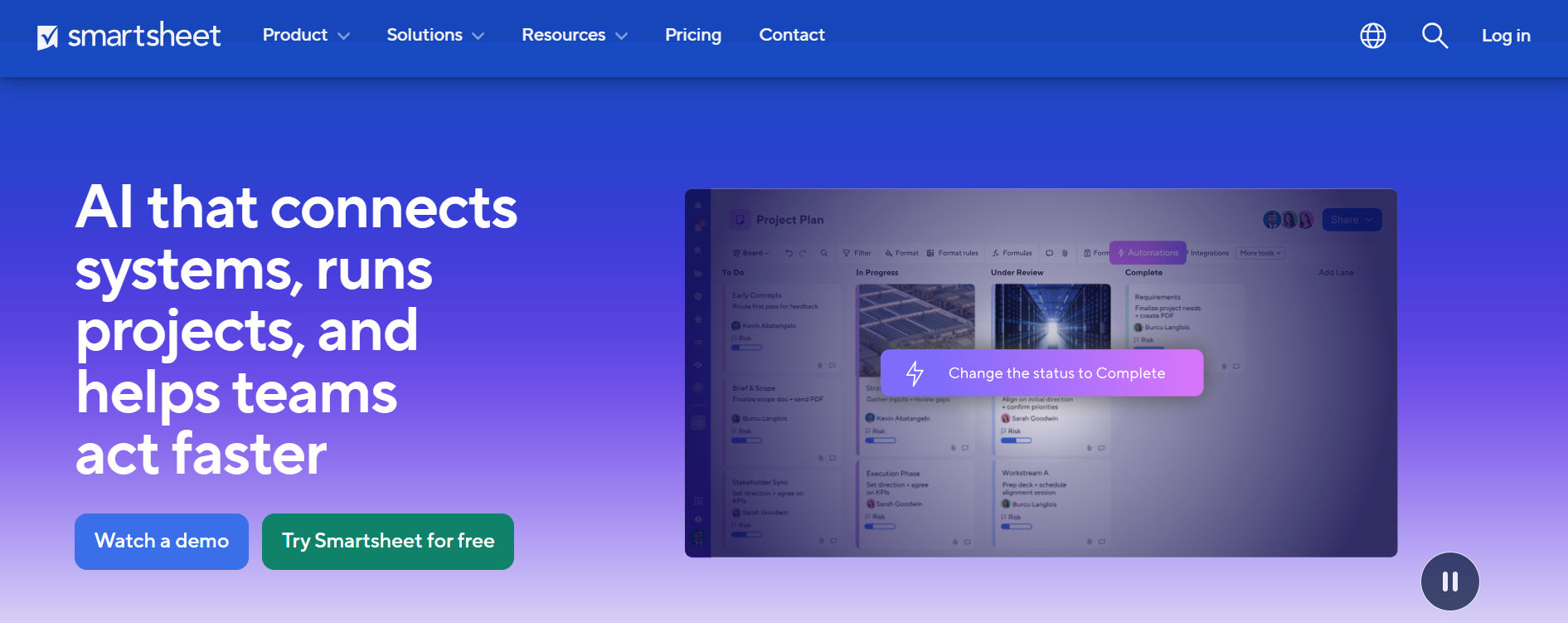
Smartsheet
Smartsheet provides spreadsheet-style project organization with collaboration and reporting features.
It may appeal to teams moving beyond traditional spreadsheet tracking.
How to Choose the Right Project Management Software
Selecting software should begin with business requirements, not vendor popularity.
Identify Your Main Challenges
Ask employees where project work becomes difficult.
Common problems include missed deadlines, unclear ownership, manual reporting, and disconnected applications.
Define Must-Have Features
Separate essential capabilities from optional features.
For example, a small operations team may need task assignments, reminders, and dashboards but not advanced portfolio planning.
Evaluate Existing Integrations
Check whether the platform connects with applications employees already use.
Microsoft 365 organizations may prioritize SharePoint, Teams, Outlook, and Planner compatibility.
Compare Total Costs
Look beyond the advertised subscription price.
Consider implementation, training, integrations, premium features, administration, and future user growth.
Test a Real Project
Use a short pilot with actual employees and realistic assignments.
Ask participants whether they can find tasks, update progress, and understand deadlines without additional assistance.
Use a Weighted Evaluation Scorecard
Example:
Evaluation Criteria | Weight |
Essential features | 30% |
Integrations | 20% |
Ease of use | 20% |
Reporting | 15% |
Total cost | 10% |
Support | 5% |
Score each vendor from one to five, multiply by the assigned weight, and compare the totals. This method makes purchasing decisions easier to explain and review.
Practical Example: Managing a Product Launch
Consider a hypothetical company preparing to launch a new software product.
The marketing manager must coordinate content, design, advertising, website updates, and final approvals.
Without project management software, employees may depend on emails and separate spreadsheets. A shared project workspace creates a more structured process.
Project plan:
Task | Owner | Deadline | Status |
Finalize product messaging | Marketing | Day 3 | Completed |
Design campaign graphics | Design | Day 6 | In progress |
Prepare landing page | Web team | Day 8 | In progress |
Review campaign content | Manager | Day 10 | Pending |
Launch campaign | Marketing | Day 12 | Pending |
- Each employee can review assignments and update progress.
- The manager can identify unfinished work before the launch date.
- If the landing page requires approved messaging, that dependency should be recorded and monitored.
This example shows why clear ownership and connected tasks matter more than simply creating a long checklist.
Project Management Tools for Microsoft 365 Teams
Organizations using Microsoft 365 may already manage project information through Teams, SharePoint, Outlook, and Planner. However, work can become difficult to follow when project updates and assignments remain spread across different applications. Task 365 provides additional task and project management capabilities within the Microsoft 365 ecosystem. Its documented capabilities include:
- Multi-project tracking: Review work across multiple projects from a shared workspace.
- Flexible project views: Use list, board, calendar, and timeline views to organize activities.
- Microsoft integrations: Connect task management with SharePoint, Teams, and Planner.
- Task assignments: Organize responsibilities, priorities, and due dates.
- Dashboards and reporting: Review project activity and task progress.
- Workflow support: Use connected Microsoft services for notifications and repetitive processes.
For example, a department manager coordinating several internal initiatives could use multi-project tracking to review assignments and identify overdue work. Before implementation, buyers should confirm the specific integrations, permissions, licensing requirements, and features available in their proposed configuration.
Want to see how project tracking works within Microsoft 365?
Explore Task 365 and request a demo to evaluate its capabilities against your team’s workflow.
Common Project Management Software Mistakes
Even a capable platform can produce disappointing results when organizations overlook implementation.
- Choosing based only on features: More features do not automatically mean better usability. Prioritize actual business needs.
- Ignoring employee feedback: Involve the people who will use the software every day.
- Creating too many task statuses: Complex workflows can make simple work harder to manage.
- Skipping ownership rules: Every important task should have a clearly assigned owner.
- Overlooking integrations: Disconnected tools may increase duplicate work and administrative effort.
- Failing to review adoption: Monitor whether employees update tasks consistently after implementation.
Avoiding these mistakes helps organizations get more practical value from their investment.
Project Management Software Implementation Checklist
A phased rollout is usually easier to manage than moving every project at once.
Week 1: Define requirements
- Document current problems, required features, project types, and success measures.
Week 2: Configure a pilot
- Create a sample project, set permissions, establish task statuses, and invite a small group.
Week 3: Test everyday workflows
- Evaluate assignments, updates, reminders, reporting, and integrations using realistic activities.
Week 4: Review and expand
- Collect feedback, correct configuration issues, train additional employees, and plan the wider rollout.
These timeframes are illustrative. Complex organizations may require longer evaluation, security review, and migration periods. Track adoption through practical measures such as active users, overdue tasks, incomplete assignments, and reporting accuracy.
Conclusion
Choosing project management software is a business decision, not just a technology purchase. The right platform should make responsibilities easier to understand, help managers identify delays, and give teams a practical way to organize their work. Use this project management tools guide to compare options, test important workflows, and select a solution that supports your business needs.
If your organization already works in Microsoft 365, explore Task 365 and request a free 1:1 demo to see whether it fits your project management requirements.
Frequently Asked Questions
What are the best project management tools for businesses?
Popular options include Asana, Trello, monday.com, ClickUp, Jira, Microsoft Planner, Smartsheet, and Task 365. The best choice depends on project complexity, team size, integrations, and budget.
What features should project management software include?
Core features include task assignments, deadlines, project views, collaboration, dashboards, reporting, and permissions. Automation and resource planning may be important for larger teams.
Are project management tools suitable for small businesses?
Yes. Small businesses can use project management tools to organize work, clarify responsibilities, and monitor deadlines. A simple platform may be sufficient for smaller projects.
Can project management tools integrate with Microsoft 365?
Many platforms offer Microsoft 365 integrations. Task 365 specifically focuses on working within the Microsoft ecosystem, including SharePoint, Teams, and Planner.
How much does project management software cost?
Costs depend on vendor, plan, users, and required features. Buyers should also consider setup, training, integrations, and administration rather than comparing subscription prices alone.