
Task Management: A Complete Package for Modern Teamwork
Task management helps teams organize, assign, prioritize, track, and complete work clearly. It gives teams better visibility into ownership, deadlines, and priorities. A structured system also reduces work scattered across emails, spreadsheets, and chats. This guide covers key task management features, benefits, and buying considerations. It also explains how SharePoint can support a more organized task management process.

.webp?updatedAt=1764685582097)
What is Task Management Software?
Task management software is a digital tool used to create, assign, organize, prioritize, track, and complete tasks. It gives teams a shared view of work so everyone can understand what needs to be done, who owns each task, when it is due, and how work is progressing. Instead of tracking work across emails, spreadsheets, chat messages, and personal notes, teams can manage tasks from a centralized system.
Task management software typically helps teams:
- Create and assign tasks
- Set priorities and due dates
- Monitor task status
- Share files and updates
- Collaborate with team members
- Track overdue work
- View work through lists, boards, calendars, or timelines
- Generate reports and dashboards
- Automate recurring task processes
For Microsoft 365 teams, a SharePoint-based task management solution can help keep task information within the existing Microsoft ecosystem while giving employees a clearer way to organize and monitor work.
.webp)
What Does a Task Management System Help Teams Do?
A task management system gives teams better visibility across daily work. It helps answer common questions such as:
- What needs to be completed?
- Who is responsible?
- Which tasks have the highest priority?
- What is due today or this week?
- Which tasks are overdue?
- Where is work getting delayed?
- What has already been completed?
When those answers are easy to find, teams can spend less time asking for status updates and more time completing the work.
Why Task Management Is Important for the Success of the Team?
Good task management creates clarity. Without a structured system, employees may rely on emails, personal notes, spreadsheets, or chat messages to remember responsibilities. As workload grows, tasks can be overlooked, priorities can become unclear, and managers may spend more time asking for updates. A task management system helps create a more organized working process.
Clear Task Ownership:
- Every task should have a clear owner.
- Assigning responsibility helps employees understand what they are expected to complete and reduces confusion between team members.
Better Priority Management:
- Not every task has the same level of urgency.
- Task management software allows teams to organize work by priority so employees can focus on the most important activities first.
Improved Deadline Visibility
- Due dates help employees plan their work and help managers identify upcoming or overdue tasks.
- This makes it easier to take action before a missed deadline becomes a larger problem.
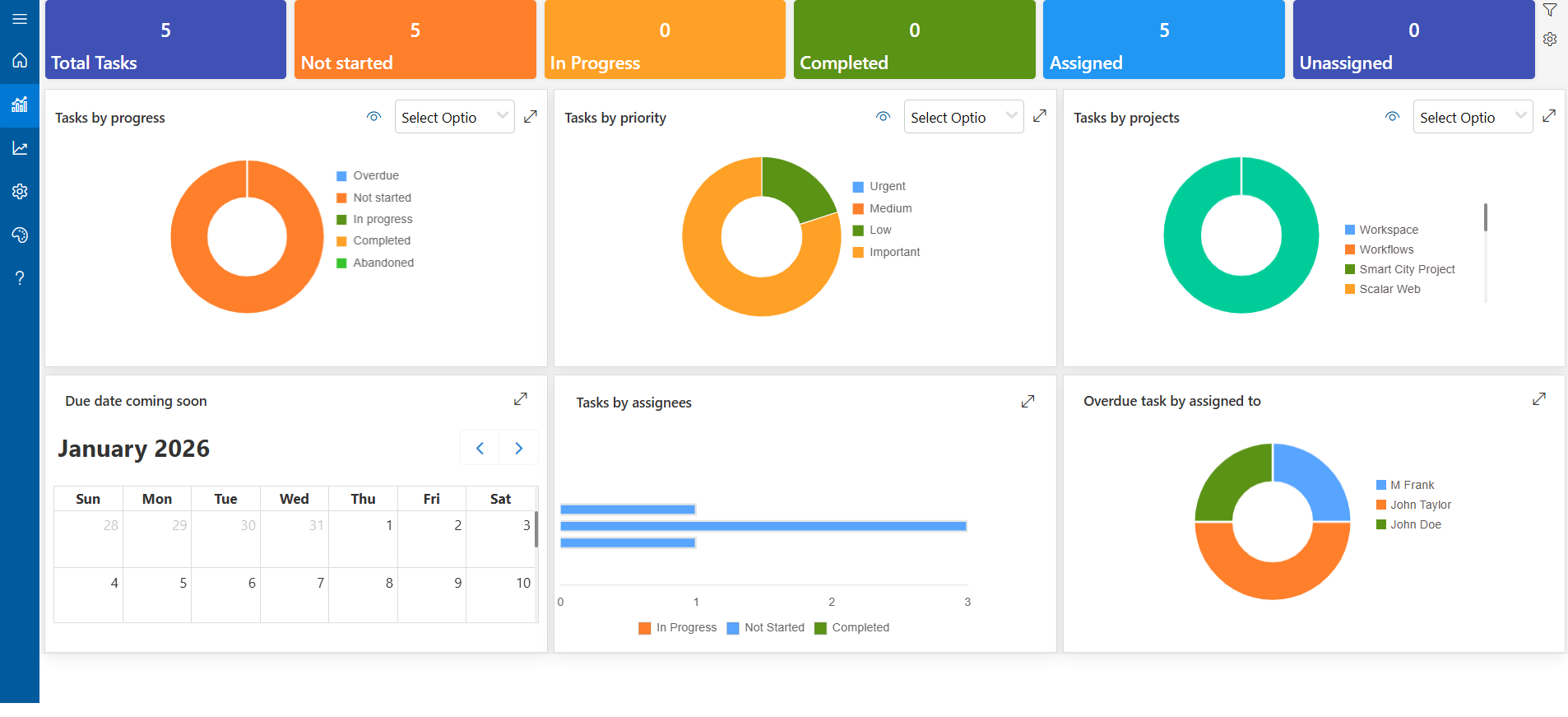
Better Work Visibility:
Managers need more than a list of completed work. They also need visibility into:
- Open tasks
- Overdue tasks
- Upcoming deadlines
- Task priorities
- Work progress
- Team workload
Task dashboards and reports can provide a clearer view of this information.
More Consistent Workflows:
- When teams follow the same process for creating, assigning, updating, and completing tasks, work becomes easier to track and manage.
- For growing teams, this consistency becomes increasingly important.
Task Management Software Core Features
The right task management system should help teams organize work without creating unnecessary complexity. When comparing task management software, consider the following core features.
Priority Levels
- Priority settings help employees understand which tasks require immediate attention and which can be completed later.
- Teams can use priority levels such as high, medium, and low to organize work according to urgency or importance.
%202.webp)
Assignment
- Every task should be assigned to the person responsible for completing it.
- Clear assignment reduces uncertainty and improves accountability across the team.
Collaboration Tools
- Task management should support communication around the work itself.
- Comments, updates, attachments, and shared information allow team members to collaborate without moving task-related conversations into separate tools.
Flexible Task Views
Different users may prefer different ways to review work. Useful task views can include:
- List view
- Board view
- Calendar view
- Timeline view
These views help employees and managers understand tasks from different perspectives.
Custom Fields
- Different teams often need to capture different types of task information.
- Custom fields can help organizations record additional details that are important to their workflow.
Reminders and Notifications
- Employees should not have to manually check every task throughout the day.
- Notifications and reminders can help users stay aware of new assignments, approaching deadlines, overdue tasks, and important updates.
Permissions and Access
- Not every task needs to be visible to every employee.
- Permission controls help organizations manage who can view or update task information.
Automation
- Repetitive task activities can often be automated.
- For example, automation may be used to send reminders, notify users about changes, or support recurring workflows.
Turn Collaboration Into Results With Smarter Task Management
How to Select the Most Suitable Task Management Software
Choosing task management software should start with your workflow, not with the longest feature list. Before selecting a solution, understand how your team currently manages tasks and where problems occur.
Look for issues such as:
- Tasks getting lost in email
- Multiple spreadsheet versions
- Missed deadlines
- Unclear ownership
- Too many status meetings
- Limited reporting
- Manual follow-ups
- Poor visibility across teams
Then compare task management platforms based on the problems you actually need to solve.
Factors to Consider
- Ease of Use: The system should be easy for employees to understand and use regularly.
- Task Visibility: Users should be able to quickly see assignments, priorities, due dates, and status.
- Collaboration: Look for tools that help employees communicate and share information around the task.
- Reporting: Managers should be able to understand progress without manually collecting updates.
- Automation: Evaluate whether repetitive reminders and task workflows can be automated.
- Permissions: Make sure the system provides appropriate access controls for your organization.
- Microsoft 365 Fit: If your company already works heavily in Microsoft 365, consider whether the task management solution fits naturally with SharePoint, Teams, Outlook, Planner, or Power Automate.
Everything in One Place
Bring tasks, priorities, deadlines, updates, and supporting information into one organized workspace. Reduce the need to switch between spreadsheets, emails, chats, and notes so teams can stay focused on the work that matters.
.webp)
Your Tasks, Your Way
Organize and review work using task views that fit different working styles and needs. Give team members a clearer way to find priorities, upcoming work, and assigned tasks without digging through multiple systems.

Real-Time Visibility
Give managers and team members a clearer view of task progress, upcoming deadlines, overdue work, and changing priorities. Better visibility makes it easier to identify delays early and keep work moving.

Notifications to Stay on Track
Keep team members informed about assignments, due dates, changes, and important task activity. Timely notifications can reduce manual follow-ups and help employees act before work becomes overdue.

Microsoft 365 Integration
For teams already using Microsoft 365, Task 365 helps bring task management closer to the tools employees use every day. Keep work connected to your Microsoft environment instead of introducing another disconnected system.

Reports & Analytics
Use reports and dashboards to understand how work is progressing across your team. Review task status, deadlines, priorities, and overall progress without manually collecting updates from multiple people.

Secure Access
Control access to task information based on your organization’s requirements. Clear permissions help teams collaborate while keeping sensitive or department-specific work available to the appropriate users.
Here Are 5 Best Task Management Software Solutions
Task 365
- Task 365 is designed for organizations that want structured task management within the Microsoft 365 ecosystem.
- It can support teams that need centralized task tracking, different task views, project visibility, reporting, reminders, collaboration, and Microsoft 365-based workflows.
- Best suited for: Organizations already using Microsoft 365 that want task management closely connected to their existing environment.
Microsoft To Do
- Microsoft To Do is designed primarily for personal task and daily work organization.
- It can be useful for employees who need a straightforward way to create lists, organize personal tasks, and manage individual priorities.
- Best suited for: Individual task and personal productivity management.
Trello
- Trello uses a card-and-board approach to organize work.
- Its visual layout can help teams move tasks through different stages and maintain a simple view of workflow progress.
- Best suited for: Teams that prefer visual board-based task organization.
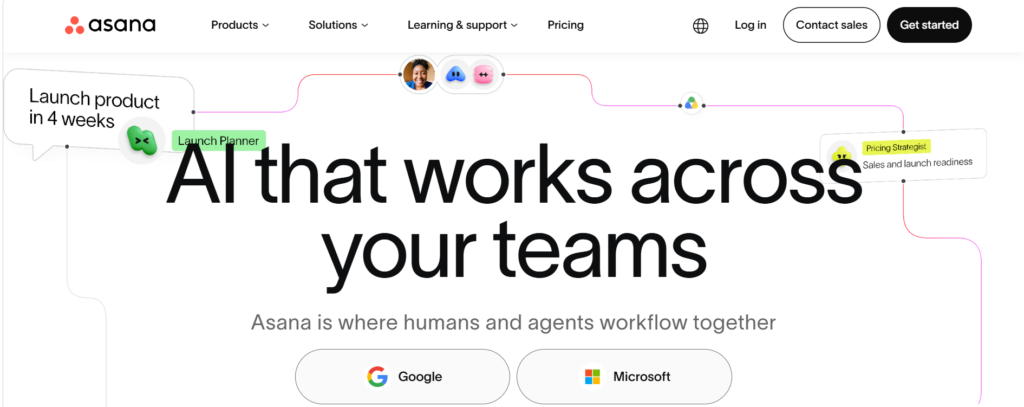
Asana
- Asana provides tools for organizing tasks, projects, assignments, timelines, and collaborative work.
- It is commonly considered by teams looking for structured work and project coordination across multiple departments.
- Best suited for: Teams managing projects and cross-functional workflows.
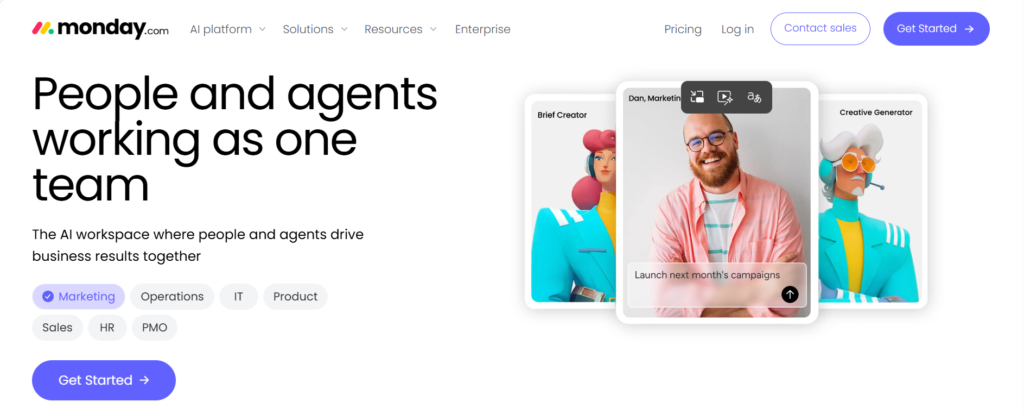
Monday.com
- Monday.com provides configurable boards and workflows for organizing projects, tasks, and business processes.
- Teams can customize workflows according to different departmental requirements.
- Best suited for: Organizations that want highly configurable work management boards.
Comparison:
| Rank | Software Name | Best For | Key Highlight |
| 1 | Task 365 | Microsoft 365 Teams & SharePoint Users | Microsoft 365 was a major factor in its full construction. It works with Teams and SharePoint without any interruptions, keeps all information in your Microsoft environment, and utilizes Power Automate for workflows. |
| 2 | Trello | Small to Medium Teams & Visual Workflows | The drag-and-drop interface is very useful when it comes to making the planning and collaboration activities easier. It works with numerous widely used applications. |
| 3 | Asana | Project Management & Team Collaboration | User-friendly layout, task relations, and chronological perspectives. Provides assistance to the groups in monitoring the entire process of the work with clear responsibility. |
| 4 | ClickUp | All-in-One Productivity & Customization | Extensive options for view customization, automation, and integration offer high flexibility. A single platform for ubiquitous collaboration among task management, documentation, goal setting, and time tracking. |
| 5 | Monday.com | Team Workflow & Cross-Functional Projects | All the above mentioned features of collaboration, reporting dashboards, and visual progress tracking will be available in real-time. |
The best task management software depends on your team size, workflow complexity, existing technology stack, reporting needs, and required integrations.
Task Management for Microsoft 365 (Teams and SharePoint)
Microsoft 365 organizations already use several applications to communicate, store files, plan work, and collaborate. A Microsoft 365-based task management approach can help connect task tracking with this existing environment instead of requiring teams to manage every activity in an unrelated platform. Two important components are Microsoft Teams and SharePoint.
Microsoft Teams
Microsoft Teams is primarily a communication and collaboration workspace, but it can also support task-related activities. Teams can use channels, conversations, files, apps, and connected Microsoft 365 services to coordinate work. When task management is available within or alongside Microsoft Teams, employees can move more easily between communication and action. This is useful for organizations that want users to:
- Review assigned work
- Collaborate around tasks
- Share task updates
- Access supporting documents
- Keep project discussions connected to work
For teams already spending much of their day in Microsoft Teams, this can reduce unnecessary app switching.

SharePoint
SharePoint can provide a structured foundation for storing and organizing task-related information within Microsoft 365. Organizations can use SharePoint lists, columns, views, permissions, and automation to create task-tracking processes that match internal requirements. SharePoint task management can be useful when teams want to:
- Centralize task information
- Create custom task fields
- Control user access
- Store supporting files
- Create different views
- Connect workflows using Power Automate
- Keep business data inside Microsoft 365
Solutions built around SharePoint can extend these capabilities further by providing a more purpose-built task management experience.
Step-by-Step Guide for Developing a SharePoint Task Management System
A basic SharePoint task management system can be created using SharePoint lists, views, columns, permissions, and automation. The exact setup will depend on your team’s workflow, but the following process provides a practical starting point.
.webp)
.webp)
Best Microsoft Task Management Software for Team Success
Mistakes to Avoid When Adopting a Task Management System
Task management software works best when the process behind it is clear. Avoid these common mistakes:
Making the System Too Complicated
Too many fields, statuses, categories, and workflows can discourage employees from using the system.
Start with what teams actually need.
Creating Tasks Without Clear Owners
A task should have a clear person responsible for moving it forward.
Without ownership, work can easily remain unfinished.
Setting Unrealistic Deadlines
Deadlines should help employees plan work.
If every task is marked urgent or given an unrealistic due date, employees may stop treating priorities seriously.
Using Too Many Statuses
A long list of status options can make reporting and updating harder.
Use simple stages that clearly represent how work moves through your process.
Ignoring User Adoption
A technically strong system will still fail if employees do not use it consistently.
Provide clear training and make the workflow easy to understand.
Overusing Notifications
Too many alerts can create notification fatigue.
Focus on reminders and updates that require action.
Not Reviewing the Process
Task management requirements change as teams and workloads grow.
Review your setup regularly and remove fields, workflows, or reports that no longer provide value.
Conclusion
Effective task management gives teams a clearer way to organize work, assign responsibility, track progress, and meet deadlines. The right system should make work easier to understand, not add another layer of administration. For organizations already using Microsoft 365, a task management solution that works with the existing environment can help employees manage tasks while staying closer to the tools they already use. Task 365 helps Microsoft 365 teams organize tasks, monitor work, collaborate, and improve visibility across day-to-day activities.
Ready to improve how your team manages work?
Start your Task 365 free trial to explore how it can fit your Microsoft 365 workflow.
_cctPX33tF.webp)

.webp)
Frequently Asked Questions
What does task management software do?
Task management software helps teams create, assign, prioritize, track, and complete tasks from one system. It can also provide due dates, reminders, status tracking, collaboration, multiple task views, reporting, and workflow automation.
Why should my team use task management software?
Task management software helps teams create clearer ownership, improve deadline visibility, organize priorities, reduce manual follow-ups, and monitor progress. It becomes especially useful when work is spread across email, spreadsheets, chat, and multiple departments.
Is Microsoft 365 good for task management?
Microsoft 365 can support task management through tools such as SharePoint, Microsoft Teams, Planner, Outlook, and Power Automate. The right setup depends on whether your team needs simple personal tasks or more structured team-wide task tracking.
How do I choose the best task management tool?
Start by identifying your workflow problems. Then compare tools based on ease of use, task assignment, priorities, collaboration, reporting, automation, permissions, integrations, and how well they fit your existing technology environment.
What are the key features to look for in task management software?
Look for task creation and assignment, priorities, due dates, reminders, status tracking, collaboration, multiple views, dashboards, reporting, permissions, custom fields, and workflow automation.
Can task management software help my team work faster?
It can reduce time spent searching for task information, manually requesting updates, sending reminders, and coordinating work across separate tools. The impact depends on how well the software fits your workflow and how consistently the team uses it.






















