

_eH2jDg7dZ.png)
If your support team still creates, assigns, and tracks tickets by hand, you already know how much time it eats up. Every email that turns into a ticket, every reminder to a technician, every status update to a requester, it all adds up. That is where helpdesk ticket automation comes in.
- Power Automate removes repetitive helpdesk work like ticket creation, routing, and notifications, so agents focus on solving problems.
- Automated workflows cut response times and improve SLA compliance by routing tickets to the right team the moment they arrive.
- You can automate the full ticket lifecycle: creation, categorization, assignment, approvals, status updates, and closure.
- The best automations start small, use clear ticket categories, and are tested before being rolled out team-wide.
- Helpdesk 365 combines built-in ticketing with native Power Automate integration, so you get automation without building everything from scratch.
Helpdesk ticket automation is the practice of using rules and workflows to handle repetitive support tasks automatically, instead of relying on an agent to do them one by one. Tickets get created, categorized, assigned, and updated without someone manually pushing each step forward.
Manual ticket management slows teams down in ways that are easy to miss day to day. A ticket sits in a shared inbox for an hour before anyone notices it. A technician forgets to update the requester. An approval gets stuck because nobody knew it was waiting on them. None of this is anyone’s fault, it is simply what happens when a process depends entirely on people remembering to act.
Microsoft Power Automate helps eliminate this kind of repetitive, error-prone work. It connects the apps your team already uses, Outlook, Microsoft Teams, SharePoint, Forms, and lets you build workflows that move tickets forward automatically, based on rules you define once.
In this guide, you will learn what Power Automate is, why ticket automation matters, which helpdesk tasks you can automate, and how to build your first automated workflow step by step. We will also look at the best connectors for helpdesk automation and how a tool like Helpdesk 365 makes the whole process easier.
Want the fastest way to try AI helpdesk software?
What Is Power Automate?
Microsoft Power Automate is a workflow automation tool that lets you connect different applications and automate tasks between them, without writing code. You build a “flow”, a set of steps that runs automatically when something happens, like a new email arriving or a form being submitted.
Power Automate connects Microsoft 365 applications such as Outlook, Teams, SharePoint, Excel, and Planner, along with hundreds of other third-party apps. A single flow might read an incoming email, extract details from it, create an item in SharePoint, and then send a Teams message, all without a person touching any of those steps individually.
For IT helpdesk automation specifically, this matters because most helpdesk work is repetitive by nature: new ticket, notify someone, wait for a response, update a status, close it out. Power Automate is well suited to exactly this kind of structured, repeatable process, especially when your team already lives inside Microsoft 365.
Why Automate Helpdesk Tickets?
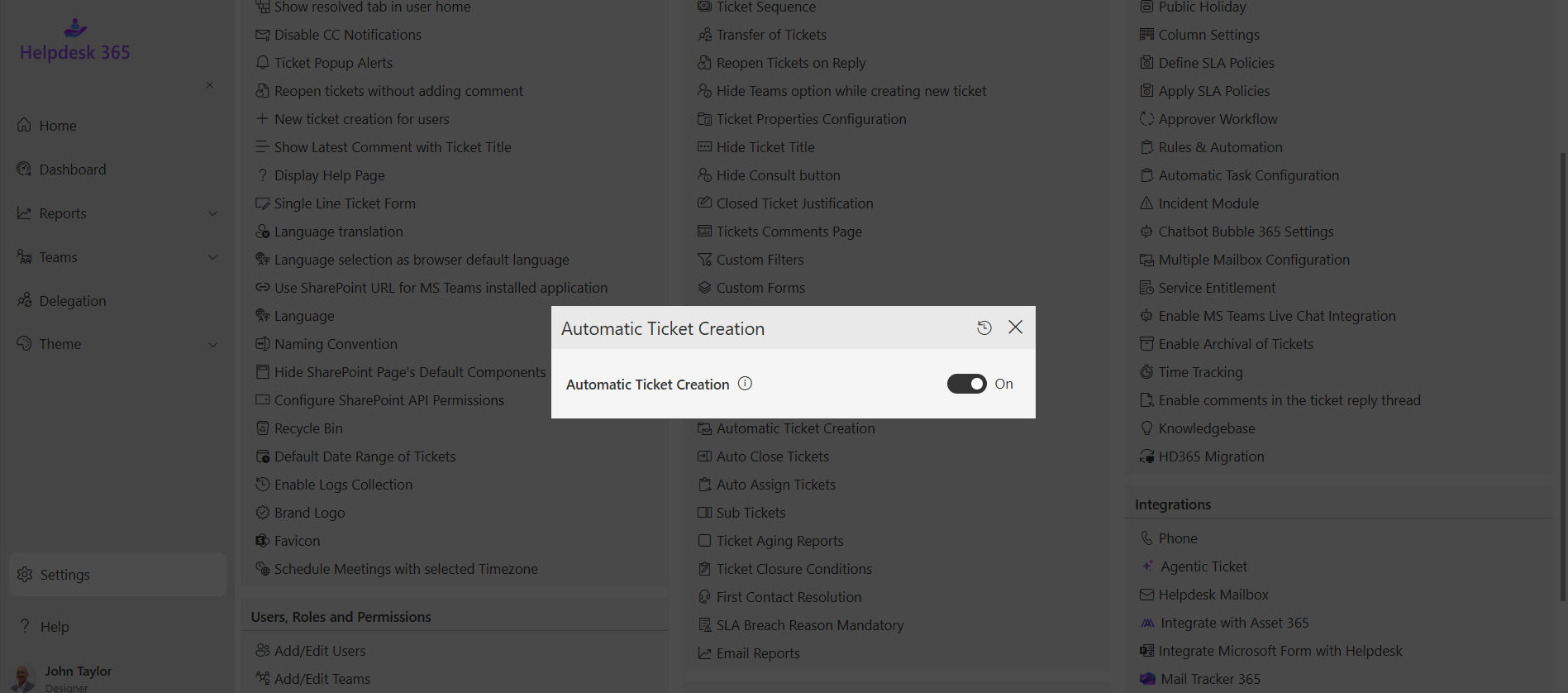
Manual ticket handling creates friction at almost every stage of the support process. Here are the challenges that show up most often:
- Manual ticket creation. Someone has to read an email or message and turn it into a ticket by hand, which takes time and is easy to forget during busy periods.
- Delayed ticket assignment. Without a routing rule, tickets can sit unassigned until someone happens to notice them.
- Missed SLA deadlines. If nobody is tracking the clock on each ticket, response and resolution targets slip quietly.
- Repetitive notifications. Agents spend real time sending the same status update or reminder emails over and over.
- Human errors. Manual data entry means fields get left blank, tickets get assigned to the wrong person, or priority gets misjudged.
- Lack of workflow consistency. Different agents handle similar tickets differently, which makes reporting and quality control difficult.
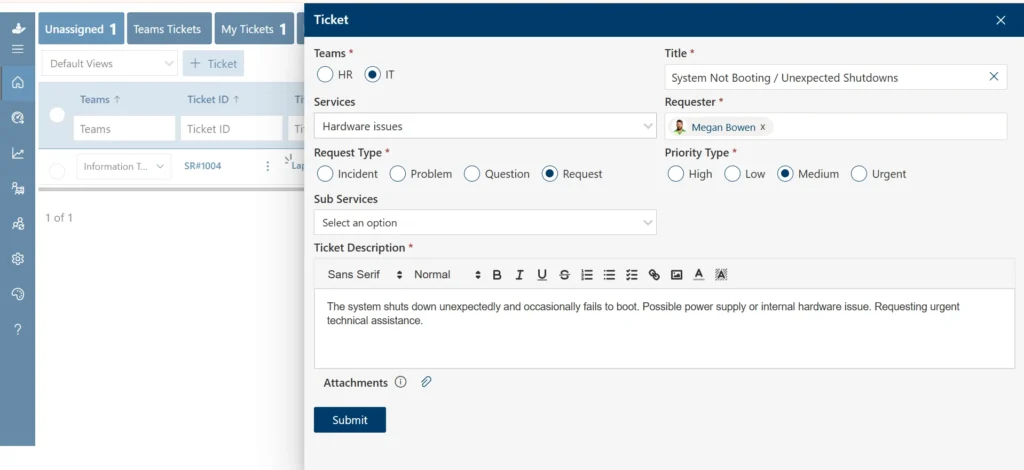
None of these problems are about effort, they happen because manual processes depend on people remembering every step, every time. Automation removes that dependency.
How Power Automate Works With a Helpdesk
A typical automated helpdesk flow follows a clear sequence, and Power Automate can handle each stage:
- Ticket creation — a trigger (new email, form submission, or Teams message) starts the flow and creates a ticket.
- Automatic categorization — keywords or form fields determine the ticket type (hardware, software, access request, and so on).
- Priority assignment — rules based on keywords, requester role, or category set the urgency level.
- Technician assignment — the ticket is routed to the right person or team, automatically.
- Approval workflows — requests that need sign-off (like software installs) are routed to the correct approver.
- Status updates — the ticket status changes automatically as it moves through the process.
- Notifications — requesters, technicians, and managers are kept informed without anyone typing an update.
- Ticket closure — the ticket closes once the work is confirmed complete, either by the user or automatically after a set period.
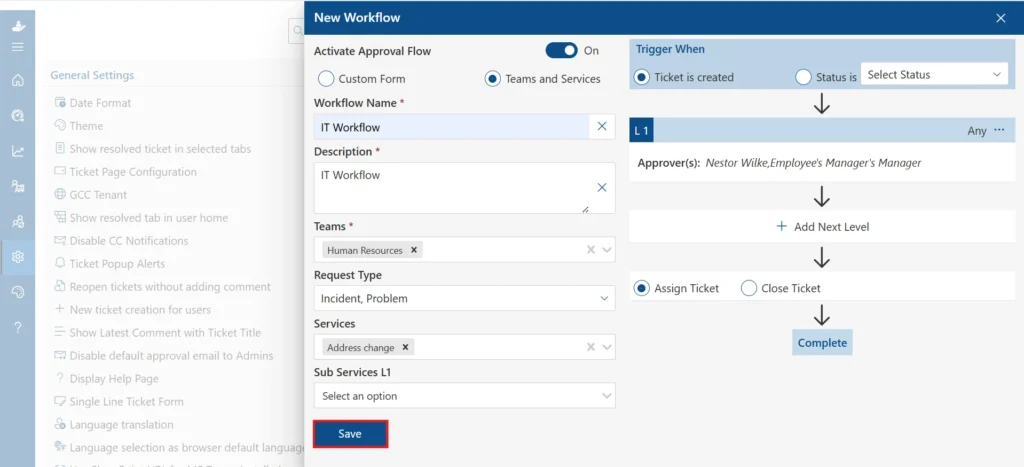
You do not need to automate every one of these steps at once. Most teams start with one or two — usually ticket creation and notifications — and expand the flow from there.
Helpdesk Tasks You Can Automate Using Power Automate
Automatically Create Tickets
Power Automate can turn requests from several sources into tickets the moment they arrive, so nothing has to be manually logged:
- From Outlook emails
- Microsoft Forms submissions
- SharePoint Lists
- Microsoft Teams messages
- Web forms
Auto Assign Tickets
Assignment rules can route a new ticket to the right technician automatically, based on:
- Department
- Category
- Keywords in the subject or description
- Technician availability
Route Tickets to the Right Team
Beyond individual technicians, tickets can be routed to the correct department based on content or category, for example:
- IT
- HR
- Facilities
- Finance
- Operations
Automate Approval Workflows
Many helpdesk requests need sign-off before work can start. Power Automate can route these to the right approver automatically, for requests such as:
- Software installation
- Hardware requests
- Access permissions
- Purchase approvals
Send Automatic Notifications
Keeping people informed is one of the easiest wins from automation. Flows can notify:
- Requesters, so they know their ticket was received and is being worked on
- Assigned technicians, so new work reaches them immediately
- Managers, for visibility on ticket volume or high-priority issues
- Escalation teams, when a ticket needs urgent attention
Escalate Overdue Tickets Automatically
SLA breaches are one of the most damaging outcomes of manual ticket handling. Automation prevents this with:
- SLA reminders sent before a deadline is reached
- Escalation rules that reassign or flag a ticket automatically once it is overdue
- Critical incident alerts for the most urgent issues, sent the moment they are raised
Automatically Close Completed Tickets
Closing tickets manually is often the step that gets forgotten. Power Automate can close a ticket:
- After the user confirms the issue is resolved
- After a set period of inactivity, with no further response from the requester
- Based on workflow completion, once every required step has been marked done
Automate ticket creation, routing, and closure without writing a single flow from scratch.
Step-by-Step: Automating Helpdesk Tickets Using Power Automate
Building your first helpdesk automation does not need to be complicated. Follow these steps in order:
- Identify the ticket source — decide whether tickets should be created from email, a form, Teams, or a web widget.
- Choose a trigger — for example, “When a new email arrives” or “When a Microsoft Form is submitted.”
- Create the flow — add the trigger in Power Automate and connect it to your ticketing system or list.
- Add routing conditions — set rules so tickets go to the right department or technician automatically.
- Configure approvals — insert an approval step for requests that need sign-off before proceeding.
- Add notifications — set up alerts for requesters, technicians, and managers at each key stage.
- Test the workflow — run sample tickets through the flow to confirm every step behaves as expected.
- Monitor and optimize — review flow performance regularly and adjust rules as your team’s needs change.
Best Power Automate Connectors for Helpdesk Automation
Power Automate works with a wide range of connectors, but a handful come up again and again in helpdesk workflows:
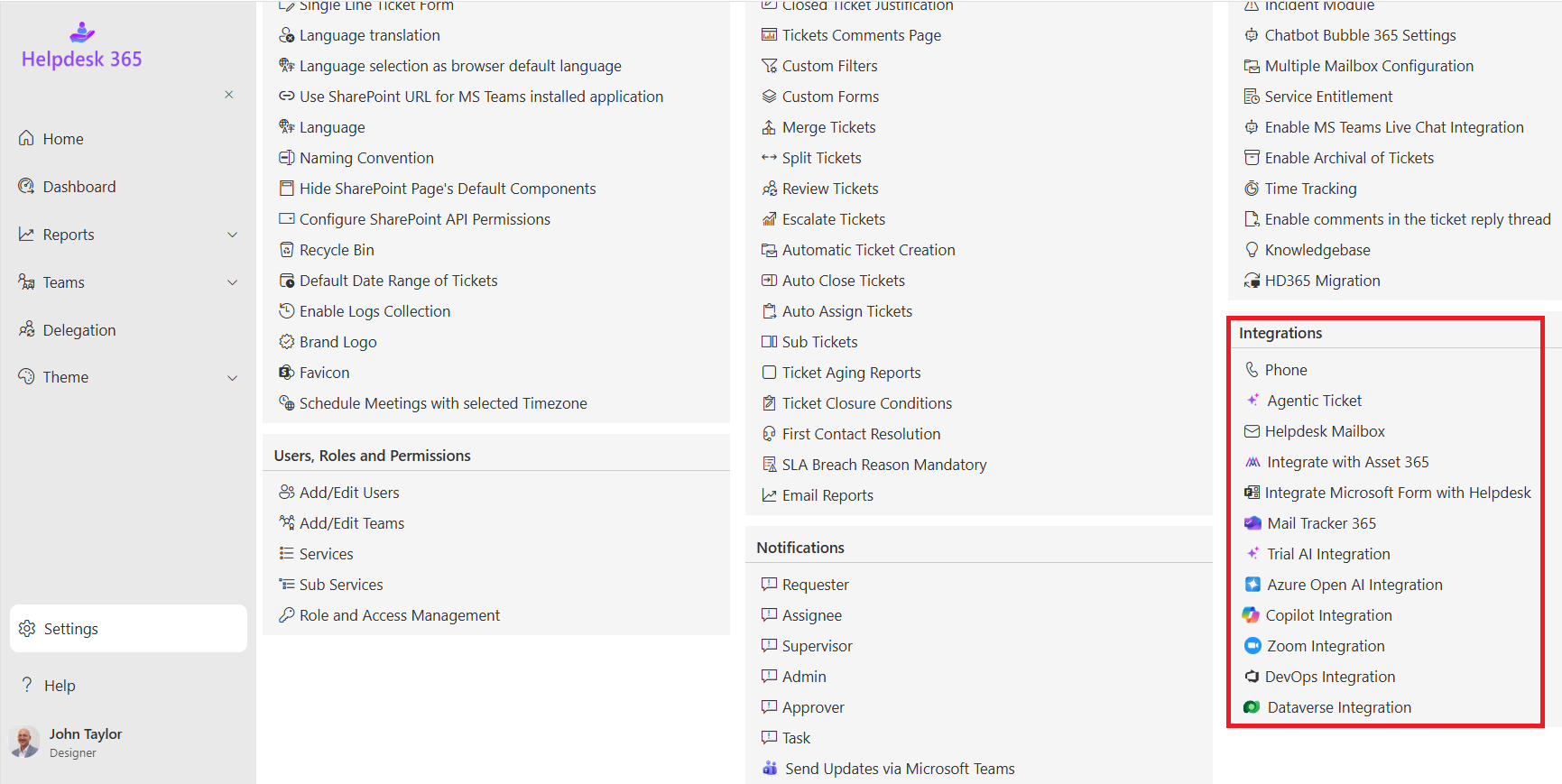
- Microsoft Outlook — trigger flows from incoming support emails
- Microsoft Teams — send notifications and updates where your team already works
- SharePoint — store and manage ticket data in lists
- Microsoft Forms — capture structured requests for cleaner ticket data
- Planner — turn tickets into trackable tasks for technicians
- Excel — log and report on ticket activity
- Azure AD — automate access and permission-related requests
- OneDrive — attach and store files related to a ticket
- Power BI — visualize ticket trends and SLA performance
Benefits of Automating Helpdesk Tickets
Once the repetitive steps are handled automatically, the benefits show up across the whole support process:
- Faster ticket creation, with no delay between a request coming in and a ticket being logged
- Reduced manual work, freeing agents to focus on actually solving problems
- Faster response times, since routing and notifications happen instantly
- Improved SLA compliance, with automatic reminders and escalation
- Consistent workflows, so every ticket of a given type is handled the same way
- Better customer experience, thanks to timely updates and fewer dropped requests
- Increased technician productivity, with less time spent on admin work
- Fewer human errors, since data entry and routing follow fixed rules
Best Practices for Helpdesk Automation
A few habits separate automation that actually helps from automation that creates new problems:
- Start with repetitive processes. Automate the tasks agents already do the same way, every time, before moving to more complex workflows.
- Standardize ticket categories. Automation depends on consistent data, so agree on categories before you build routing rules.
- Define SLA rules. Set clear response and resolution targets so escalation logic has something to measure against.
- Use conditional routing. Route tickets based on more than one factor, category and keyword together, for example, for more accurate assignment.
- Keep workflows simple. A flow with fewer steps is easier to troubleshoot and less likely to break when something changes.
- Review automation regularly. Business needs shift, so revisit your flows every few months to keep them relevant.
- Monitor workflow performance. Track how often flows run successfully and where tickets get stuck, so you can fix issues early.
Common Mistakes to Avoid
A few missteps show up often enough that they are worth calling out directly:
- Automating every process immediately. Trying to automate everything at once makes problems harder to trace when something goes wrong.
- Poor ticket categorization. Vague or inconsistent categories undermine every routing rule built on top of them.
- Missing approval rules. Requests that skip approval can create compliance or cost issues down the line.
- No escalation process. Without escalation, an overdue ticket can sit indefinitely with nobody aware.
- Ignoring workflow testing. A flow that has not been tested with real scenarios often fails on edge cases in production.
- Too many notification emails. Over-notifying teams trains people to ignore alerts, including the important ones.
See a working Power Automate helpdesk flow inside Helpdesk 365, live.
Why Use Helpdesk 365 With Power Automate?
Building every workflow described above from scratch takes time, and it means maintaining flows yourself as your team’s needs change. Helpdesk 365 removes most of that groundwork by pairing ready-made ticket management with native Power Automate integration.
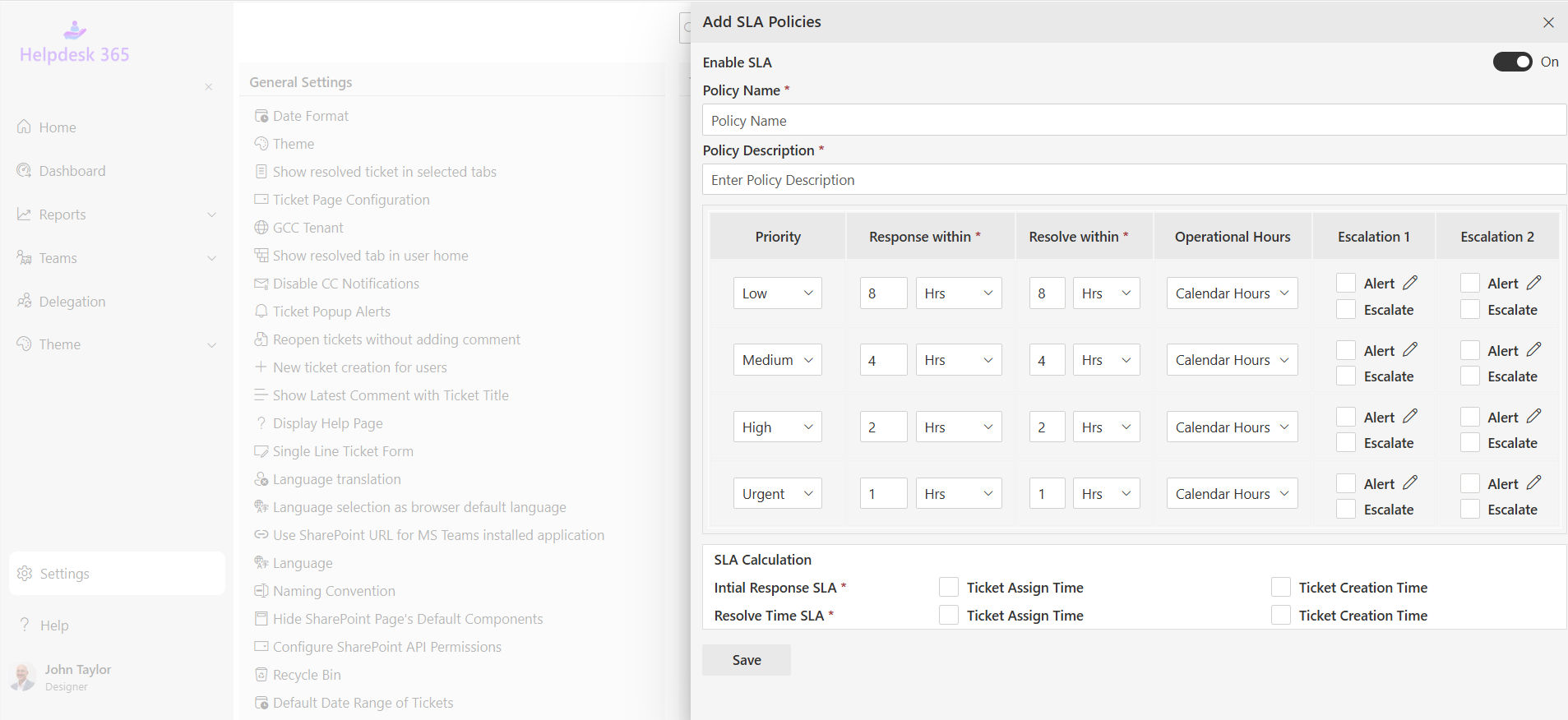
With Helpdesk 365, you get:
- Ready-made ticket management, so you are not building the basics from zero
- AI-powered ticket routing, for accurate assignment without manual rule-building
- SLA management, with built-in tracking and escalation
- Email-to-ticket conversion, turning support emails into tickets automatically
- Microsoft Teams integration, so technicians can work from where they already are
- Power Automate integration, to extend workflows into the rest of your Microsoft 365 stack
- Reporting and dashboards, for visibility into ticket trends and team performance
- A knowledge base, to deflect repetitive requests before they become tickets
- Approval workflows, built in rather than assembled manually
- Custom automation, for the workflows unique to your team
In short, Power Automate gives you the building blocks, and Helpdesk 365 gives you a helpdesk that is already built to use them, so your team spends time resolving tickets, not maintaining automation infrastructure.
Conclusion
Manual ticket handling will always struggle to keep pace with growing request volume. Power Automate gives you the tools to remove the repetitive parts of that process, ticket creation, routing, notifications, and escalation, so your team can focus on actually resolving issues.
You do not have to build every workflow from the ground up. With Helpdesk 365, ticket management and Power Automate integration come ready to use, so you can start automating in days, not months.
Join Our Creative Community
Frequently Asked Questions
What is helpdesk ticket automation?
Helpdesk ticket automation is the use of rules and workflows to handle repetitive support tasks — like ticket creation, routing, and notifications — automatically, instead of requiring an agent to complete each step by hand.
Can Power Automate create helpdesk tickets automatically?
Yes. Power Automate can create tickets automatically from sources like Outlook emails, Microsoft Forms, SharePoint Lists, and Teams messages, using a trigger that starts the flow the moment a request comes in.
Does Power Automate work with Microsoft Teams?
Yes. Power Automate connects directly with Microsoft Teams, so you can send ticket notifications, assignment alerts, and status updates straight into the channels or chats your team already uses.
Can Power Automate assign tickets automatically?
Yes. You can build routing rules based on department, category, keywords, or technician availability, so tickets are assigned automatically without anyone reviewing each one manually.
How does Power Automate improve SLA compliance?
Power Automate can track ticket deadlines and trigger reminders or escalation rules automatically before an SLA is breached, which keeps overdue tickets from going unnoticed.
What types of requests can be automated?
Common examples include software installation requests, hardware requests, access permission requests, and purchase approvals — along with routine tasks like status updates and closure notifications.
Is coding required to automate helpdesk tickets?
No. Power Automate uses a visual, trigger-and-action interface, so you can build most helpdesk workflows without writing any code.
Can Helpdesk 365 integrate with Power Automate?
Yes. Helpdesk 365 includes native Power Automate integration, letting you extend its built-in ticketing, routing, and SLA features into broader workflows across your Microsoft 365 apps.


_JiluXJRGNl.svg)























