

If you are already using Microsoft 365 to manage your daily tasks and are looking for a better way to handle contracts through seamless integration, Office 365 contract management can be the right solution. In this blog, we’ll explore what Office 365 contract management is, along with its key benefits and best practices for effective implementation after deployment.
One of the most effective ways businesses are doing this is through Office 365 contract management. Known for its seamless integration across familiar productivity tool.
With nearly 345 million paid subscribers and an estimated 321 million active users, Microsoft 365 has become the go-to platform for organizations worldwide.
As teams already rely on it for communication, documents, and workflows, extending it to contract management is a natural next step.
Understanding Office 365 Contract Management
Office 365 contract management refers to the process of creating, storing, tracking, and managing contracts using the built-in capabilities of Office 365 tools. By leveraging familiar applications like document management systems, collaboration platforms, and workflow automation tools, organizations can centralize contracts in one place.
This approach not only reduces manual work but also improves visibility across teams, ensuring that contracts are easily accessible, securely stored, and efficiently managed from creation to renewal.
- Contracts can be safely stored and neatly organized in SharePoint, with version history to track every change.
- Teams can review, edit, and discuss contracts together directly in Microsoft Teams without switching tools.
- Approval processes and reminders can be automated using Power Automate, so nothing gets delayed or missed.
- Contracts can be created and shared through Outlook, keeping communication and documents in one place.
In simple terms, Office 365 contract management is an easy and secure way to manage contracts using the Microsoft 365 tools your team already uses every day.
Why Microsoft Users Are Rethinking Contract Management?
Organizations using Microsoft tools often assume their current setup is enough to manage contracts. After all, documents are stored, emails are tracked, and collaboration happens regularly.
But over time, certain challenges become visible:
- Contracts stored in multiple locations
- Limited visibility into contract status
- No clear ownership for agreements
- Difficulty tracking renewal dates
- Manual approval processes
These issues don’t come from a lack of tools they come from a lack of structure.
This is why many businesses are now rethinking how they handle contracts within their existing systems. Instead of adding new software, they are exploring how to build a proper Contract Management Office 365 setup using tools they already use.
How Office 365 Contract Management Works?
At its core, Office 365 contract management is about managing the complete contract lifecycle within the Microsoft 365 environment. Here’s how the process typically works:
- Contract Creation
Contracts are created using standard templates with tools like Word. Teams can draft agreements in a familiar format, which helps maintain consistency and reduces the time required to create new contracts. - Storage and Organization
Contracts are stored in a centralized repository, typically in SharePoint. Documents are organized into structured folders, and details such as contract type, owner, start date, and expiry date are added as metadata. This makes searching, filtering, and managing contracts much easier. - Review and Collaboration
A best Microsoft contract management helps review contracts easily. Stakeholders can add comments, make edits, and discuss changes using collaboration tools, keeping all communication lnked to the document. - Approval Process
Approval workflows are set up using automation tools available in the ecosystem. Contracts are routed to the right people based on roles or departments, helping teams move forward automatically. - Execution and Storage
After approval, contracts are finalized and stored securely. Version history is maintained, so teams can track changes and refer to earlier versions when required. - Tracking and Renewal
Key contract dates such as renewal deadlines and expiry dates are monitored. Notifications and reminders help teams take timely action, whether the contracts need to get renewed, renegotiate, or close a contract. - Reporting and Analysis
Contract data can be connected to Power BI to create detailed reports and dashboards within the Microsoft 365 environment. Teams can track active contracts, upcoming renewals, expired agreements, and approval timelines in a visual format. These insights help teams plan, monitor contract activity, and make better decisions based on real data over time.
This structured approach turns everyday tools into a connected contract management sharepoint office 365 system, where contracts are not just stored but actively managed throughout their lifecycle.
Key Features of Office 365 Contract Management
Office 365 contract management includes reliable features that help teams handle contracts from creation to completion within a single Microsoft environment. Here some feature to consider.
1. Centralized Contract Repository
Office 365 contract management provides a single place where all contracts are stored and organized. Teams can upload, access, and manage documents within SharePoint libraries connected to Microsoft 365. This reduces the need to search across emails, local systems, or multiple folders. With everything in one contract repository system location, teams can quickly locate agreements, review terms, and work on documents without delays.
2. Version Control in Office 365 Contract Management
Office 365 contract management keeps a complete record of every change made to a contract. Each time a document is updated, a new version is saved automatically. Users can view previous versions, compare updates, and restore older copies if required. Contract management software with version control helps teams understand how a contract has evolved and keeps all changes visible within the system.
3. Role Based Access Control
Contract management for Office 365 allows organizations to define who can view, edit, or share contracts. Permissions can be assigned based on roles, departments, or specific users. Sensitive agreements can be restricted to selected individuals, while general contracts can be made available to wider teams. This level of role based control helps protect important business information while still allowing collaboration where needed.
4. AI Powered System
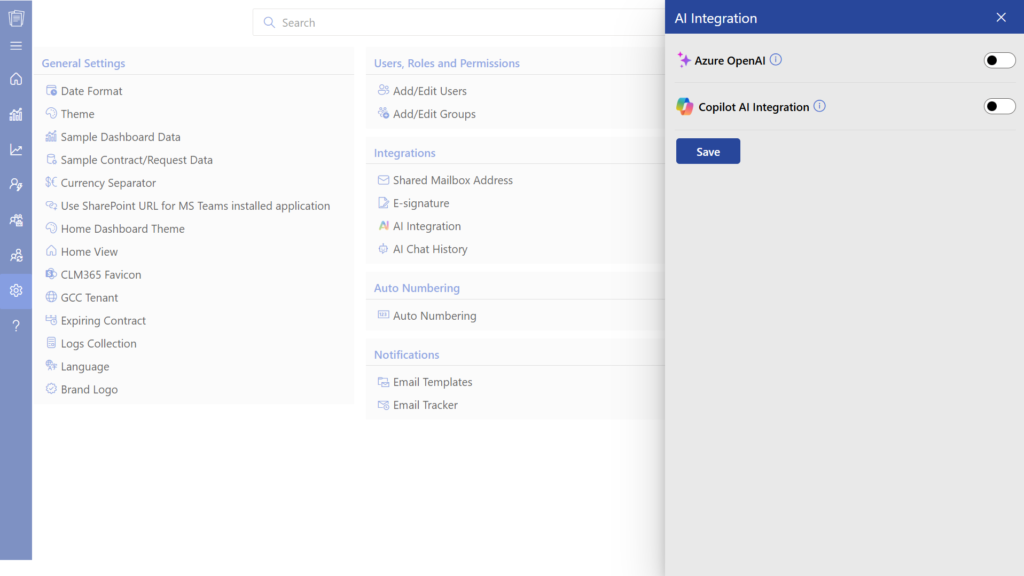
CLM 365 adds AI capabilities to office 365 contract management with Microsoft Copilot, helping teams work faster and make better decisions. Many Fortune 500 companies already use Copilot, showing how important AI has become in daily operations. With this integration, teams can quickly understand contracts without reading every line. The AI contract management software can generate short summaries, recommend clause changes, identify possible risks, and point out important responsibilities within the document.
5. Workflow Automation
CLM 365 supports automated workflows through tools like Power Automate. Contracts can move through different stages such as drafting, review, approval, and finalization based on predefined steps. Notifications are triggered at each stage, and approvals can be collected without manual tracking. Contract management automation helps teams handle contract processes in a structured and consistent way.
6. Redline Contracts with MS Word
A contract management for Office 365 supports redlining directly in Microsoft Word, allowing teams to review and edit contracts with full visibility of changes. Users can track edits, insert comments, and suggest modifications. Multiple stakeholders can work on the same contract, review redlined sections, and respond to comments without leaving Word.
7. Compliance Management
Office 365 contract management helps track all contract activities, including edits, approvals, and access changes. Policies, permissions, and retention rules can be applied within Microsoft 365 to manage contracts that are handled and stored. Contract compliance management makes it easier to maintain records, control access to sensitive data, and stay aligned with compliance requirements throughout the contract lifecycle.
8. Clause Library
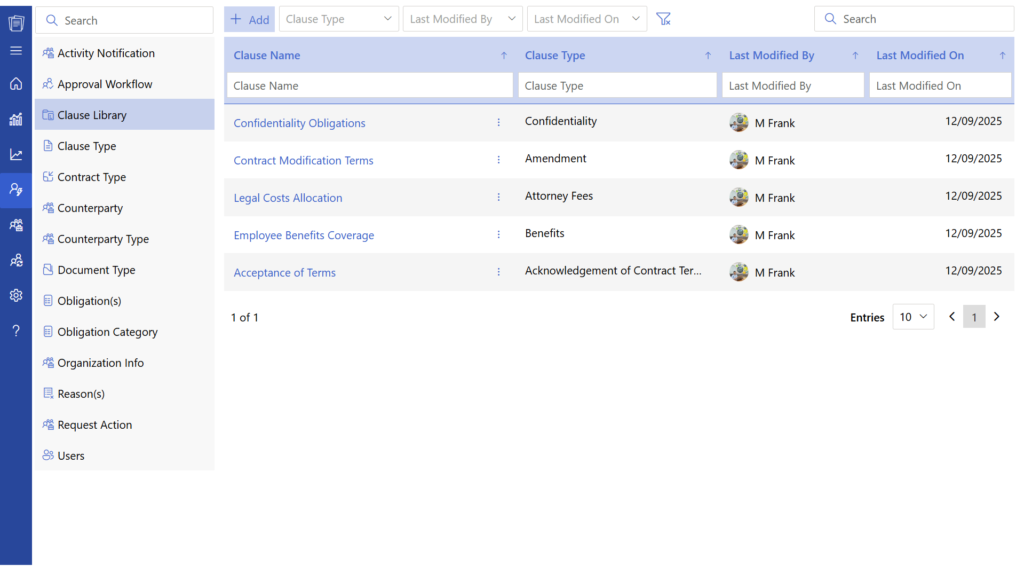
CLM 365 includes a clause library with ready-to-use templates and approved contract clauses within the Office 365 contract management environment. Teams can create contracts faster by selecting relevant clauses instead of drafting every section from the beginning. This library also acts as a reference for commonly used terms, making it easier to review and choose the right wording for different agreements.
9. Digital Signature
With Office 365 contract management, contracts can be signed electronically without the need for printed documents. Teams can complete approvals and finalize agreements within the same system, reducing delays in the signing process. The digital signature process records signer details and timestamps, providing a secure and verifiable way to complete contracts while keeping all signed documents stored within the platform.
Impact of Contract Management for Office 365
Using CLM 365 gives organizations a structured way to manage agreements with tools they already use daily. It brings together drafting, storage, approvals, and tracking in one environment, helping teams save time and improve overall efficiency.
1. Cost Efficiency
With Office 365 contract management, businesses can reduce spending on multiple standalone tools. All contract-related work, from creation to storage, happens within a single platform, which lowers software and administrative costs. Teams also spend less time switching between systems, allowing them to focus on more valuable tasks and improve overall productivity.
2. Work Within Familiar Tools
Contract management office 365 allows employees to manage contracts with Microsoft Teams, Outlook, SharePoint, and Word. Since these tools are already part of daily work, there is no need to learn a completely new system. This familiarity helps teams get started quickly and manage contracts effectively from the beginning.
3. Quick Setup and Easy Start
Getting started with contract management for office 365 is simple because it builds on existing Microsoft 365 tools. There is no need for complex setup or long training sessions. Teams can begin creating, reviewing, and approving contracts within their current workflow, leading to faster adoption and immediate results.
4. Improved Collaboration Across Teams
Different departments such as legal, sales, procurement, and management can work together more effectively using contract management SharePoint office 365. Everyone can access the latest version of a contract, review updates, and share inputs in real time. This allows collaborative contract management across teams and helps move contracts forward without delays.
5. Simple and Clear Interface
The design of contract management office 365 is easy to use, with clear options for creating, reviewing, and managing contracts. Users can quickly access documents, check status updates, and complete tasks without difficulty. This helps teams work more efficiently, even if they have limited technical experience.
6. Centralized Access to Contracts
Contract management SharePoint Office 365 stores all contracts in one organized location. Teams can quickly find the right document and review past records whenever needed. Having everything in one place saves time and allows teams to work with the most updated information.
7. Faster Contract Completion
By keeping the entire process within the system, Office 365 contract management helps speed up drafting, review, and approval stages. Teams do not have to depend on external processes or manual handling. Faster contract completion allows organizations to act on opportunities sooner and keep business operations moving efficiently.
What Most Teams Miss When Managing Contracts in Office 365?
Along with the few structured practices can further improve how contracts are tracked and managed across the organization. Here are some specific areas teams often overlook.
- Contract owners are not clearly assigned and tracked as a field. Instead, responsibility is often understood through messages or emails, so when renewals or follow-ups come up, teams spend time identifying the right person
- Key clauses like payment terms, notice periods, auto-renewal conditions, or penalties stay inside the document text and are not captured separately, which makes it difficult to review or compare them across multiple contracts
- No consistent naming format is followed while saving contracts. Different naming styles make it harder to quickly scan, sort, or identify files as the number of contracts increases
- Contract stages such as draft, under review, approved, and signed are not maintained as a status field, so teams depend on folder structure or file names instead of a clear, real-time stage
- Draft versions and signed contracts are stored together without a clear distinction, which makes it harder to quickly locate the final version when needed
- Contracts that are still under discussion are not marked separately, especially when multiple versions exist, so tracking negotiation progress becomes less clear
- Inactive or expired contracts are not separated based on a defined rule, so older and active contracts remain in the same space, making daily access less focused
Best Practices to Implement During the Process
Use SharePoint document libraries with metadata (contract type, owner, renewal date) to organize contracts in a structured way, making them easy to search, filter, and manage efficiently as your contract volume grows.
- Standardize your contract approval workflows using Power Automate, ensuring every agreement follows a smooth, consistent, and fully trackable review process that reduces delays and improves accountability.
- Maintain version control in SharePoint, so every contract update is automatically recorded, giving your team full visibility and confidence when reviewing or reverting changes.
- Enable real-time notifications via Outlook and Teams, helping stakeholders stay informed, respond faster, and keep the contract process moving without unnecessary follow-ups.
- Implement clear ownership for every contract, assigning responsible stakeholders at each stage to create better accountability and ensure timely progress.
- Define a standard contract lifecycle process (request → drafting → review → approval → execution → renewal), bringing clarity and consistency to how contracts are handled across teams.
- Centralize contracts in a single source which is SharePoint, enabling teams to quickly access the most up-to-date documents, improve collaboration, and maintain a well-organized, reliable contract repository.
- Ensure access control and permissions are properly set, so sensitive contracts remain secure while still enabling seamless collaboration among authorized users.
- Regularly review contract data and performance (via dashboards or reports) to gain valuable insights, improve decision-making, and proactively manage renewals or risks.
- Encourage consistent documentation and naming conventions, so every contract is easy to identify, retrieve, and manage, creating a more organized and professional contract environment
Steps to Create a Contract Workflow in Office 365
Building a contract workflow inside Microsoft 365 with CLM 365 helps teams work faster, stay organized, and manage contracts smoothly from creation to renewal while keeping everything connected within familiar tools your teams already use daily.
Step 1: Outline Your Contract Process Clearly
Start by mapping out every stage of your contract lifecycle, including request submission, drafting, internal review, approvals, contract execution, and renewal. A clearly documented process helps teams follow a consistent path, reduces delays, and makes it easier to manage contracts across different departments.
Step 2: Create Standard Contract Templates
Develop easy-to-use contract templates in Microsoft Word with predefined sections, clauses, and formatting. Users can also include placeholders for key details such as client name, pricing, and timelines. This helps teams manage contract clauses while keeping consistency in structure, tone, and legal terms across all documents.
Step 3: Store Contracts in SharePoint
Use SharePoint as your central storage location for all contracts. Organize documents using metadata like contract type, owner, status, and renewal date. With built-in version history, teams can track updates, access the latest version instantly, and maintain a well-structured contract repository.
Step 4: Use Microsoft Teams for Collaboration
Set up dedicated Teams channels for contract-related discussions. Team members can review drafts, share comments, and discuss changes directly within the platform. Integration Teams with SharePoint allows quick access to documents, making collaboration more effective and keeping everyone aligned.
Step 5: Set Up Approval Flows with Power Automate
Design automated approval workflows using Power Automate to route contracts to the right stakeholders based on conditions such as contract value or department. This creates a clear approval path, reduces manual effort, and keeps the process moving forward without unnecessary waiting time.
Step 6: Use Outlook for Reminders
Leverage Outlook to schedule reminders for key contract activities such as pending approvals, renewals, and important deadlines. Calendar alerts and notifications help teams stay updated and take timely action, supporting better contract management.
Step 7: Track Progress with Power BI
Connect SharePoint or your contract data source to Power BI to create visual dashboards. Users can track contract status, monitor approval timelines, and identify trends such as upcoming renewals. These insights help teams make informed decisions and improve overall contract performance.
Step 8: Improve the Process Regularly
Review your contract workflow on a regular basis by analyzing performance data and gathering feedback from users. Update templates, refine approval steps, or adjust workflows based on changing business needs.
Conclusion
Managing contracts inside familiar tools can feel convenient but without a structured system, things often slip through the cracks. Documents get scattered, approvals take longer than expected, and important dates like renewals can be missed. Over time, this slows teams down and creates unnecessary pressure.
If your current setup feels hard to manage or lacks visibility, it may be time to try a better way.
Start your 14-day free trial today with CLM 365 and see how a more organized contract process can make your daily work simpler, faster, and more effective.
Join Our Creative Community
Frequently Asked Questions
How are contract expiration alerts handled in CLM 365?
Contract expiration alerts in CLM 365 are automated and it sends proactive notifications via email or Microsoft Teams before key renewal dates. These alerts can be customized based on timelines, contract type, or priority, ensuring teams never miss critical deadlines or renewal opportunities.
Can contracts be edited collaboratively in real time in CLM 365?
Yes, CLM 365 enables real-time contract collaboration using Microsoft Word Online. Multiple users can simultaneously review, edit, and comment on contracts. Features like redlining, track changes, and document comparison allow teams to identify modifications easily and maintain full visibility across different contract versions.
What e-signature integrations are available in CLM 365?
CLM 365 supports seamless integration with leading e-signature platforms such as Adobe Sign and DocuSign. These integrations allow users to send, sign, and track contracts digitally.
Does CLM 365 help with contract amendments?
Yes, CLM 365 simplifies contract amendments by allowing users to create, track, and manage changes within the existing contract framework.
Can AI help in managing contract obligations in CLM 365?
Yes, AI-powered capabilities in CLM 365 help manage contract obligations more efficiently. The system can automatically extract key terms, highlight important clauses, summarize contract content, and track obligations.
Table of Contents

Trusted by the Best

_JiluXJRGNl.svg)