

Microsoft Teams Contract Management: Guide to Manage Contracts with MS Teams

Microsoft Teams contract management brings contract request, reviews, approvals, conversations, and status updates into the Microsoft workspace employees use every day.
- Microsoft Teams can act as the collaboration hub for contracts, while SharePoint provides document storage, permissions, metadata, and version history behind the experience.
- A structured MS Teams contract management process can support requests, drafting, reviews, approvals, signatures, obligation tracking and renewals.
- The biggest mistake is treating a Teams channel as a complete CLM system. Without ownership, metadata, workflow rules, and controlled storage.
- CLM 365 adds contract-specific controls inside the Microsoft 365 environment, helping teams manage reviews, approvals, reminders, contract records, and reporting.
That matters because Microsoft found the average employee receives more than 153 Teams messages across a crowded workday, making it important to keep contract work organized instead of spreading it across inboxes, chats, folders, and separate approval tools.
For legal, procurement, sales, finance, and operations teams, the problem is rarely a lack of communication.
This guide explains what Microsoft Teams contract management is, how it works, what lifecycle stages it can support, how to set it up with CLM 365, and best ways for using microsoft teams for contract management.
What Is Microsoft Teams Contract Management?
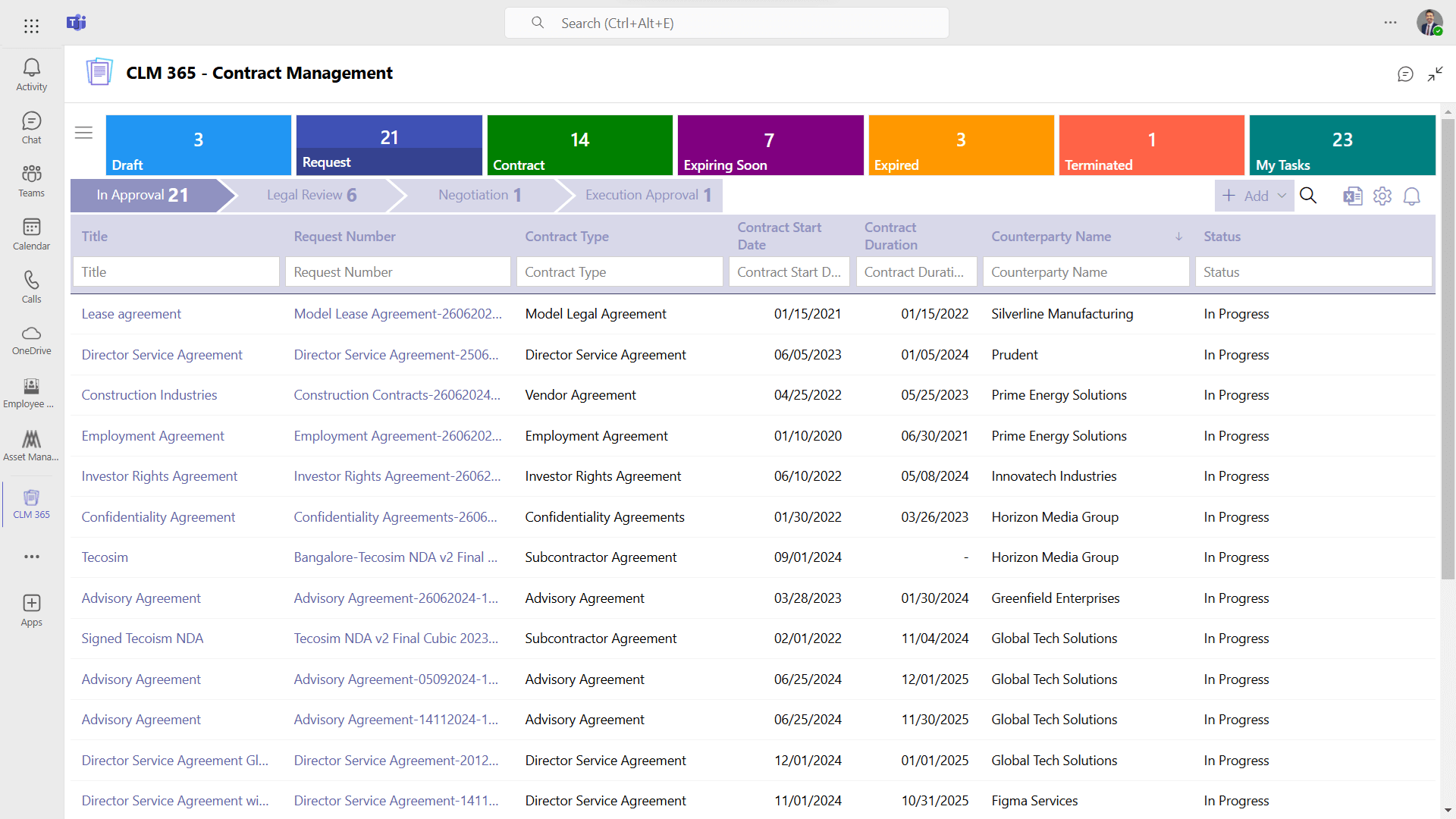
Microsoft Teams contract management is the process of managing contract-related work through Microsoft Teams while connecting Teams.
A practical Microsoft Teams contract management setup usually includes:
- Dedicated Teams channels for contract discussions, reviews, and stakeholder collaboration.
- Centralized contract access within Teams so users can find agreements without switching between multiple workspaces.
- Teams-based notifications for contract requests, pending reviews, approvals, renewals, and deadlines.
- Approval coordination through Teams to help reviewers respond faster and reduce manual follow-ups.
- Controlled collaboration for legal, procurement, sales, finance, and business teams working on the same agreement.
- Contract status visibility inside Teams so stakeholders can quickly see what is under review, approved, signed, or awaiting action.
How Does Contract Management Work in Microsoft Teams?
Microsoft Teams contract management works best when Teams becomes the place employees interact with the process, while the underlying system maintains the contract record.
- Start Contract Requests: Employees can initiate contract requests directly from Microsoft Teams using a structured process instead of relying on scattered emails or chats.
- Receive Review Notifications: Legal, procurement, finance, and other stakeholders can get alerts in Teams when a contract needs their review or action.
- Collaborate on Contracts: Teams gives stakeholders one place to discuss contract terms, ask questions, and coordinate decisions during the review process.
- Manage Approvals: Approval requests can be sent to the right decision-makers in Teams based on contract value, risk, department, or other rules.
- Track Contract Status: Users can quickly see whether a contract is under review, awaiting approval, approved, signed, or pending further action.
- Reduce Manual Follow-Ups: Automated Teams notifications help remind reviewers about pending actions, reducing delays caused by missed emails or forgotten requests.
- Keep Contract Actions Visible: Comments, decisions, review requests, and approval updates remain easier to find when contract activity is managed through a shared Teams workspace.
- Support Post-Signature Tracking: Teams can continue surfacing reminders for renewals, notice periods, obligations, and other important contract dates after an agreement is signed.
The goal is not to create more Teams activity. It is to make each contract action easier to find, understand, and complete.
How to Set Up Microsoft Teams with CLM 365?
Setting up CLM 365 with Microsoft Teams should start with the contract process, not the software. Many failed deployments begin by creating channels and permissions before anyone agrees on who owns each stage.
- Map the contract workflow: Define how contracts move from request and drafting through review, approval, signature, and renewal.
- Add CLM 365 to Microsoft Teams: Give legal, procurement, sales, and finance teams access to contract activities within Teams.
- Organize contract access: Use clear naming, permissions, categories, and ownership rules so users can find the right contract quickly.
- Configure contract types and templates: Set up approved templates and workflows for NDAs, MSAs, vendor agreements, SOWs, and other common contracts.
- Set approval workflows: Route contracts to the right approvers based on value, department, risk level, or requested changes.
- Configure alerts and key dates: Track renewals, expirations, notice periods, payment milestones, and other important deadlines.
- Test before rollout: Run real contract scenarios to confirm approvals, escalations, notifications, and renewals work as expected.
What Contract Lifecycle Stages Can You Manage with Microsoft Teams?
A connected Microsoft Teams contract management setup can support most stages of the contract lifecycle.
Contract Request and Intake
Business users can start a request with required fields instead of sending an incomplete email to legal. Structured intake helps capture the counterparty, contract type, value, department, deadline, and business owner at the beginning.
Drafting
Microsoft teams contract management can provide access to approved contract templates and Word documents while the CLM system records the agreement and its status. The important control is template governance. Employees should know which template is approved and when legal review is required.
Review and Negotiation
Internal stakeholders can coordinate reviews in Teams while Word handles detailed document editing and redlining. Keep negotiation decisions tied to the contract record. A chat message saying “approved” should not become the only evidence that a risky clause was accepted.
Approval
Teams is well suited to contract approval notifications because decision makers already watch it during the day. Admis can use Microsoft teams contract management to notify stakeholders when contracts need review and Power Automate to update status after approval or rejection.
Signature
The approved contract can move into an electronic signature process through connected signing services or the chosen signature workflow. After execution, make sure the signed copy replaces draft versions as the authoritative agreement.
Storage and Retrieval
Executed contracts should remain searchable by business fields, not just filenames. Useful metadata includes counterparty, contract owner, start date, end date, renewal type, notice period, region, business unit, value, and status.
Obligation and Renewal Management
Post-signature management is where many organizations lose control.
The agreement may require quarterly reports, security reviews, pricing adjustments, certificates, deliverables, or notice before renewal. Those items need owners and dates.
A Microsoft Teams agreement app setup brings reminders and tasks back to the people responsible while keeping the contract record as the source of truth.
Ready to simplify contract management in Teams?
CLM 365 connects contract collaboration, approvals, workflows, document management, and renewals in one Microsoft 365-native solution.
How to Manage Contracts in Microsoft Teams?
Managing contracts in Microsoft Teams is less about creating more channels and more about creating fewer places where truth can hide.
Start with one rule: every contract must have one authoritative record.
That record should show the current document, owner, status, approvers, important dates, and outstanding actions. Teams conversations should support the process, not replace it.
Use dedicated contract views rather than asking users to search through chat history. Microsoft Learn recommends attaching the relevant SharePoint integration to a Contracts tab in Teams so stakeholders can view classified agreements and important contract data.
Next, separate discussion from decision
Teams chat is useful for questions such as, “Can procurement accept a 60-day payment term?” But the final approved position should be captured through the formal workflow or contract record. Otherwise, the organization may have no reliable audit trail months later.
Use notifications selectively
A common mistake is sending every contract update to everyone. Employees begin ignoring alerts, and urgent actions get lost. Notify people when they own the next step, when a deadline approaches, or when a material status changes.
Finally, manage exceptions deliberately
The contract that needs unusual indemnity language, an accelerated start date, or nonstandard pricing is usually the one most likely to create confusion. Build escalation rules so those exceptions reach the right legal, finance, security, or executive reviewer.
Benefits of Microsoft Teams Contract Management
Microsoft Teams contract management helps organizations centralize contract-related work, improve collaboration, streamline approvals, and maintain better visibility across the contract lifecycle.
Less Tool Switching
Teams already sits at the center of daily communication for many Microsoft 365 users. Giving employees access to contract actions there can reduce the need to jump between disconnected inboxes, chat tools, file shares, and approval portals. Contract management solution should reduce avoidable interruptions, not add another source.
Faster Internal Response
Approvers can see requests where they already work, which can reduce delays caused by forgotten emails or manual follow-ups. Speed matters most when it comes with control. A faster approval that bypasses the correct reviewer is not an improvement.
Better Contract Visibility
Legal, procurement, finance, and business owners can see status without asking, “Where is this contract?” Shared contract visibility can reduce duplicate work and help teams spot stalled approvals, upcoming renewals, and unresolved obligations earlier.
Stronger Version Control
When drafts live in a governed SharePoint repository and are accessed through Teams, users are less likely to create competing copies named “final,” “final-v2,” and “final-final-approved.”
Version history and controlled permissions create a clearer record of what changed.
More Consistent Workflows
Structured routing makes approval requirements repeatable. Instead of relying on an employee to remember that security must review every data-processing agreement, the workflow can route the contract based on defined conditions.
Better Use of AI Agent
AI can help summarize agreements, retrieve information, or surface relevant content, but it works best when contracts are organized and permissions are correct.
For contract teams, the lesson is practical: AI is most useful when it reduces low-value searching and summarizing while human reviewers remain responsible for legal judgment, negotiation choices, and final decisions.
Best Practices for Microsoft Teams Contract Management
- Keep SharePoint as the controlled document layer by storing agreements in a governed repository and surfacing them through Teams instead of using chat attachments as the contract archive.
- Define clear ownership and approval rules by assigning business, legal, or procurement owners and establishing approval thresholds for contract value, liability, discounts, data protection, and other material terms.
- Use metadata and limit channel sprawl by capturing information such as status, counterparty, owner, renewal date, type, and risk instead of relying on folder structures or creating excessive Teams channels.
- Protect sensitive agreements by applying least-privilege access and regularly reviewing guest access and external sharing settings to prevent confidential contracts from reaching unauthorized users.
- Keep AI under human review and measure performance by using AI-generated insights to support professional judgment while tracking contract cycle time.
Conclusion
Microsoft Teams contract management works best when Teams provides a familiar collaboration layer while SharePoint, workflows, approvals, and lifecycle data maintain control behind the scenes.
With CLM 365, organizations can manage contract requests, approvals, notifications, renewals, reporting, and other lifecycle activities within the Microsoft 365 environment while preserving visibility and accountability.
Ready to simplify contract management in Microsoft Teams? Explore SharePoint contract management to centralize contract lifecycle from one connected Microsoft 365 environment.
Frequently Asked Questions
Can Teams tell me which contracts are currently awaiting legal approval?
Teams alone does not provide a dedicated contract approval dashboard. A structured workflow can capture approval status and surface pending actions to the appropriate users.
Can CLM 365 automatically remind the contract owner before expiration?
Teams can deliver notifications when connected to an automated workflow, but the underlying contract dates must first be captured and maintained accurately.
How do we assign responsibility for contract obligations?
Record each obligation with a named owner and due date, then use reminders and workflow automation to follow up on outstanding actions.
Will employees need to learn an entirely new contract management system?
CLM 365 works within the Microsoft ecosystem, so users can continue working with familiar tools such as Teams, SharePoint, Word, Outlook, and other Microsoft 365 services.


_JiluXJRGNl.svg)























