
Free Punch Clock Apps: 10 Tools for 2027 (Ranked & Reviewed)

- Best overall for Microsoft 365 teams: Timesheet 365 lets employees clock in and out inside Microsoft Teams. It stores time data in SharePoint within your own Microsoft 365 tenant, and its AI agent turns logged work into reports.
- Best free punch clock app: Clockify and Jibble both offer free plans for unlimited users. Connecteam is free for very small teams.
- Best for iPhone users: most tools here have strong iOS apps. Buddy Punch, Jibble and Connecteam stand out for photo or face verification on the phone.
- Best for field crews: QuickBooks Time and ClockShark lead on GPS, geofencing and job-site tracking.
- What matters most: punch verification (GPS, geofencing, photo or face), missed-punch approvals, overtime rules and a clean payroll export.
Why Punch Clock Apps Matter in 2027
The paper time card is mostly gone, but the problems it caused haven’t gone away: forgotten punches, rounded-up start times, buddy punching and hours re-keyed into payroll by hand. A modern punch clock app fixes most of this. It puts the time clock on the device your employees already carry, or inside the software they already work in.
There is a compliance side too. Under the Fair Labor Standards Act, employers must keep accurate records of the hours worked each day and each workweek by nonexempt employees. A digital punch clock is the simplest way to make those records accurate, timestamped and easy to audit.
Where people work has also changed. For millions of office and hybrid employees, the “workplace” is now a chat app. Microsoft has reported more than 320 million monthly active users on Microsoft Teams. That is why a growing share of organizations want employees to clock in where they already collaborate, not in yet another login.
This guide ranks the 10 best punch clock apps for 2027. It covers what each one does best, what it costs and where it falls short.
What Is a Punch Clock App?
A punch clock app is software that records when employees start and stop work. Employees “punch in” and “punch out” from a phone, computer, shared kiosk tablet or a tool like Microsoft Teams. It is the digital version of the mechanical time clock and paper card.
Most modern employee time punch clock apps go beyond the basic timestamp. They typically add:
- Punch verification: GPS location, geofencing, photo capture or facial recognition to confirm who punched and where.
- Break and overtime tracking: automatic calculation of regular hours, overtime and breaks against your policies.
- Missed-punch and edit requests: a workflow for employees to fix forgotten punches and for managers to approve them.
- Timesheets and approvals: punches roll up into timesheets that managers review and sign off.
- Payroll and reporting exports: approved hours flow to payroll or into reports by employee, project or client.
How to Choose the Best Punch Clock App
1. Where your team works
Desk-based and hybrid teams on Microsoft 365 get the most from a tool built into Teams. Field and construction crews need GPS, geofencing and offline mobile punching. Retail and restaurants usually want a shared kiosk tablet plus scheduling.
2. How much punch verification you need
If buddy punching or early clock-ins are a real problem, prioritize photo capture, facial recognition, geofencing or schedule-based punch restrictions. For trusted knowledge workers, an audit trail and approval workflow are usually enough.
3. Missed punches, overtime and compliance
Pick a tool that handles missed-punch requests cleanly and calculates overtime under federal rules and your own policies. Every edit should be logged.
4. Payroll, projects and integrations
Check whether hours export cleanly to your payroll provider. If you bill clients or track project costs, check that time can be tagged to projects and tasks.
5. Budget and pricing model
Pricing is usually per user per month, sometimes with a base fee or per-location charge. Free plans exist, but verification, kiosk mode and integrations are often on paid tiers.
6. Data location and security
For regulated or security-conscious organizations, where time data is stored matters. Tools that keep data inside your own Microsoft 365 tenant make IT and compliance reviews simpler.
Best Punch Clock Apps Compared
# | Tool | Best for | Punch verification | Free plan or trial | Starting price* |
1 | Timesheet 365 | Microsoft 365 / Teams & SharePoint organizations | Microsoft 365 sign-in, approval workflows, audit trail | 14-day Free trial | ~$3.60/user/mo |
2 | Clockify | Best free punch clock app for small teams | Kiosk PIN, GPS (paid), screenshots (paid) | Free plan | ~$3.99/user/mo |
3 | QuickBooks Time | Teams already using QuickBooks | GPS, geofencing, photo kiosk | 30-day trial | ~$20/mo base + $8/user |
4 | Buddy Punch | Preventing buddy punching | GPS, geofencing, photo, facial recognition | 14-day trial | ~$19/mo base + $4.49/user |
5 | Connecteam | Deskless frontline teams | GPS, geofencing, kiosk facial recognition | Free for small teams | ~$29/mo for first 30 users |
6 | Jibble | Free facial-recognition clock-ins | Face recognition, GPS, geofencing | Free plan | ~$2.49/user/mo |
7 | Homebase | Restaurants & hourly shift teams | GPS, geofencing, photo time clock | Free plan (1 location) | ~$20–30/location/mo |
8 | When I Work | Scheduling plus clock-in | GPS, geofencing, photo clock-in | 14-day trial | ~$2.50/user/mo |
9 | ClockShark | Construction & field service | GPS, geofencing, breadcrumbs | 14-day trial | ~$40/mo base + per user |
10 | Hubstaff | Remote & distributed teams | GPS, geofencing, activity tracking | Free single-user plan | ~$4.99/seat/mo |
*Prices are entry-level paid tiers, often billed annually. Vendors change pricing frequently, so check current rates before buying.
How We Chose and Ranked These Tools
We looked at each tool’s punch-in/punch-out experience, the verification options it offers, how it handles missed punches and timesheet approvals, overtime and break rules, payroll and reporting exports, mobile apps (iPhone and Android), pricing transparency and user reviews on sites like G2 and Capterra. We then matched each tool to the type of team it serves best. “Best” depends heavily on where your people work and which systems you already use.
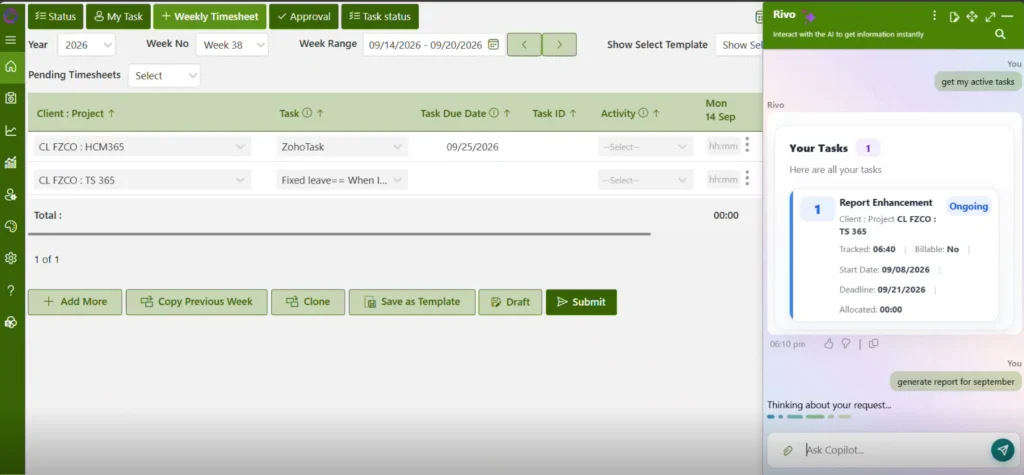
Timesheet 365 is a punch clock app built for Microsoft 365. Employees clock in and out, log time and submit timesheets inside Microsoft Teams, so there’s no separate portal or password to manage. Time records are stored in SharePoint within your own Microsoft 365 tenant, so punch data stays under your organization’s existing security and access policies.
- Punch in and punch out inside Microsoft Teams: employees clock in from a Teams tab on desktop, web or the Teams mobile app on iPhone and Android.
- Missed punch approvals: employees request corrections for forgotten clock-ins or clock-outs, and managers approve them with a full audit trail.
- Timesheet approvals: punches roll into timesheets that managers review, approve or reject in Teams.
- Overtime tracking: hours beyond standard schedules are flagged automatically, so overtime is visible before payroll.
- AI agent for work capture to reports: an AI agent captures logged work and turns punch and project time into ready-to-use reports.
- SharePoint data storage and payroll export: time data stays in your Microsoft 365 tenant, and approved hours export cleanly for payroll.
Pricing
Timesheet 365 is sold as a per-user monthly subscription, with a free trial available through Apps 365 and Microsoft AppSource. Check the Apps 365 pricing page for current tiers.
Pros
- No new app to adopt, because punching in happens inside Teams.
- Data stays in your own Microsoft 365 tenant, which simplifies security reviews.
- AI-assisted work capture and reporting reduces admin time.
- Strong fit for project-based and hybrid teams.
Cons
- Built for organizations on Microsoft 365, so it’s not ideal if you don’t use Teams.
- Fewer frontline-specific verification options, such as facial-recognition kiosks, than tools built for deskless crews.
Ratings
- G2: 4.8/5
- Capterra: 5/5

2. Clockify – Best free punch clock app for small teams
Clockify is one of the most popular time tracking apps because its free plan covers unlimited users. It offers a timer, manual timesheets and a kiosk mode for shared-device clock-ins. It suits small businesses, agencies and freelancers who want a no-cost starting point and may later need project and billable-hour tracking.
- Free time tracking for unlimited users and projects.
- Kiosk mode with PIN-based clock-in on a shared device.
- GPS location tracking and screenshots on paid plans.
- Timesheet approvals and billable rates.
- Apps for iPhone, Android, desktop and browser.
Pricing
Free plan available. Paid plans start at roughly $3.99 per user per month, billed annually.
Pros
- Very generous free plan.
- Strong reporting on projects and billable hours.
- Simple interface with fast setup.
Cons
- Key punch-verification features are on paid tiers.
- Less focused on shift scheduling and hourly compliance.
Ratings
- G2: ~4.5/5
- Capterra: ~4.7/5
Why make your team download another punch clock app?
3. QuickBooks Time – Best for teams already using QuickBooks
QuickBooks Time (formerly TSheets) is Intuit’s time tracking product. Its tight QuickBooks payroll and accounting integration makes it a natural pick for small and mid-sized businesses already running their books in QuickBooks, especially those with mobile or field employees.
- Mobile clock-in with GPS tracking and geofencing reminders.
- Photo-enabled kiosk for shared-device punching.
- Job and customer time tracking for job costing.
- Overtime alerts and scheduling.
- Direct sync to QuickBooks Payroll and Online.
Pricing
Starts at about $20 per month base plus $8 per user. A 30-day free trial is available.
Pros
- Seamless QuickBooks integration.
- Strong GPS and geofencing for job sites.
- Mature, well-reviewed mobile apps.
Cons
- Gets expensive as headcount grows.
- Best value only if you already use QuickBooks.
Ratings
- G2: ~4.5/5
- Capterra: ~4.7/5
4. Buddy Punch – Best for preventing buddy punching
Buddy Punch was built around punch verification. It lets you require photos, facial recognition, GPS or geofencing at clock-in, so it is a strong option for businesses where time theft or proxy punching is a real concern.
Key features
- Photo capture and facial recognition on punch.
- GPS tracking and geofencing.
- Schedule-based punch limits to block early clock-ins.
- Missed-punch requests with manager approval.
- Payroll integrations and overtime rules.
Pricing
Starts at roughly $19 per month base plus about $4.49 per user. A 14-day free trial is available.
Pros
- Deep set of verification options.
- Easy setup and highly rated support.
- Flexible approval and edit workflows.
Cons
- Base fee adds cost for very small teams.
- Project and client billing features are lighter than dedicated tools.
Ratings
- G2: ~4.8/5
- Capterra: ~4.8/5
5. Connecteam – Best for deskless frontline teams
Connecteam is an all-in-one employee app for frontline and deskless workforces. It combines a time clock with scheduling, communication, checklists and training, which suits teams that rarely sit at a computer.
- Mobile time clock with GPS and geofencing.
- Kiosk mode with facial recognition.
- Automatic missed-punch reminders and auto clock-out.
- Scheduling, chat and task checklists.
- Payroll exports and integrations.
Pricing
Free for very small teams (up to 10 users). Paid plans start at about $29 per month for the first 30 users. A 14-day free trial is available.
Pros
- Generous free tier for small businesses.
- Broad feature set beyond time tracking.
- Strong reminders reduce missed punches.
Cons
- The breadth of features can feel heavy if you only need a time clock.
- Advanced features require higher tiers.
Ratings
- G2: ~4.6/5
- Capterra: ~4.8/5
6. Jibble – Best free punch clock app with facial recognition
Jibble is a time and attendance app known for a free plan that already includes facial recognition, GPS and geofencing. That makes it one of the best free timestamp punch clock apps for teams that want verification without paying.
- Facial recognition clock-in on phones and shared kiosks.
- GPS tracking and geofencing.
- Overtime, breaks and timesheet approvals.
- Microsoft Teams and Slack clock-in options.
- Payroll and accounting integrations.
Pricing
Free plan for unlimited users. Paid plans start at roughly $2.49 per user per month, billed annually.
Pros
- Verification features available for free.
- Affordable paid tiers.
- Works across mobile, web, kiosk and chat apps.
Cons
- Advanced reporting and integrations are on paid plans.
- Its Teams integration is lighter than a Teams-native tool’s.
Ratings
- G2: ~4.7/5
- Capterra: ~4.8/5
7. Homebase – Best for restaurants and hourly shift teams
Homebase combines scheduling, a time clock, team messaging and payroll for hourly businesses such as restaurants, cafés and retail stores. Its free plan for a single location makes it easy to try.
- Time clock on mobile, tablet or POS.
- GPS and geofencing for mobile clock-ins.
- Schedule-linked punches and early clock-in controls.
- Break and overtime compliance alerts.
- Built-in payroll (add-on) and hiring tools.
Pricing
Free Basic plan for one location. Paid plans start at roughly $20–30 per location per month.
Pros
- Strong scheduling and shift-swap tools.
- Location-based pricing suits larger hourly teams.
- Good compliance alerts for hourly labor.
Cons
- Per-location pricing adds up for multi-site businesses.
- Less suited to project or client time tracking.
Ratings
- G2: ~4.3/5
- Capterra: ~4.6/5
8. When I Work – Best for hourly shift scheduling plus clock-in
When I Work started as a scheduling app and added a time clock. That makes it a good fit for teams whose main challenge is building and filling shifts, with punches tied to those schedules.
- Mobile and kiosk clock-in.
- GPS, geofencing and photo clock-in.
- Early clock-in prevention tied to schedules.
- Shift swaps, availability and team messaging.
- Payroll integrations and timesheet exports.
Pricing
Starts at roughly $2.50 per user per month. A 14-day free trial is available.
Pros
- Excellent scheduling tools.
- Simple employee mobile experience.
- Schedule-based punch controls.
Cons
- Time tracking is less deep than in dedicated time tools.
- Costs rise as you add time and attendance features.
Ratings
- G2: ~4.4/5
- Capterra: ~4.5/5
9. ClockShark – Best for construction and field service teams
ClockShark is built for construction, contracting and field service businesses. It focuses on tracking crews across job sites and tying time to jobs for accurate costing.
- GPS clock-in with location breadcrumbs.
- Geofencing around job sites.
- Crew clock-in by a foreman.
- Job and task costing.
- Scheduling and QuickBooks and payroll integrations.
Pricing
Starts at roughly $40 per month base plus a per-user fee. A 14-day free trial is available.
Pros
- Purpose-built for field crews.
- Strong job costing and crew features.
- Well-reviewed mobile apps.
Cons
- Base fee is high for very small teams.
- Less relevant for office or hybrid staff.
Ratings
- G2: ~4.6/5
- Capterra: ~4.8/5
10. Hubstaff – Best for remote and distributed teams
Hubstaff combines time tracking with productivity insights. It suits remote teams, agencies and distributed workforces that want both time records and visibility into how work hours are spent.
- Desktop, web and mobile time tracking.
- GPS tracking and geofenced job sites.
- Optional activity levels and screenshots.
- Timesheet approvals and automated payroll.
- Project budgets and client invoicing.
Pricing
Free single-user plan. Paid plans start at roughly $4.99 per seat per month. A 14-day free trial is available.
Pros
- Strong for remote and global teams.
- Built-in payroll and invoicing.
- Detailed project budgeting.
Cons
- Activity monitoring can feel intrusive to some employees.
- More than a simple punch clock if that’s all you need.
Ratings
- G2: ~4.5/5
- Capterra: ~4.6/5
Every missed or padded punch costs you money.
Timesheet 365 gives you an employee time punch clock app with approvals, overtime alerts and a full audit trail, all inside Microsoft Teams.
How to Approve Missed Punches in a Time Clock App
Missed punches are the most common timesheet problem. Most punch clock apps handle them with the same basic workflow:
- The employee submits a request. They add the missing clock-in or clock-out time and a short reason from the app.
- The manager is notified. The request shows up in an approvals queue, by email or as a push or Teams notification.
- The manager reviews and approves or rejects it. They compare the request against schedules, GPS data or project activity.
- The system logs the change. The original entry, the edit, who approved it and when are all recorded in an audit trail.
- Approved hours flow to timesheets and payroll.
That audit trail matters. The U.S. Department of Labor notes that employers must pay for all hours worked, so documented, approved corrections protect both employees and employers. In Timesheet 365, these approvals happen inside Microsoft Teams. In frontline tools like Buddy Punch or Connecteam, they happen in the mobile manager app.
What Is the Best Punch Clock App for iPhone?
For iPhone users, the best punch clock app depends on how you verify punches:
- Microsoft 365 organizations: Timesheet 365 works through the Teams app for iPhone, so there is nothing new to install.
- Photo or face verification: Buddy Punch, Jibble and Connecteam all support selfie or facial-recognition clock-ins on iOS.
- Field crews: QuickBooks Time and ClockShark offer strong GPS and geofencing on iPhone.
What's the Best Free Timestamp Punch Clock App?
If you need a free punch clock app, Clockify and Jibble are the strongest picks because both offer free plans for unlimited users. Jibble includes facial recognition and geofencing for free. Clockify is better if you also track projects. Connecteam (free for small teams) and Homebase (free for one location) are good free options for hourly shift teams.
Join Our Creative Community
Frequently Asked Questions
What is a punch clock app?
A punch clock app is software that records when employees clock in and out.
It replaces paper time cards with digital, timestamped records on a phone, computer or kiosk.
Is there a free punch clock app?
Yes. Clockify and Jibble offer free plans for unlimited users.
Connecteam and Homebase also have free tiers for small teams or single locations.
How do punch clock apps prevent buddy punching?
They verify each punch with GPS, geofencing, photos or facial recognition.
Audit trails and manager approvals add another layer of accountability.
Can employees clock in and out inside Microsoft Teams?
Yes. Timesheet 365 lets employees punch in and out directly in Microsoft Teams.
The time data is stored in SharePoint within your own Microsoft 365 tenant.
Do punch clock apps calculate overtime?
Most do. They apply overtime rules automatically based on hours worked.
Approved hours can then be exported to payroll.