
8 Best ClickUp Alternatives for Better Team Collaboration in 2027

Managing projects should make work easier, not add more steps to your day. If your team spends too much time setting up workflows, finding task updates, or switching between apps, it may be time to explore the best ClickUp alternatives. ClickUp offers project planning, automation, dashboards, and team collaboration tools. However, some businesses want a simpler interface, closer Microsoft 365 integration, or a platform built around their specific needs.
- The best ClickUp alternative depends on team size, daily workflows, and integration needs
- Simple tools like Trello work well for visual task tracking, while Wrike supports more complex project planning
- Microsoft 365 users should consider solutions that work within their existing Microsoft environment
- Compare pricing, automation limits, reporting, and user permissions before choosing
- Test each platform with a real project before moving your entire team
In this guide, we compare 8 best ClickUp alternatives based on features, ease of use, integrations, pricing options, and ideal users. You will also learn how to choose a solution that helps your team stay organized without adding unnecessary complexity.
Quick Comparison: 8 Best ClickUp Alternatives
Software | Best For | Key Strength | Free Option |
Trello | Small teams | Simple Kanban boards | Free plan |
Asana | Cross-functional teams | Project planning and automation | Free plan |
Task 365 | Microsoft 365 teams | SharePoint, Teams, and Planner integration | 14-day free trial |
monday.com | Growing businesses | Custom workflows and dashboards | Limited free plan |
Wrike | Enterprise teams | Resource planning and reporting | Free plan |
Notion | Knowledge-driven teams | Documents, databases, and tasks | Free plan |
Smartsheet | Spreadsheet users | Grid-based project management | Trial |
Teamwork | Agencies | Client projects and time tracking | Limited free plan |
Why Businesses Look for ClickUp Alternatives
ClickUp brings many work management features into one platform. Teams can manage tasks, create dashboards, organize documents, and automate workflows. That flexibility can be valuable. However, it can also create challenges for teams that need a more focused solution. Here are some common reasons businesses explore ClickUp competitors:
1. A simpler learning experience
- A platform with many settings, views, and features can take time to learn.
- For example, a small marketing team may only need to assign tasks, review deadlines, and track campaign progress. Setting up a complex workspace for these needs may create extra work.
- A simpler tool can help employees focus on completing tasks instead of learning software.
2. Better integration with existing tools
- Many organizations already use Microsoft Teams, Outlook, SharePoint, and other business applications.
- Adding a separate project management platform may require employees to switch between systems.
- Businesses often look for task management software that connects naturally with their current workspace.
3. More predictable costs
- Project management software costs can increase when teams need advanced reporting, automation, additional storage, or more user seats.
- ClickUp provides a free plan and several paid tiers, but businesses should compare the features included at each level rather than looking only at the starting price.
4. Clearer project visibility
Managers need quick answers to important questions.
- Who owns each task?
- Which deadlines are approaching?
- What work is overdue?
- Where are projects getting delayed?
- Which team members need support?
If teams struggle to find these answers, a different project management system may be a better fit.
5. Workflows that match business needs
- An agency, IT department, HR team, and product development team may all manage projects differently.
- The right software should support the team’s process instead of forcing every department into the same workflow.
What to Look for in a ClickUp Alternative
Before comparing platforms, identify the features your team uses every day.
Ease of use and onboarding
Choose software that employees can understand without extensive training.
Look for clear menus, simple task creation, and easy navigation. Ask several team members to test the platform before making a decision.
Task and project management
A useful project management platform should help teams organize daily work and monitor progress.
Important capabilities include:
- Task creation and assignment
- Due dates and priorities
- Project status tracking
- Task dependencies where needed
- Recurring tasks
- Multiple project views
Team collaboration
Good collaboration tools connect communication with actual work.
Look for shared updates, comments, file access, notifications, and clear task ownership.
Workflow automation
Automation can reduce repeated manual steps.
For example, a team may want to notify a manager when a task becomes overdue or update a project status after approval.
Check which automations are included in each plan and whether usage limits apply.
Integrations and data management
Make a list of the tools your employees already use.
These may include Microsoft Teams, SharePoint, Outlook, Microsoft Planner, Google Workspace, Slack, and CRM systems.
Also review where project data is stored, how permissions work, and whether the platform supports your organization’s security requirements.
Reporting and pricing
Compare the reporting features you need with the total cost of ownership.
Consider license fees, onboarding, paid add-ons, integrations, training, and ongoing administration.
8 Best ClickUp Alternatives in 2027
The following tools serve different team sizes, industries, and project management needs. Each one offers a distinct approach to organizing work.
#1. Trello: Best for Simple Visual Task Management
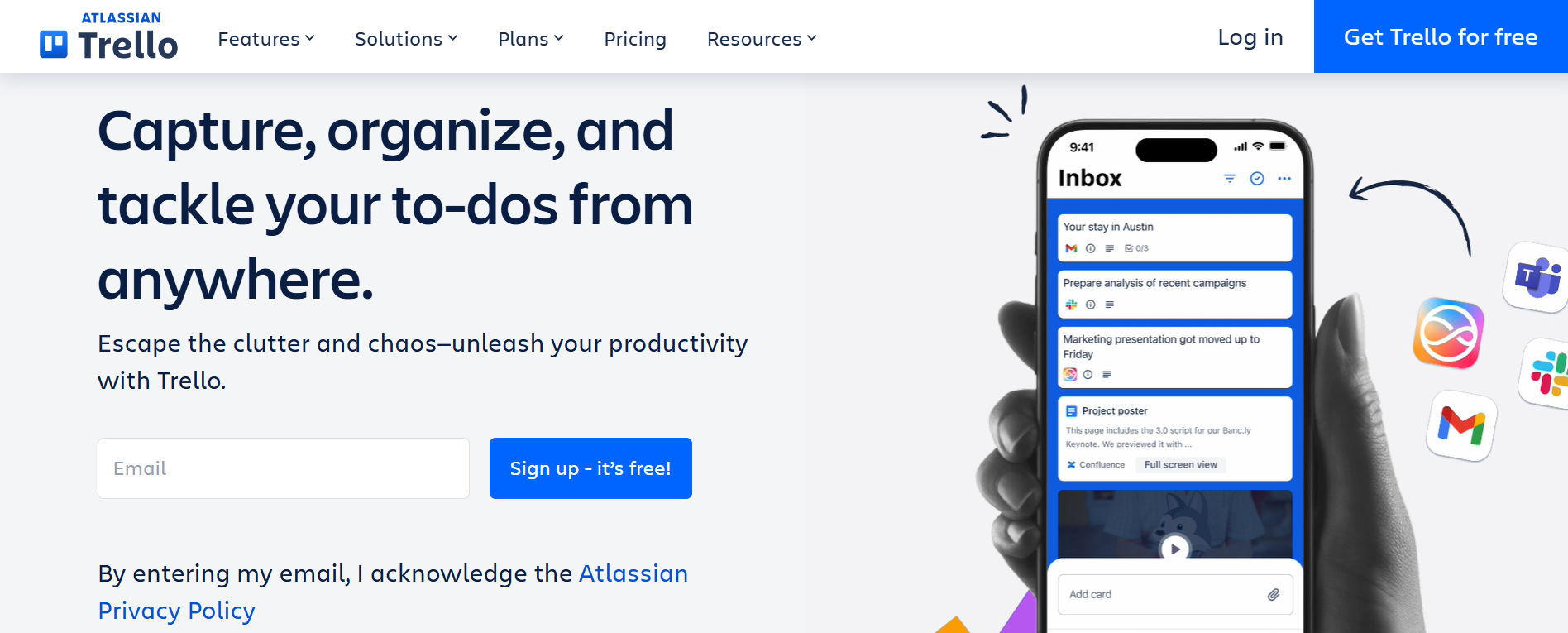
Best for: Small teams, startups, and businesses that want easy-to-use Kanban boards.
Trello is a visual task management platform built around boards, lists, and cards. Instead of managing projects through complex structures, teams can organize work into stages such as To Do, In Progress, Review, and Done. This makes Trello a practical option for straightforward workflows.
Key features of Trello
- Drag-and-drop Kanban boards
- Custom task cards and checklists
- Due dates and assignments
- File attachments and comments
- Workflow automation
- Power-Ups and integrations
- Mobile access
Advantages of Trello
- Simple interface for new users
- Clear visual task organization
- Easy setup for small projects
- Free plan for basic requirements
Things to consider: Advanced reporting, resource planning, and complex dependencies may require additional capabilities or a different platform.
Example: A social media team can use Trello to move content from Ideas to Drafting, Review, Scheduled, and Published.
Pricing: Trello offers a free plan and paid subscriptions.
Choose Trello if: Your main goal is to organize straightforward work with minimal setup.
#2. Asana: Best for Cross-Functional Project Planning
Best for: Marketing, product, operations, and cross-functional teams.
Asana helps organizations manage projects, coordinate responsibilities, and track work across departments.
It offers different project views and workflow capabilities that support structured planning.
Key features of Asana
- Task and project assignments
- List, Board, Calendar, and Timeline views
- Task dependencies
- Workflow automation
- Project templates
- Reporting dashboards
- Resource management in eligible plans
- Integrations with business applications
Advantages of Asana
- Strong visibility across related projects
- Clear task ownership and deadlines
- Useful for cross-functional workflows
- Advanced planning features in paid plans
Things to consider: Some reporting, resource planning, and automation capabilities require paid subscriptions.
Example: A marketing department can coordinate campaign planning, design approvals, content production, and launch deadlines in one project.
Pricing: Asana offers a free Personal plan for up to two users, along with paid plans for larger teams.
Choose Asana if: Your business manages projects across several departments and needs structured workflows.
#3. Task 365: Best for Microsoft 365 and SharePoint Task Management

Best for: Businesses that use Microsoft 365 and want centralized task tracking, collaboration, and project visibility.
Task 365 is a SharePoint task management solution designed for organizations working within the Microsoft 365 ecosystem. It connects with Microsoft Teams, SharePoint, Planner, and Outlook to help teams organize assignments, follow deadlines, and monitor work. For businesses that already depend on Microsoft applications, Task 365 offers a way to manage daily work without introducing a completely separate collaboration environment.
Key features of Task 365
- Task creation, assignment, and priority management
- Multi-project tracking
- List, Board, Calendar, and Timeline views
- Project dashboards and performance insights
- Custom task fields
- Task reminders and workflow automation
- Microsoft Teams, SharePoint, Planner, and Outlook integration
- AI-assisted task management and summaries
- Permission-based access
- Mobile and laptop accessibility
Advantages of Task 365
- Built for organizations already using Microsoft 365
- Connects task management with familiar Microsoft tools
- Supports multiple projects and task views
- Provides reporting and progress visibility
- Helps teams manage work within their Microsoft environment
Things to consider
- Task 365 is most relevant to organizations using Microsoft 365. Businesses built primarily around Google Workspace or other platforms may prefer a different solution.
- Pricing depends on organizational requirements, so businesses should request a quote and product demonstration.
Ideal users: IT departments, HR teams, operations managers, marketing teams, project managers, and Microsoft 365-based organizations.
Choose Task 365 if: Task 365 is worth considering when integration with SharePoint, Teams, and Microsoft Planner matters more than having a broad standalone workspace.
Ready to simplify task management in Microsoft 365?
Explore Task 365 and request a free demo to see how it fits your team’s workflow.
#4. Monday.com: Best for Custom Workflows and Dashboards
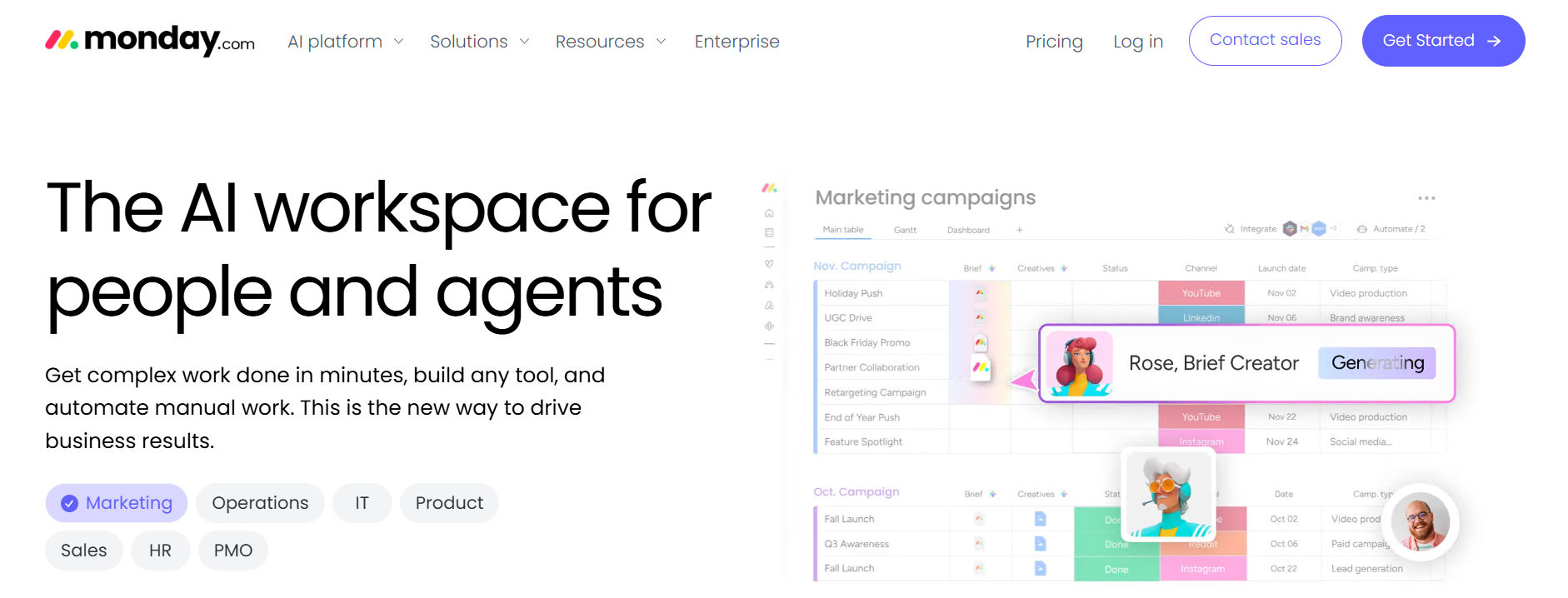
Best for: Growing organizations that want flexible project tracking and visual reporting.
Monday.com offers customizable work management tools that help teams build workflows around their business processes. Its visual boards, dashboards, and automation features support a range of project types.
Key features of Monday.com
- Customizable project boards
- Workflow automation
- Dashboard reporting
- Gantt and Timeline views
- Workload management
- File sharing
- Integration options
- Project templates
Advantages of Monday.com
- Flexible workflows
- Visual reporting options
- Customizable project structures
- Suitable for different departments
Things to consider: Teams may need time to configure boards and automations. Advanced reporting and automation limits also depend on the selected plan.
Example: A sales operations team can track customer onboarding through contract review, setup, training, and handoff.
Pricing: monday.com offers a limited free plan and several paid plans, with features varying by subscription.
Choose Monday.com if: You need a platform that can be customized for different internal workflows.
#5. Wrike: Best for Enterprise Project Management
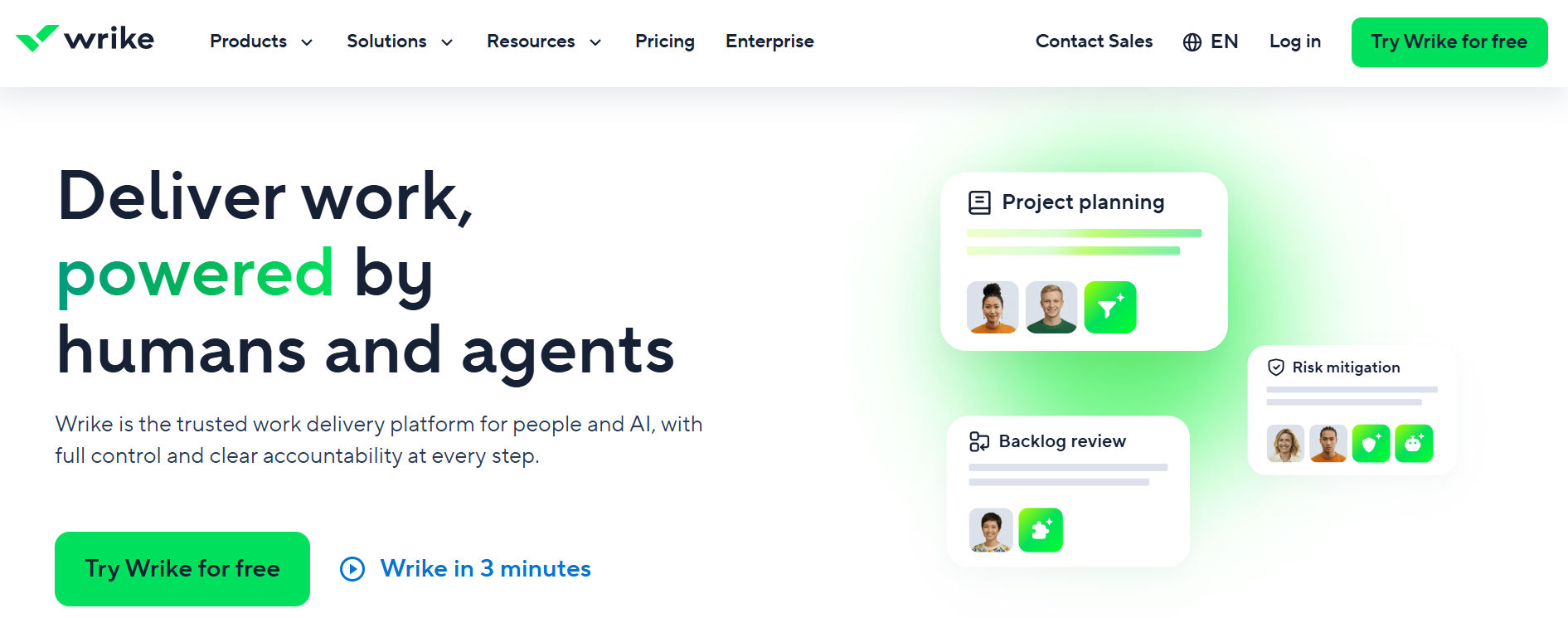
Best for: Large businesses, project management offices, and teams managing complex work.
Wrike provides project management features for teams that need detailed planning, reporting, and collaboration. It is especially relevant when organizations manage several projects, departments, or approval stages.
Key features of Wrike
- Project planning
- Gantt charts
- Resource management
- Time tracking
- Approval workflows
- Custom workflows
- Project dashboards
- Reporting tools
Advantages of Wrike
- Strong project oversight
- Detailed planning capabilities
- Resource management options
- Support for complex workflows
Things to consider: Advanced features may require higher-tier plans, and smaller teams may find the platform more detailed than they need.
Example: A project management office can use Wrike to monitor work across departments, review schedules, and coordinate project approvals.
Pricing: Wrike offers a free plan and paid plans with additional capabilities.
Choose Wrike if: Your organization needs detailed project controls, reporting, and resource planning.
#6. Notion: Best for Documentation and Project Organization
Best for: Knowledge-based teams, content teams, startups, and businesses managing documents alongside tasks.
Notion combines documents, wikis, databases, and project tracking in a flexible workspace. Teams can build project pages that connect important information with daily assignments.
Key features of Notion
- Documents and team wikis
- Task databases
- Project templates
- Custom database properties
- Multiple database views
- Subtasks and dependencies
- Shared pages and collaboration
- Integrations and AI capabilities
Advantages of Notion
- Combines documents with project information
- Highly flexible workspace structure
- Useful for knowledge sharing
- Customizable task databases
Things to consider: Teams may need to spend time building a consistent workspace. Advanced project controls may require more configuration than in dedicated project management platforms.
Example: A content team can maintain brand guidelines, campaign briefs, editorial calendars, and writing assignments in one workspace.
Pricing: Notion provides a free plan and paid subscriptions, with AI and collaboration capabilities depending on the plan.
Choose Notion if: Your team needs documents and project tracking in one flexible environment.
#7. Smartsheet: Best for Spreadsheet-Based Project Management
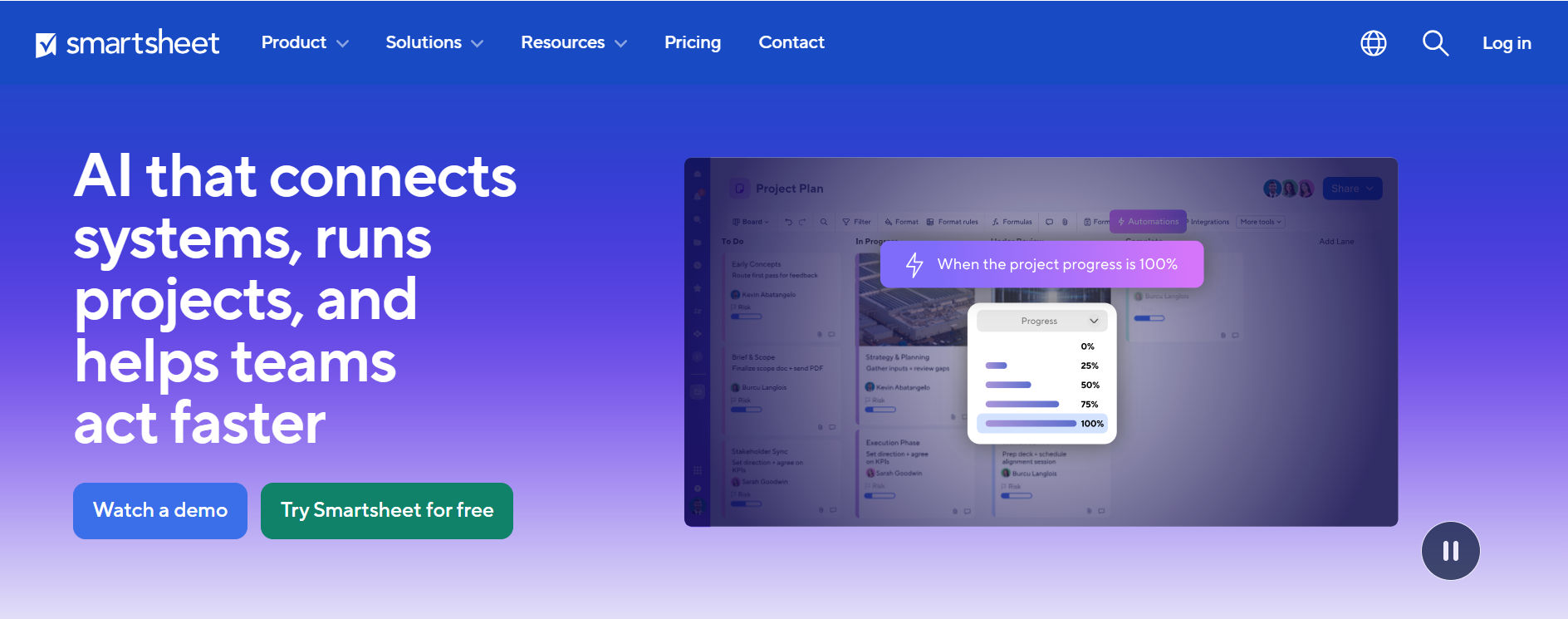
Best for: Operations teams, project managers, and businesses comfortable with spreadsheets.
Smartsheet combines spreadsheet-style planning with project management tools. It helps teams organize structured project information while supporting collaboration, reporting, and workflow automation.
Key features of Smartsheet
- Grid-based project tracking
- Gantt charts
- Calendar and Board views
- Automated workflows
- Reporting and dashboards
- Forms and data collection
- File attachments
- Team collaboration
Advantages of Smartsheet
- Familiar grid-based layout
- Structured project data
- Useful reporting and automation
- Flexible planning views
Things to consider
- Teams that prefer simple task boards may find the spreadsheet-based approach less natural.
- Advanced features and administrative controls may require higher-tier plans.
Example: An operations team can use Smartsheet to track vendor onboarding, approval dates, project milestones, and completion status.
Pricing: Smartsheet offers paid subscriptions and trial options.
Choose Smartsheet if: Your team relies on spreadsheets but needs stronger project tracking and automation.
#8. Teamwork: Best for Agencies and Client Projects
Best for: Agencies, consulting businesses, and professional service teams.
Teamwork is designed to help service businesses organize client projects, track time, and monitor delivery. It connects project planning with features that support client-facing work.
Key features of Teamwork
- Task and project management
- Time tracking
- Client collaboration
- Project templates
- Workload planning
- Reporting dashboards
- Budget and financial management features
- Billing-related workflows
Advantages of Teamwork
- Focused on client service delivery
- Useful time tracking
- Client project visibility
- Financial planning features in eligible plans
Things to consider
- Businesses that do not manage client projects may not need its service-focused features.
- Financial reporting and advanced resource management vary by plan.
Example: A digital agency can track website design work, client feedback, billable hours, and delivery deadlines.
Pricing: Teamwork offers a limited free plan, paid subscriptions, and trial options.
Choose Teamwork if: Your business needs to manage client projects while tracking time and delivery performance.
Feature Comparison: ClickUp Alternatives at a Glance
The following table compares each platform’s main strengths rather than treating every available integration or feature as equal.
Software | Task Tracking | Advanced Planning | Workflow Automation | Microsoft 365 Fit | Reporting |
Trello | Yes | More limited | Supported | Integrations available | Basic to extended |
Asana | Yes | Strong | Supported | Integrations available | Strong |
Task 365 | Yes | Multi-project views | Supported | Native ecosystem focus | Dashboards |
monday.com | Yes | Strong | Supported | Integrations available | Strong |
Wrike | Yes | Strong | Supported | Integrations available | Strong |
Notion | Yes | Configurable | Plan-dependent | Connections available | Configurable |
Smartsheet | Yes | Strong | Supported | Integrations available | Strong |
Teamwork | Yes | Strong | Supported | Integrations available | Strong |
ClickUp vs Task 365: Which Is Better for Microsoft 365 Teams?
ClickUp and Task 365 both help teams organize work, but they take different approaches. ClickUp is a broad work management platform with task planning, documents, dashboards, automations, and other collaboration features. Task 365 focuses on task and project tracking within the Microsoft 365 ecosystem.
Comparison Factor | ClickUp | Task 365 |
Primary approach | Standalone work management workspace | Microsoft 365-based task management |
Microsoft Teams | Integration available | Designed to work with Teams |
SharePoint | Integration options vary | SharePoint-based application |
Microsoft Planner | Verify workflow requirements | Listed product integration |
Task management | Extensive capabilities | Centralized task management |
Project views | Multiple views | List, Board, Calendar, Timeline |
Reporting | Dashboards and reports | Project dashboards and insights |
Data environment | ClickUp cloud service | Task data within organizational Microsoft 365 environment |
Pricing | Published free and paid plans | Personalized quote |
When ClickUp may be a better choice: ClickUp may suit teams that want a broad standalone workspace with many built-in tools and extensive customization.
When Task 365 may be a better choice: Task 365 may suit organizations that already use SharePoint, Microsoft Teams, Outlook, and Planner and want task management connected to those tools.
How to Choose the Right ClickUp Alternative?
Choosing project management software is easier when you start with your team’s actual problems. Follow these five steps before purchasing a platform:
Step 1: Identify your biggest workflow problem
- Determine whether your current challenges involve missed deadlines, unclear ownership, complex setup, scattered documents, or poor reporting.
- Choose software that directly addresses the problem.
Step 2: List your essential features
- Separate must-have features from optional features.
- For example, an IT team may require permissions, task history, and Microsoft 365 integration, while a small creative team may only need boards and deadlines.
Step 3: Calculate the total cost
- Compare the complete cost of each platform.
- Include user licenses, required paid features, implementation, training, and ongoing support.
- Do not assume the lowest advertised price means the lowest long-term cost.
Step 4: Test a real project
- Create a sample project with actual tasks, owners, and deadlines.
- Ask team members to complete common activities, including assigning work, updating progress, and finding overdue tasks.
Step 5: Review the results
- Evaluate whether the software improves visibility and reduces manual work.
- The best ClickUp alternative should help employees manage their responsibilities with less effort.
Which ClickUp Alternative Should You Choose?
Use this quick decision guide to narrow your options.
Your Main Requirement | Recommended Tool |
Manage tasks in Microsoft 365 | Task 365 |
Keep project tracking simple | Trello |
Coordinate cross-functional projects | Asana |
Customize dashboards and workflows | monday.com |
Manage complex enterprise projects | Wrike |
Combine company knowledge and tasks | Notion |
Track structured projects in grids | Smartsheet |
Manage client work and billable time | Teamwork |
No single platform is best for every business. A five-person startup may prioritize low cost and simple setup. A large IT department may care more about integrations, user permissions, and data controls. Choose the tool that solves your biggest daily challenge.
Best Practices for Switching From ClickUp to Another Tool
Moving to new project management software requires more than exporting a task list. A structured transition can reduce confusion and protect important project information.
Review your existing workspace
- Identify active projects, tasks, custom fields, attachments, and recurring workflows.
- Remove outdated information before migration.
Test data migration
- Check whether the new platform supports importing the information you need.
- Test task owners, due dates, statuses, attachments, and dependencies before moving all projects.
Set clear project rules
- Create consistent task names, ownership rules, priorities, and status labels.
- This helps employees understand how work should be managed.
Train employees on daily tasks
- Focus training on creating assignments, updating status, sharing information, and reviewing deadlines.
- Avoid overwhelming employees with advanced features during the first week.
Measure adoption
- Review whether employees are updating tasks, finding project information, and meeting deadlines.
- Ask for feedback and improve the workflow before expanding to more teams.
Conclusion
The best ClickUp alternatives are Task 365, Trello, Asana, monday.com, Wrike, Notion, Smartsheet, and Teamwork. Each platform solves different project management problems. Trello is a strong choice for simple visual task tracking. Asana supports structured team planning, monday.com offers flexible workflows, Wrike helps manage complex projects, Notion combines documentation and tasks, Smartsheet supports spreadsheet-driven work, and Teamwork focuses on client service projects.
For businesses already using Microsoft 365, Task 365 is a practical ClickUp alternative to evaluate. It connects task management with SharePoint, Teams, Outlook, and Planner while offering multiple project views, reporting, and collaboration features. Before making a decision, compare your must-have features, check licensing, and test a real workflow with your team.
Ready to Improve Team Collaboration With Task 365?
Stop losing track of assignments across different tools. Bring more structure to your Microsoft 365 task management process. Book Your Free Task 365 Demo
Frequently Asked Questions
What are the best ClickUp alternatives in 2027?
The best ClickUp alternatives include Task 365, Trello, Asana, monday.com, Wrike, Notion, Smartsheet, and Teamwork. Task 365 is especially relevant to Microsoft 365 organizations, while Trello offers simple visual task management and Asana supports cross-functional projects.
Which ClickUp alternative is best for small businesses?
Trello is a good option for small businesses that need simple Kanban boards. Asana and Notion are also worth evaluating. Small businesses already using Microsoft 365 can consider Task 365 for connected task management.
Which ClickUp alternative works best with Microsoft 365?
Task 365 is designed for the Microsoft 365 ecosystem and supports connections with SharePoint, Microsoft Teams, Planner, and Outlook. Other platforms may also offer Microsoft integrations, but the depth and features vary.
Are there free alternatives to ClickUp?
Yes. Trello, Asana, monday.com, Wrike, Notion, and Teamwork offer free plans with different limits. Review user limits, storage, automation, reporting, and project restrictions before choosing.
Which ClickUp alternative is easiest to use?
Trello is often a practical starting point for teams seeking simple visual task tracking. However, ease of use depends on the team’s workflow and experience with the software.
Can I migrate projects from ClickUp to another tool?
Many project management platforms support data import options, but migration capabilities vary. Test task details, attachments, custom fields, and dependencies before moving your entire workspace.
Is Task 365 better than ClickUp?
Task 365 may be a better fit for businesses focused on Microsoft 365 and SharePoint task management. ClickUp may be more suitable for teams that want a broad standalone workspace with extensive customization. The right choice depends on business requirements.