

Expense Report SharePoint: How to Build and Manage Your Expense Workflow

- A SharePoint expense report centralizes all spending data receipts, categories, amounts, and approvals in one structured, accessible location for your entire organization.
- Power Automate can be connected to SharePoint lists to build multi-stage approval workflows that notify managers, route claims, and update statuses automatically.
- Manual expense reporting costs organizations significant time and money companies that automate their expense process reclaim hours of finance staff time every reporting cycle.
- Expense 365 extends SharePoint’s built-in capabilities with real-time dashboards, policy enforcement, receipt management, and compliance-ready audit trails.
Managing business expenses without a structured system is one of the most persistent pain points for finance and operations teams.
Employees lose receipts, approvals get delayed, reimbursements take weeks, and finance teams spend hours reconciling numbers that should have been captured automatically
The result? Wasted time, strained relationships, and financial reports that never quite reflect reality.
That is why more Microsoft 365 organizations are turning to expense report SharePoint solutions.
This guide walks you through everything from what a SharePoint expense report actually contains, to how to track status and keep your expense data secure and audit-ready.
What is an Expense Report in SharePoint?
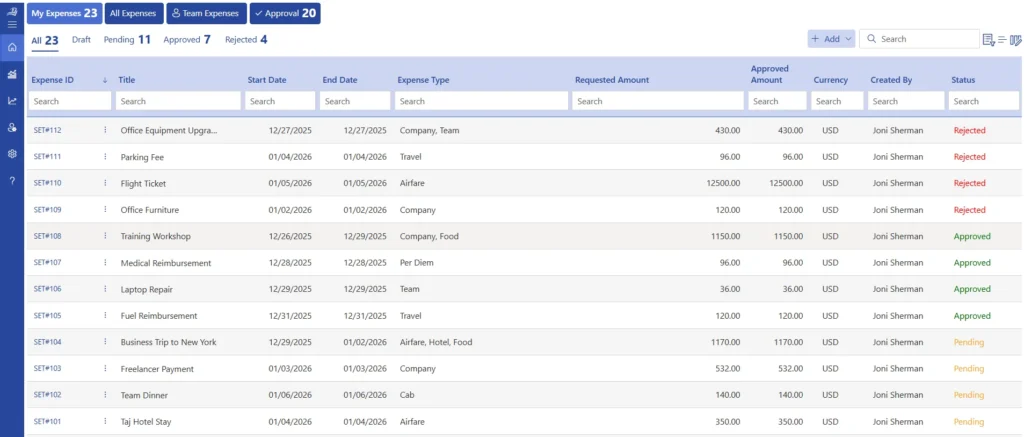
An expense report SharePoint solution is a structured system built on Microsoft ecosystem that allows employees to submit, document, and track business expenses digitally.
At its core, a SharePoint expense report is a list entry that captures all the financial details of a business expenditure
- Who spent money
- How much, what category it falls under
- Which project or cost center it belongs to, and what documentation supports the claim.
Key Components of a SharePoint Expense Report
A well-built SharePoint expense report does more than capture a dollar amount. It collects all the context finance teams need to verify, approve, and reconcile an expense. Here are the core components every SharePoint expense report should include.
Employee and Submission Details: Name, department, employee ID, date of submission, and reporting period. These fields allow finance teams to sort and filter expense data by team, time frame, or individual.
Expense Line Items: Each expense should be broken into individual entries with its own date of expenditure, merchant or vendor name, amount, and currency. For teams with international travel, multi-currency support is critical.
Expense Category: Categories like travel, accommodation, meals, client entertainment, office supplies, or software subscriptions help finance teams analyze expense groups and compare actuals against budget allocations.
Project or Cost Center Code: Linking expenses to specific projects, departments, or cost centers makes it possible to attribute spending accurately and generate reports that show where money is going across the business.
Receipt Attachments: A document library column linked to each expense entry stores scanned receipts, photos, or digital invoices. This is essential for receipt scanning and audit readiness.
Payment Method: Whether the expense was paid via corporate card, personal card, cash, or a company account affects how reimbursement is calculated and processed.
Approval Status: A status column typically Pending, Approved, Rejected, or Paid makes it easy to track where each claim stands in the process. Power Automate can update this field automatically as workflows progress.
Manager Notes or Rejection Reason A free-text field where approvers can explain decisions adds context to the record and helps employees understand why a claim was modified or declined.
When expenses flow smoothly, work does too
Automate approvals, simplify expense reporting, and help everyone stay focused on the work that matters. All within Microsoft 365.
SharePoint Expense Report Workflow Process
The workflow is where a SharePoint expense report system either works well or falls apart. Most organizations follow a multi-step process from submission to payment, and each step needs clear ownership and reliable handoffs.
Step 1 Submission: An employee submits expense a in the SharePoint expense list, attaches receipts to the document library, and submits the claim. Power Automate picks up the submission and triggers the next step.
Step 2 Line Manager Review: The workflow routes the expense report to the employee’s direct manager. The manager receives an email notification with a link to the SharePoint record. They can review each line item, check attached receipts, and approve or reject the claim either directly in SharePoint or through an adaptive card in Microsoft Teams.
Step 3 Finance Team Verification: Once the manager approves, the report moves to the finance department for policy compliance checking. Finance reviewers verify that amounts fall within company policy limits, categories are correctly assigned, and receipts match claimed amounts.
Step 4 Final Approval and Payment: After finance sign-off, the status field is updated to Approved and the claim is queued for expense reimbursement processing. The automation feature sends a notification to payroll or accounting systems at this stage.
Step 5 Record Archival: Approved expense reports are archived with all their attachments in SharePoint’s document library, creating a permanent, searchable record for audits and financial reporting.
This five-step flow works for most organizations, but the actual stages will vary depending on company size, approval hierarchy, and expense category thresholds.
How to Track Expense Report Status in Expense 365?
Tracking the live status of a SharePoint expense report is one area where native SharePoint requires additional configuration. Expense 365 addresses this with a dedicated tracking dashboard that gives every stakeholder employee, manager, and finance team. Here is how status tracking works in Expense 365.
- Employees can view allsubmitted expense reports and their current status from a personalized dashboard.
- Managers get a centralized approval queue with easy access to expense details, receipts, and supporting documents.
- Finance teams canmonitor all expense reports across departments from a single dashboard.
- Filter reports by status, date range, category, employee, or costcenter for faster tracking.
- Track every stage of the expense workflow, from submission to reimbursement.
- Status updates are applied automatically as reports move through the approval process.
- Automated notifications keep employees, managers, and finance teams informed of status changes.
- Escalation alerts help prevent approval delays by notifying theappropriate stakeholders when claims remain pending.
According to research by Certify, finance teams spend an average of 14 minutes processing a single expense report manually a figure that drops dramatically when live tracking and automated routing replace manual follow-up.
Automating Expense Reports in SharePoint with Power Automate
Power Automate is Microsoft’s native workflow automation tool, and it integrates directly with SharePoint to build rule-based expense approval flows without writing any code. Here is how to set up a basic automated expense report workflow.
Trigger: When a new item is created in the SharePoint list This trigger fires every time an employee submits a new expense report entry, starting the automation chain.
Action 1: Send approval request to manager
Power Automate retrieves the manager’s name from Azure Active Directory and sends them an approval request via email or Teams adaptive card.
Condition: If approved If the manager approves, the flow continues to the finance team. If rejected, the flow updates the status field to “Returned” and notifies the employee with the manager’s comments.
Action 2: Send approval request to finance
The finance reviewer receives the same structured approval request with all expense details and a link to the full SharePoint record.
Condition: If finance approves The status is updated to “Approved,” a notification is sent to the employee, and an optional integration step can push the claim data to a payroll or accounting system.
Action 3: Update SharePoint list item
At every stage, Power Automate writes back to the SharePoint list to update the status column, ensuring the record always reflects its current state.
Common Challenges in Manual Expense Reporting
Before exploring the full benefits of SharePoint-based expense management, it is worth understanding why manual processes break down because the same pain points show up on finance forums and Reddit threads constantly.
Lost or Missing Receipts
The single most common complaint. Employees submit expense claims days or weeks after spending, by which point paper receipts have been discarded, or digital photos have not been uploaded. Without a receipt, approvers cannot verify the claim, and the report stalls.
Inconsistent Category Assignment
When employees manually choose expense categories from memory, the same type of spend gets classified differently across people and departments. A client dinner might be logged into as “Meals,” “Client Entertainment,” or “Business Development” making departmental spend analysis unreliable.
Slow Approval Cycles
Email-based approval chains are fragile. A manager on leave, a message buried in a busy inbox, or a forwarded request that never arrives can delay reimbursement by weeks. Employees notice, and it affects morale.
Policy Non-Compliance
Without automated policy checks, expenses that exceed per diem limits, fall into unauthorized categories, or lack required documentation slip through approval. Finance teams catch these at reconciliation long after the money has been spent.
Duplicate Submissions
In manual systems, the same expense occasionally gets submitted twice either because an employee forgot they already claimed it, or because a paper form and a digital submission were both processed. Without a duplicate detection mechanism, these are easy to miss.
A 2023 GBTA study found that 19% of expense reports contain errors, and each error costs an average of $52 to correct. Multiply that across a mid-sized organization, and manual expense reporting becomes a significant and measurable cost center.
Benefits of Managing Expenses with SharePoint Integration
When SharePoint is properly configured for expense management especially when extended with a purpose-built solution like Expense 365 the advantages are concrete and measurable.
One Central Repository
Store all expense reports, receipts, approvals, and supporting documents in a single SharePoint location. Teams can quickly access the information they need, improve collaboration, and maintain a well-organized record of every expense transaction. This centralized approach helps create greater consistency and visibility across the entire expense management process.
Microsoft 365 Native Experience
Employees can submit, review, and approve expenses within the familiar Microsoft 365 environment they use every day. This creates a seamless user experience, encourages adoption, and helps teams become productive faster. With minimal training requirements, organizations can accelerate implementation and maximize user engagement.
Real-Time Spend Visibility
Connect expense data to Power BI and gain instant visibility into spending across departments, projects, categories, and employees. Interactive expense management dashboard help leaders make informed decisions, optimize budgets, and identify opportunities for greater efficiency. Access to real-time insights enables proactive financial planning and stronger cost control.
Faster Reimbursement Cycles
Automated workflows keep expense reports moving smoothly through the approval process. Employees enjoy quicker reimbursements, managers spend less time on administration, and finance teams. Faster turnaround times contribute to a better employee experience and improved operational efficiency
Audit-Ready Records
Every expense submission, receipt, approval action, and status update is securely stored with a complete audit trail. This makes reporting, compliance reviews, and financial audits faster, simpler, and more efficient. Having complete documentation readily available increases confidence in financial reporting and governance processes.
Integration with Existing Tools
SharePoint integrates seamlessly with Microsoft 365, Power Platform, payroll systems, project management tools, and financial applications. This creates connected workflows, improves data accuracy, and enables information to flow effortlessly. Integrated systems reduce manual effort and provide a more unified view of business operations.
Best Practices for Managing Expense Reports in SharePoint
Getting the most out of a SharePoint expense report system requires more than the right technical setup. These practices separate organizations that see real efficiency gains from those that end up with a complicated SharePoint list that nobody uses properly.
Standardize Your Category List and Enforce It
Create a managed metadata column for expense categories instead of a free-text field. Employees choose from a fixed list, which makes spend analysis reliable and reduces miscategorization to near zero.
Set Receipt Attachment as Mandatory
Configure the SharePoint list to require at least one document attachment before a submission can be saved. This removes the “I forgot to attach the receipt” problem at the source.
Define Approval Thresholds Upfront
Establish clear rules about which expense amounts require single-level vs. multi-level approval. Expenses under $50 might only need manager sign-off, while anything over $500 routes to both manager and finance director.
Train Employees Before Launch
A brief 15-minute walkthrough of the submission process for new employees dramatically reduces errors and resubmissions. Document the steps in a SharePoint wiki or knowledge base they can reference later.
Set Up Saved Views for Finance and Managers
Create role-specific SharePoint list views filtered by status and date. Finance teams should have a view showing all pending finance-level approvals; managers should see only their team’s submissions. This removes the noise and makes the queue actionable.
Run a Monthly Reconciliation Review
Even with automated workflows, a monthly review of submitted vs. approved vs. rejected expense reports helps identify patterns.
Archive Completed Reports Consistently
Establish a document retention policy in SharePoint that moves completed expense reports to a dedicated archive library after a defined period (typically 12 months from approval). This keeps active lists clean and performant while preserving records for compliance purposes.
How Expense 365 Helps While Managing Expenses?
Expense 365 is a leading expense management solution built specifically for Microsoft 365 users, helping organizations streamline expense reporting within the tools they already use every day. Expense 365 integrates seamlessly with Microsoft 365 apps like SharePoint, Teams, and Outlook, creating a familiar and productive user experience.
Expense 365 uses AI to read receipts, extract expense data, and automatically fill expense forms. Employees spend less time entering data and more time getting work done.
Expense 365 also offers configurable approval workflows, real-time expense tracking, automated notifications, and comprehensive reporting capabilities, helping finance teams process claims faster and gain greater visibility into organizational spending.
Recognized by users and industry professionals alike, Expense 365 has earned positive reviews and recognition on platforms such as G2 for its ease of use, Microsoft 365 integration, and ability to simplify expense management for modern businesses.
Security and Compliance in Expense 365’s SharePoint Expense Tracker
Data security and regulatory compliance are non-negotiable when handling financial records. Expense 365 is built on SharePoint and inherits Microsoft’s enterprise security architecture, while adding additional compliance controls specific to expense management.
- Role-Based Access Control: Users only see the expense data relevant to their role, ensuring secure and controlled access.
- Azure AD Integration: Supports single sign-on (SSO), multi-factor authentication (MFA), and conditional access through Microsoft Entra ID (Azure AD).
- Data Residency: Expense data remains within your Microsoft 365 tenant and follows your organization’s data residency policies.
- Audit Trails: Every submission, approval, edit, and status change is automatically logged for complete transparency.
- Compliance Monitoring: Automated reports help identify policy exceptions, duplicate claims, and unusual spending patterns.
- Certifications: Expense 365 is a Microsoft Certified app and leverages the Microsoft 365 compliance framework, including industry-recognized certifications such as SOC 2 Type II and ISO 27001.
- Role-Based Access Control: Users only see the expense data relevant to their role, ensuring secure and controlled access.
- Azure AD Integration: Supports single sign-on (SSO), multi-factor authentication (MFA), and conditional access through Microsoft Entra ID (Azure AD).
- Data Residency: Expense data remains within your Microsoft 365 tenant and follows your organization’s data residency policies.
- Audit Trails: Every submission, approval, edit, and status change is automatically logged for complete transparency.
- Compliance Monitoring: Automated reports help identify policy exceptions, duplicate claims, and unusual spending patterns.
- Certifications: Expense 365 is a Microsoft Certified app and leverages the Microsoft 365 compliance framework, including industry-recognized certifications such as SOC 2 Type II and ISO 27001.
- Secure Receipt Storage: Receipts and supporting documents are stored in SharePoint’s encrypted document libraries with version history enabled.
Your expense data deserves enterprise-grade protection
Keep expense data protected with Microsoft 365 security, complete audit trails, and role-based access controls all within your own tenant.
Conclusion
An expense report SharePoint system, when built thoughtfully, gives organizations a centralized, structured, and audit-ready way to manage business spending without requiring employees to adopt yet another standalone platform.
Ready to modernize your SharePoint expense process?
Start your free 14-day trial of Expense 365 and see how easy expense reporting is.
Frequently Asked Questions
What details can be tracked in a SharePoint expense report?
A SharePoint expense report can capture key expense information such as transaction dates, expense categories, receipt attachments, reimbursement amounts, mileage claims, per diem expenses, and approval records, helping organizations maintain accurate financial records.
Is Expense 365 secure for managing business expenses?
Yes, Expense 365 operates within your Microsoft 365 tenant and leverages Microsoft’s security framework, including role-based access, secure authentication, and data protection controls.
Can Expense 365 extract data from receipts automatically?
Yes, Expense 365 uses AI-powered OCR to read receipt images and automatically populate fields such as vendor name, transaction date, amount, and tax, making expense submission faster and more accurate.
Can expense data be used for reporting and analysis?
Yes, Expense data can be exported to Excel or integrated with Power BI, enabling organizations to build custom reports, monitor spending, and gain deeper financial insights.
What is the purpose of the expense type report?
The expense type report groups expenses by category, helping users quickly understand where money is being spent and identify spending trends.


_JiluXJRGNl.svg)























