

Asset Management in Microsoft Teams: A Complete Guide for Modern Teams

Asset Management in Microsoft Teams helps IT teams track devices, software, ownership, maintenance, and asset lifecycle activity without relying on disconnected spreadsheets. By combining Microsoft Teams with a dedicated asset management solution like Asset 365, organizations can centralize asset data, automate workflows, and improve visibility across their Microsoft 365 environment.
Asset Management in Microsoft Teams helps organizations track, assign, maintain, return, and manage IT assets from a connected Microsoft 365 environment. Instead of relying on spreadsheets and manual follow-ups, teams can centralize asset records, improve ownership visibility, simplify audits, and automate common workflows.
With Asset 365, businesses can manage asset requests, approvals, assignments, lifecycle activity, QR/barcode tracking, reporting, and remote employee assets while working with familiar Microsoft Teams and SharePoint tools
As businesses grow, tracking laptops, monitors, mobile devices, software licenses, accessories, and remote equipment becomes harder. Manual processes often lead to missing assets, outdated records, unnecessary purchases, slow onboarding, and difficult audits. The right asset management approach can solve these problems while keeping daily asset tasks close to the Microsoft tools employees already use.
What Is Asset Management in Microsoft Teams?
Asset Management in Microsoft Teams is a way to track, assign, maintain, return, and manage business assets through workflows connected to the Microsoft Teams and Microsoft 365 environment.
Assets may include:
- Laptops and desktops
- Mobile phones and tablets
- Monitors and accessories
- Servers and network devices
- Software licenses
- Office equipment
- Remote-work equipment
- Other company-owned assets
Instead of keeping asset information across spreadsheets, emails, and separate systems, organizations can use an integrated asset management platform to create a centralized source of asset information.
How Does Asset Management Work in Microsoft Teams?
- Microsoft Teams provides the familiar workspace employees use for communication and collaboration. An integrated asset management application handles structured asset information, requests, approvals, assignments, maintenance records, returns, and lifecycle activity.
- This means employees can work closer to Microsoft Teams while IT teams maintain greater control over asset records.
Can Microsoft Teams Manage Assets on Its Own?
- Microsoft Teams is primarily a collaboration platform. It does not provide a complete IT asset management system by itself.
- Organizations that need lifecycle tracking, asset assignments, check-in and check-out, approvals, audit history, dashboards, and reporting typically need a dedicated solution integrated with Microsoft Teams.
- That is where Asset 365 can help.
Why Businesses Need Better Asset Management?
Spreadsheets may be enough when an organization manages only a small number of assets. But they become harder to maintain as employees, devices, offices, software licenses, and remote teams increase.
Common asset management problems include:
- Lost or unreturned devices
- Incorrect employee assignments
- Duplicate asset purchases
- Outdated inventory records
- Limited remote-asset visibility
- Missed warranty dates
- Unused software licenses
- Manual asset audits
- Slow onboarding and offboarding
- No clear asset history
These problems do more than create administrative work. They can increase costs, delay employee productivity, weaken asset accountability, and make it harder for IT leaders to understand what the organization owns and what it actually needs.
Asset Management vs IT Inventory Management
Asset inventory and asset management are related, but they are not the same. IT inventory management mainly answers questions such as:
- What assets do we own?
- How many devices are available?
- Where are those devices located?
Asset management goes further. It can include:
- Asset ownership
- Employee assignment
- Purchase details
- Maintenance history
- Warranty information
- Software licenses
- Asset requests
- Returns
- Reassignment
- Audit history
- Retirement
Inventory tells you what you have. Asset management helps you understand what you have, who uses it, what condition it is in, and what should happen next.
Spreadsheet Tracking vs Asset Management in Microsoft Teams
Spreadsheet Tracking | Asset Management in Microsoft Teams |
Manual updates | Centralized asset information |
Records may become outdated | Asset changes can be tracked consistently |
Difficult ownership tracking | Clear employee assignments |
Limited lifecycle history | Full asset lifecycle visibility |
Manual approvals | Workflow-based approvals |
Difficult remote tracking | Better distributed asset visibility |
Manual audit preparation | Organized asset records |
Multiple files and versions | Connected asset management environment |
For growing organizations, Asset Management in Microsoft Teams can provide a more structured and scalable approach than relying on spreadsheets alone.
Benefits of Asset Management in Microsoft Teams
Centralized Asset Visibility
- IT teams need fast answers.
- Who has a device? Where is it located? Is it available? Does it need maintenance? Has it been returned?
- Centralized asset records make these questions easier to answer.
Faster Employee Onboarding and Offboarding
- New employees often need laptops, accessories, software, and other equipment before their first day.
- Structured asset workflows help IT teams prepare and assign equipment faster.
- During offboarding, the same process can help teams identify which assets need to be returned.
Better Asset Accountability
- When asset assignments and lifecycle activity are documented, teams gain clearer responsibility for company equipment.
- This is especially useful for hybrid and remote workforces.
Easier Asset Audits
- Manual audits can take hours when information is spread across different spreadsheets.
- A centralized asset management system gives teams more organized records for inventory checks and internal reviews.
Less Repetitive Work
Automation can reduce manual follow-ups around:
- Asset requests
- Approvals
- Returns
- Maintenance
- Renewals
- Warranty dates
- Notifications
This gives IT teams more time to focus on higher-value work.
What Is Asset 365?
- Asset 365 is an asset management solution designed to help organizations manage IT and business assets within their Microsoft 365 and SharePoint environment.
- It helps teams centralize asset information and manage requests, approvals, assignments, lifecycle activity, scanning, dashboards, and reporting.
- For organizations already using Microsoft Teams and Microsoft 365, this can reduce the need for employees to learn another disconnected platform.
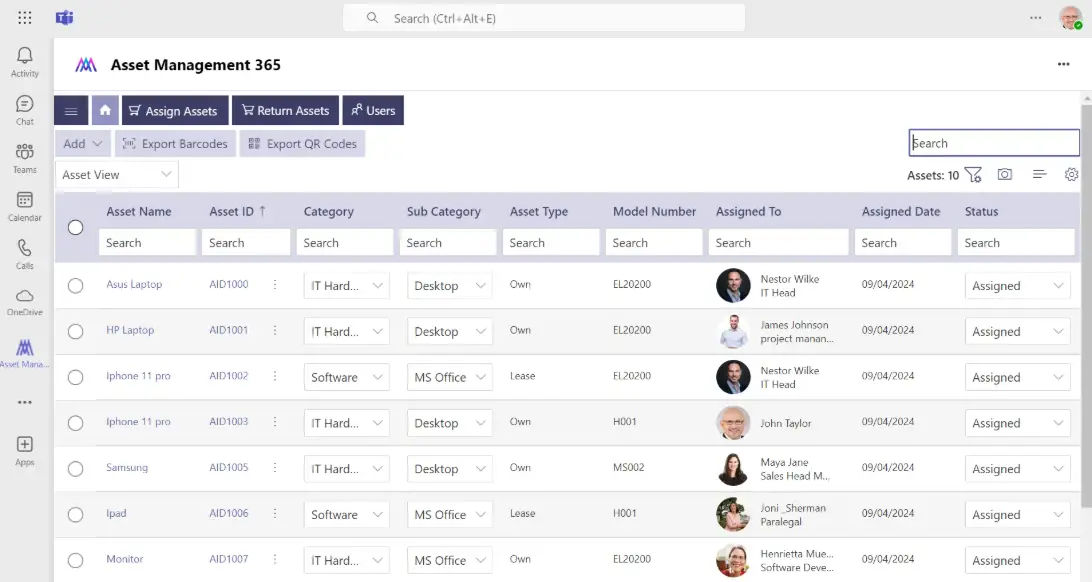
How Asset 365 Works With Microsoft Teams
- Asset 365 brings structured asset management closer to the Microsoft environment employees already use.
- IT teams can manage asset processes while users interact with familiar Microsoft 365 tools.
- This makes Asset 365 relevant for organizations that want stronger asset control without creating unnecessary complexity for employees.
Who Can Use Asset 365?
Asset 365 can support:
- IT managers
- IT administrators
- Operations teams
- Procurement teams
- HR teams
- Finance teams
It is particularly useful for businesses managing growing device inventories, hybrid employees, multiple locations, frequent onboarding, or complex asset assignments.
How Asset 365 Supports the Asset Lifecycle
Good asset management does not stop when an item is added to inventory. The entire lifecycle matters:
Asset Request and Approval
Employees or departments can request equipment through a defined process.
Approvals help organizations control spending and ensure the right assets are issued for the right business need.
Asset Assignment and Check-Out
Once an asset is approved, IT teams can assign it to an employee and maintain relevant ownership information.
This improves accountability and visibility.
Asset Usage and Maintenance
During the asset’s useful life, teams can track maintenance, warranty information, supporting documents, and other lifecycle details.
Asset Return and Reassignment
When employees leave or change roles, assigned equipment can be identified, returned, and prepared for reassignment.
Asset Retirement
Aging or obsolete assets can be removed from active inventory through a structured retirement process.
Example Asset Management Workflow:
New-Hire Laptop Assignment
- A new employee joins the company. HR initiates the onboarding process. IT receives the equipment requirement. A laptop is prepared and assigned. The employee receives the device. Asset ownership is recorded.
- When the employee changes roles or leaves the company, IT can identify the assigned laptop and manage its return or reassignment. That is a simple example of lifecycle-based Asset Management in Microsoft Teams.
Key Asset Management Features in Asset 365
- Asset Lifecycle Tracking: Track assets from purchase and assignment through maintenance, return, reassignment, and retirement.
- QR Code and Barcode Tracking: Use QR codes or barcodes to identify physical assets more quickly during inventory checks, audits, and check-in/check-out activities.
- Asset Assignment Tracking: Maintain visibility into which employee, department, or location is associated with an asset.
- Custom Forms and Workflows: Standardize asset requests and approvals based on your organization’s internal processes.
- Dashboards and Reporting: Give IT teams clearer visibility into asset availability, assignments, lifecycle status, and other important asset information.
- Automated Notifications: Use workflow automation to reduce repetitive follow-ups around asset requests, returns, approvals, maintenance, and renewals.
Common Asset Management Use Cases
Employee Onboarding: Prepare and assign laptops, monitors, mobile devices, accessories, and software for new employees.
Employee Offboarding: Identify company assets assigned to departing employees and manage their return.
Remote Asset Tracking: Maintain clearer records for equipment issued to remote and hybrid employees.
Software License Management: Track software-related information and understand license assignments, renewal requirements.
Asset Audits: Use centralized records to make physical inventory checks and asset audits easier to manage.
Maintenance Tracking: Maintain relevant service and maintenance information throughout the useful life of an asset.
Microsoft 365 Integrations for Asset Management
Organizations using Microsoft 365 can extend asset workflows with other Microsoft tools.
- Power Automate can help support approvals, alerts, notifications, and process automation.
- Power BI can help organizations visualize asset information and reporting data.
- Outlook can support notifications and reminders.
- SharePoint can help store structured information and supporting documents related to assets.
Together, these tools can create a more connected Microsoft Teams asset management experience.
Security and Deployment Considerations
Before implementing asset management software, organizations should review:
- Microsoft 365 permissions
- User roles
- Access requirements
- SharePoint configuration
- Teams administration
- Data ownership
- Approval responsibilities
- Internal security policies
Start with a clearly defined asset process. Decide who can request, approve, assign, modify, return, and retire assets before automating the workflow. This can reduce confusion and help teams maintain accurate asset information.
How to Choose Asset Management Software for Microsoft Teams
Do not choose an asset management platform only because it has a long feature list. Look for capabilities that solve your team’s daily problems.
Important capabilities may include:
- Centralized asset records
- Hardware asset management
- Asset assignment tracking
- Check-in and check-out
- Employee return tracking
- QR code or barcode scanning
- Approval workflows
- Reporting
- Audit history
- Microsoft 365 workflow support

Hear from Our Delighted Clients
Asset Management 365 makes asset tracking simpler with a user-friendly interface and reliable customer support. It helps teams monitor assets, manage maintenance, and keep records organized, reducing manual effort and making day-to-day asset management more efficient.
Conclusion
Managing assets through spreadsheets may work at first, but it becomes difficult as your organization grows. A connected approach to Asset Management in Microsoft Teams gives IT teams better visibility into assets, ownership, lifecycle activity, requests, returns, and maintenance while reducing manual work.
Asset 365 helps organizations bring asset management closer to Microsoft Teams, SharePoint, and the Microsoft 365 tools employees already use. Instead of chasing updates across spreadsheets and emails, your IT team can create a more structured, scalable, and visible asset management process.
Ready to Improve Your Asset Management Process?
Book a free Asset 365 demo and see how your team can centralize asset tracking, simplify assignments, automate workflows, and manage the complete asset lifecycle within your Microsoft 365 environment.
Frequently Asked Questions
What is Asset Management in Microsoft Teams?
Asset Management in Microsoft Teams is the process of managing company assets through a solution connected to Microsoft Teams and Microsoft 365. It can support asset requests, assignments, tracking, maintenance, returns, reporting, and lifecycle management.
Can Microsoft Teams track company assets?
Microsoft Teams itself is not a complete asset management platform. However, organizations can integrate an asset management solution such as Asset 365 with their Microsoft environment to manage asset data and workflows.
Why use Microsoft Teams for asset management?
Using Microsoft Teams for asset management brings asset-related activities closer to a familiar employee workspace. This can reduce process fragmentation and make asset requests, assignments, approvals, and tracking easier to access.
What is Asset 365?
Asset 365 is a Microsoft 365-based asset management solution that helps organizations track and manage IT and business assets throughout their lifecycle.
Can Asset 365 help manage remote employee assets?
Yes. Asset 365 can help maintain assignment and ownership information for equipment issued to remote, hybrid, and office-based employees.
What assets can businesses track?
Organizations may track laptops, desktops, mobile devices, monitors, accessories, software licenses, office equipment, network devices, and other business assets based on their requirements.


_JiluXJRGNl.svg)























