

_eH2jDg7dZ.png)
Finding a colleague’s phone number should not take five minutes. Yet in many companies, people still dig through old email threads, ask three different people, or just give up. That is where a solid employee directory comes in, and more specifically, a well-built employee directory template.
- Create a structured employee directory with essential employee details.
- Choose a directory template that fits your organization’s needs.
- Keep employee information accurate, searchable, and up to date.
- Upgrade to employee directory software for better scalability and collaboration.
Whether you are setting one up for the first time or trying to fix a messy one that nobody uses, this guide covers everything. By the end, you will know exactly what to include, what to skip, and how to make your directory something people open.
What Is an Employee Directory and Why Does It Matter?
An employee directory is a central list of everyone in your organization, along with the information needed to reach them or understand their role. Think of it as a company phonebook, except a good one does much more than list names and numbers.
It tells you who does what, which team they belong to, who their manager is, and how best to contact them. Some directories also include a photo, a short bio, and even working hours or time zones.
Why companies need one
Communication becomes faster. When someone joins a project and needs to loop in the right person, they should not have to send a “Does anyone know who handles X?” message in Slack. The directory answers that question instantly.
Onboarding gets smoother. New hires are hit with dozens of names in their first week. A directory with photos and roles helps them put faces to names and understand how the company is structured.
Remote and hybrid teams need it more than anyone. When you cannot just walk over to someone’s desk, a directory is the next best thing. It closes the gap that physical distance creates.
It builds a sense of community. Knowing your colleagues, their roles, locations, and maybe a fun fact or two, makes a company feel less like a machine and more like a team.
HR and admin work gets easier too. Managers can verify reporting lines. IT can check who needs what access. Payroll can confirm department assignments. A clean directory saves time across the board.
Despite all this, many companies either skip building one or build one that quickly goes out of date. The fix is usually simple: use a structured template that makes updates easy and consistent.
Essential Information to Include in an Employee Directory Template
Not every directory needs the same fields. A five-person startup has different needs than a 2,000-person enterprise. But there are certain fields that almost every directory should include, and a few that are nice to have.
The must-have fields
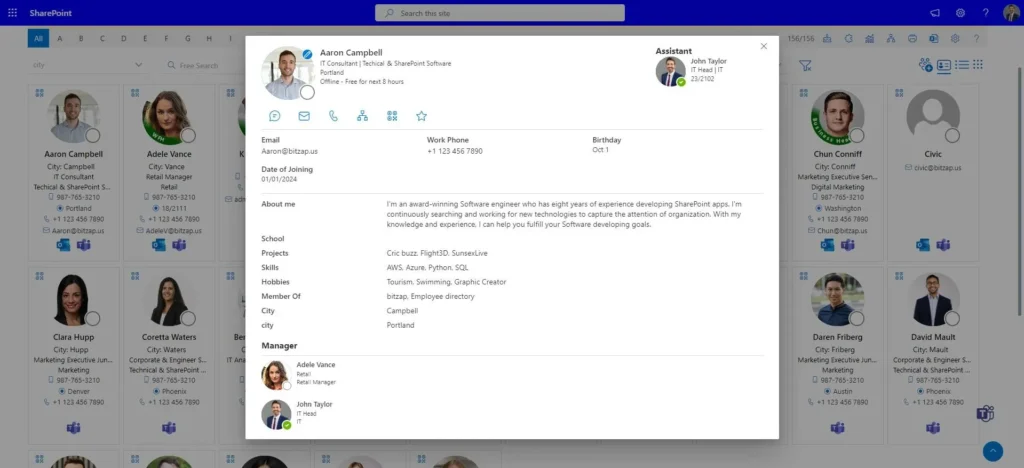
Full Name Use the name the employee prefers, not just their legal name. If someone goes by “Mike” instead of “Michael,” the directory should reflect that. This small detail makes the directory feel more personal and actually usable.
Job Title Be consistent here. If you write “Senior Developer” for one person and “Sr. Dev” for another, searching becomes harder. Pick a standard format and stick to it.
Department or Team This helps people find the right group quickly. It also helps with org structure, you can filter by department to see everyone in Finance or Engineering at a glance.
Email Address Still the most common way people reach each other at work. Make sure it is the official company email, not a personal one.
Phone Number Include both desk and mobile numbers where relevant. For remote teams, a mobile number is often the only number that matters.
Manager or Supervisor Reporting lines matter. Knowing who someone reports to helps people understand where to escalate, who to copy on an email, or who approves time off.
Location or Office For companies with multiple offices or remote employees, this is essential. Include the city, office name, or “Remote” as applicable.
Profile Photo This one might feel optional, but it makes a big difference. Faces help people remember names. A photo turns a line in a spreadsheet into an actual person.
Nice-to-have fields
These are not critical, but they add real value depending on your company size and culture.
Start Date Useful for celebrating work anniversaries and understanding tenure.
Time Zone Critical for distributed teams. Knowing that a colleague is in Singapore before you schedule an 8 AM meeting is just considerate.
Working Hours or Availability Helps with scheduling, especially in hybrid or async-first teams.
Skills or Expertise Some companies include a short list of what each employee is good at. This turns the directory into a talent finder, useful when someone needs a specific skill for a project.
Pronouns A simple addition that signals respect and inclusion. More companies are including this as standard.
Short Bio or Fun Fact Helps with onboarding and culture. Something like “Based in Pune, loves hiking, previously worked in healthcare IT” gives new hires something to connect over.
LinkedIn or Internal Profile Link Lets people learn more about a colleague without having to ask.
Fields to avoid
Some information does not belong in a shared employee directory:
- Home address — privacy risk, no need to share widely
- Personal email — not relevant for work communication
- Salary or compensation — sensitive and inappropriate
- Emergency contact details — should be kept in a secure HR system, not a general directory
The goal is to share what helps people work together, without crossing into personal or sensitive territory.
Types of Employee Directory Templates for Different Organizations
There is no one-size-fits-all template. The right format depends on how your company works, how big it is, and what tools you already use.
The basic spreadsheet directory
This is where most small companies start. A Google Sheet or Excel file with columns for name, title, department, email, and phone. It is quick to set up and easy to share.
Best for: Startups and small teams (under 50 people)
Strengths: Free, simple, no learning curve, easy to update
Weakness: Hard to search at scale, no photos, no visual structure, can get messy fast
A good spreadsheet template will have:
- Frozen header row
- Dropdown menus for department and location (to keep entries consistent)
- A tab for active employees and another for alumni or former employees
- Color coding by team or department (optional but helpful)
The org chart-style directory
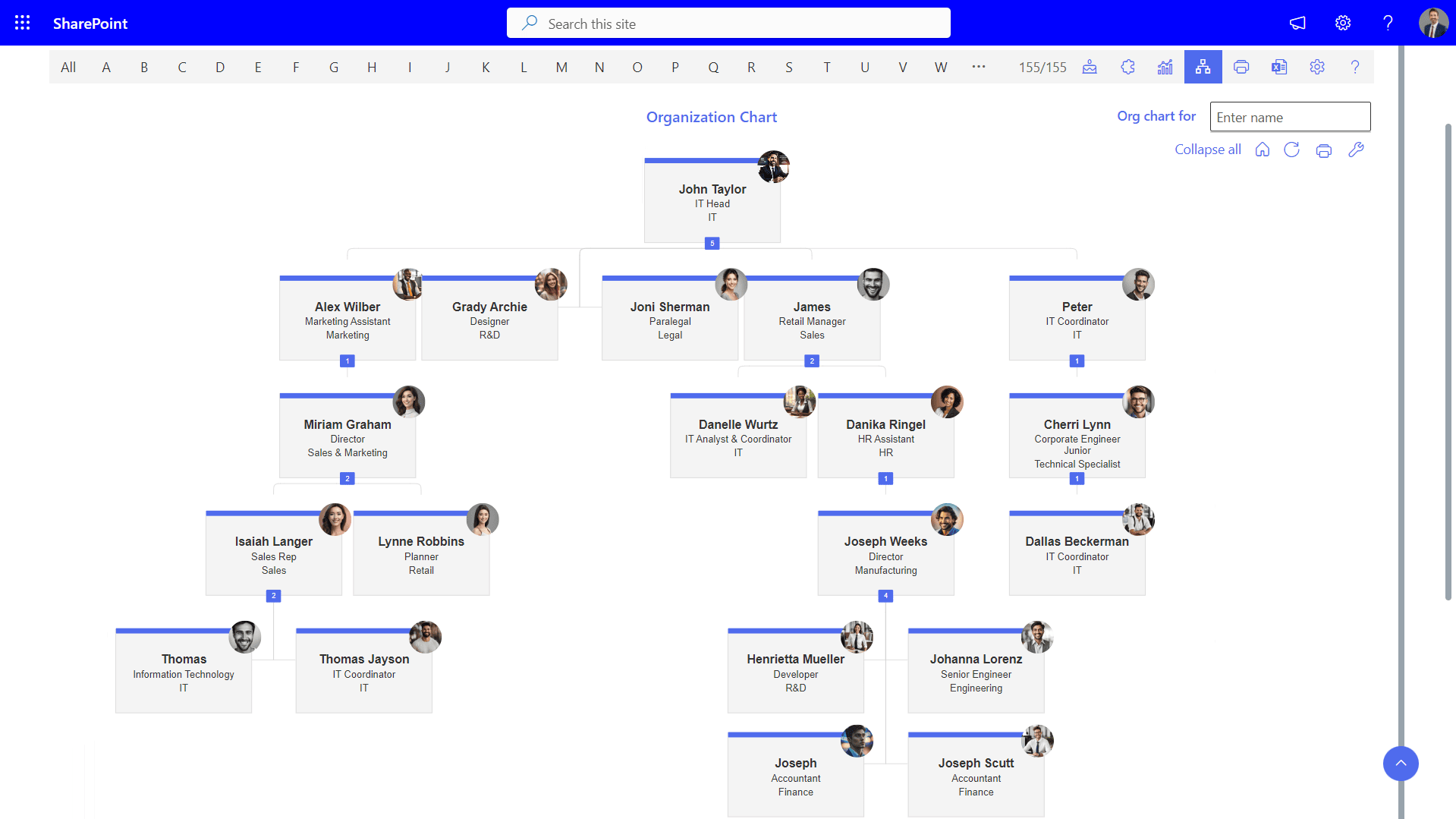
This format shows hierarchy visually. You can see who reports to whom, which teams sit under which departments, and how the whole company is structured.
Best for: Mid-sized companies where reporting lines matter a lot
Strengths: Makes structure clear, easy to understand at a glance
Weakness: Hard to maintain as headcount changes, not great for searching by name or skill
Tools like Lucidchart, OrgChart, and even PowerPoint can be used to build these.
The department-based directory
Instead of one big list, this format organizes employees by team. Each department gets its own section or page, with the relevant contact details for everyone in that group.
Best for: Companies where people mostly contact colleagues within their own department
Strengths: Intuitive for daily use, easy to maintain one department at a time
Weakness: Cross-department searches are harder
The role-based directory
This version organizes people by function, not by their team name, but by what they do. All the people who handle customer support are grouped together, regardless of which team or product line they sit in.
Best for: Large companies with complex structures or matrixed organizations
Strengths: Useful for finding the right person for a specific task
Weakness: Can get confusing if someone wears multiple hats
The digital / intranet-style directory
This is a more advanced version, a searchable, filterable, photo-based directory built into a company intranet, HR system, or people platform. Think of it like a company LinkedIn, but internal.
Best for: Companies with 100+ employees, especially distributed teams
Strengths: Searchable by name, skill, department, or location; easy to keep updated; supports photos and bios
Weakness: Requires a platform or tool investment; takes time to set up properly
Even if you use software for this, you still need a template to define what information to collect and how to organize it.
Best Practices for Creating an Organized and User-Friendly Directory
A directory that nobody uses is a wasted resource. Here is how to build one that people actually open, and keep opening.
Start with a clear purpose
Before you open a spreadsheet or sign up for a tool, ask: what problem is this directory solving? Is it for faster communication? Onboarding? Org chart clarity? The answer shapes what fields you include and what format works best.
Keep it simple
More fields are not always better. If your directory has 25 columns, people will not bother filling them all in, and the ones that do get filled in will quickly go stale. Pick the 8–12 fields that matter most and keep everything else out.
Make updates easy and assign ownership
The biggest reason directories go out of date is that nobody is responsible for maintaining them. Assign a clear owner, usually HR or a designated admin. Set a quarterly reminder to review and update entries.
Even better: let employees update their own profiles. If someone changes their phone number or gets promoted to a new role, they should be able to fix that themselves rather than waiting for HR to do it.
Use consistent formats
If some entries say “Marketing” and others say “Mktg” or “Marketing Dept,” filtering and searching break down. Create a master list of approved values for fields like department, location, and job title. Use dropdowns where possible.
Add a search function
A static list of 500 names is not a directory, it is a wall of text. Make sure your directory is searchable. In Google Sheets, that is as simple as Ctrl+F. In a proper HR tool, you want filter-by-department or skill-search functionality.
Keep it simple
More fields are not always better. If your directory has 25 columns, people will not bother filling them all in, and the ones that do get filled in will quickly go stale. Pick the 8–12 fields that matter most and keep everything else out.
Make updates easy and assign ownership
The biggest reason directories go out of date is that nobody is responsible for maintaining them. Assign a clear owner, usually HR or a designated admin. Set a quarterly reminder to review and update entries.
Even better: let employees update their own profiles. If someone changes their phone number or gets promoted to a new role, they should be able to fix that themselves rather than waiting for HR to do it.
Use consistent formats
If some entries say “Marketing” and others say “Mktg” or “Marketing Dept,” filtering and searching break down. Create a master list of approved values for fields like department, location, and job title. Use dropdowns where possible.
Add a search function
A static list of 500 names is not a directory, it is a wall of text. Make sure your directory is searchable. In Google Sheets, that is as simple as Ctrl+F. In a proper HR tool, you want filter-by-department or skill-search functionality.
Think about privacy
Not everyone wants all their contact details visible to the entire company. For example, some employees may prefer not to share their personal mobile number. Have a clear policy about what is included, and give employees a way to flag concerns.
Keep accessibility in mind
Use readable fonts, enough contrast between text and background, and avoid relying on color alone to convey meaning. Your directory should be usable by everyone, including people using screen readers or working on small screens.
Do a launch and communicate it
Even a great directory fails if people do not know it exists. When you roll out a new directory or overhaul an old one, send a company-wide announcement. Show people how to find it, how to search it, and how to update their own information.
Review it regularly
Set a recurring calendar event, once a quarter is usually enough, to check for outdated entries. New hires should be added within their first week. Departing employees should be removed or archived promptly.
Employee Directory Template vs Employee Directory Software: Which Is Better?
This is a question most growing companies face at some point. Do you maintain a spreadsheet or document, or do you invest in dedicated employee directory software?
The honest answer: both have a place, and the right choice depends on your stage of growth.
When a template works just fine
If your company has fewer than 100 employees and a relatively stable structure, a well-maintained spreadsheet or document can do the job. It costs nothing (or very little), requires no training, and can be set up in an afternoon.
A good template also gives you complete control. You decide the fields, the format, and who can edit it. There is no vendor lock-in and no dependency on a third-party platform.
Templates work especially well when:
- Your team is small and changes slowly
- You already use Google Workspace or Microsoft 365 and want to stay in that ecosystem
- You need a quick solution without a procurement process
- You want to test what information you actually need before investing in software
When software makes more sense
Once you cross a certain size, usually somewhere around 100 to 200 employees, templates start showing their limits. Updates get missed. Searching becomes painful. Multiple versions of the directory start floating around.
This is when dedicated tools earn their keep. Platforms like Employee Directory 365, BambooHR, Workday, Rippling, Notion, or even a well-configured Confluence or SharePoint can turn your directory into something far more powerful.
What software gives you that templates do not:
- Real-time updates — changes sync automatically
- Photo support — actual profile pictures, not links to files
- Advanced search and filtering — find everyone in the London office who works in engineering with one click
- Integration with other systems — your directory connects to payroll, IT provisioning, and Slack
- Self-service updates — employees maintain their own profiles
- Access controls — you decide who sees what
The trade-offs:
Software costs money. It takes time to implement. It requires adoption across the company. And if the tool is discontinued or you switch vendors, migrating your data is a hassle.
The hybrid approach
Many companies find that the best answer is to use both. Start with a template to figure out what you need. Use that learning to evaluate software options. Once you pick a tool, your template becomes the source of truth for what fields to configure.
Even companies using sophisticated HR platforms often maintain a lightweight directory template for quick reference, a simple one-page sheet that lives in a shared drive and is updated monthly.
The goal is not to pick the fanciest tool. The goal is to make it easy for anyone in the company to find the right person quickly. Whatever achieves that, at your current stage, is the right answer.
Conclusion
An employee directory may seem simple, but it improves communication, collaboration, and employee connectivity across the organization. The key is keeping it clean, useful, and updated with the right information people actually need. Start with essential fields, maintain accuracy, and scale with advanced solutions like Employee Directory 365 as your company grows.
Frequently Asked Questions
What is the difference between an employee directory and an org chart?
An employee directory is a searchable contact list, it helps you find people. An org chart is a visual map of reporting relationships, it helps you understand structure. They often use similar information, but serve different purposes. Some companies maintain both; others combine them into one tool.
How often should an employee directory be updated?
At a minimum, quarterly. But ideally, updates happen in real time, when someone joins, leaves, changes roles, or moves to a different location. Assign a specific person or team to own this, and set up a process to trigger updates automatically when HR records change.
Should photos be mandatory in an employee directory?
Not mandatory, but strongly encouraged. Photos help people put names to faces, which is especially valuable in remote and hybrid teams. If some employees prefer not to share a photo, use a simple illustrated placeholder, do not leave the field blank with a broken image icon.
What tools can I use to build a free employee directory?
Google Sheets or Microsoft Excel work well for small teams. Google Workspace also allows you to build a basic directory inside Google Contacts. For something more visual, Notion or Airtable can be configured into a solid directory with photos, filters, and linked records — all for free or low cost at small scale.
How do I get employees to keep their information up to date?
Make it easy and low-effort. Send a reminder twice a year asking everyone to check their entry and update anything that has changed. If you are using a platform that supports self-service profiles, promote that feature in your onboarding checklist. The more ownership employees feel over their own entry, the more likely they are to keep it current.
Is an employee directory the same as an HRIS?
No. An HRIS (Human Resource Information System) stores detailed employee records including payroll, benefits, performance data, and compliance information. An employee directory is a much lighter, more public-facing tool focused on contact and role information. Some HRIS platforms include a directory feature, but they serve very different functions.


_JiluXJRGNl.svg)























