Employee Onboarding Dashboard for Real-Time Progress Tracking

An onboarding dashboard is a single screen that shows how every new hire is moving through their first days and weeks. It brings tasks, documents, training, and feedback into one view, so HR, managers, and IT never have to chase updates. Companies use it to spot delays early and keep new hires on track.
- An onboarding dashboard gives HR and managers one live view of every new hire’s tasks, forms, and training status.
- The best dashboards track a few clear metrics, such as time to complete onboarding, task completion rate, and new hire satisfaction.
- Automated reminders and role-based views cut manual follow-ups and keep every team accountable.
- Start with simple goals, connect the tools you already use, and review the numbers every week to improve the process.
What Is an Onboarding Dashboard
An onboarding dashboard is a visual screen that tracks every step a new hire needs to finish before and after day one. It shows tasks like signing forms, setting up accounts, completing training and meeting the team. Each item has a status, an owner, and a due date, so nothing stays hidden.
Think of it as a control room for your hiring follow-through. Instead of checking emails, spreadsheets, and chat threads, HR sees all progress in one place. Managers see only their own hires, and new hires see their own to-do list. This keeps everyone clear on what is done and what is next.
Key Metrics Your Onboarding Dashboard Should Track
A dashboard is only useful if it shows numbers that lead to action. Pick a small set of metrics that match your goals. Too many charts make the screen noisy and hard to read.
Time to Complete Onboarding
This shows how many days a new hire takes to finish all required steps. A long time often points to slow approvals or missing equipment. Track the average by team and role, so you can see where delays start and fix them. This also helps you set fair expectations for each new hire.
Task Completion Rate
This metric shows the share of onboarding tasks finished on time. A low rate for one department tells you that its owners need reminders or fewer steps. Aim to keep this number high in the first week, when new hires are most eager. Review it by task type to see whether forms, training, or IT setup causes most delays.
Time to Productivity
This tracks how long a new hire takes to do their job at a normal pace. Managers can mark milestones such as first project or first sale. Shorter times usually mean the onboarding plan is clear and the training is working. Share the result with managers so they can plan workloads for the next hire.
New Hire Satisfaction Score
Short surveys at day 7, day 30, and day 90 reveal how new hires feel. Add the scores to your dashboard, so low ratings are easy to spot. Unhappy hires often leave early, so this number acts as an early warning. Pair the score with a short comment box to learn the reason behind each rating.
Early Turnover Rate
This shows how many people leave within the first 90 days or first year. A rising rate means something is wrong with the hiring or onboarding experience. Compare it with your task and satisfaction data to find the cause. Even a small drop here can save a company a large hiring cost each year.
Document and Compliance Status
This metric lists which forms are signed, pending, or overdue. Missing tax forms, contracts, or policy sign-offs can cause legal trouble. A clear status view lets HR fix gaps before they become risks. Alerts for expiring or missing items keep audits stress free.
Want these metrics without building charts by hand?
See how Employee Onboarding 365 tracks every new hire inside Microsoft 365.
Features to Look for in an Onboarding Dashboard
Not every dashboard fits every company. Before you choose or build one, check that it has the features below. These keep the tool simple for users and useful for HR.
Real-Time Progress Tracking
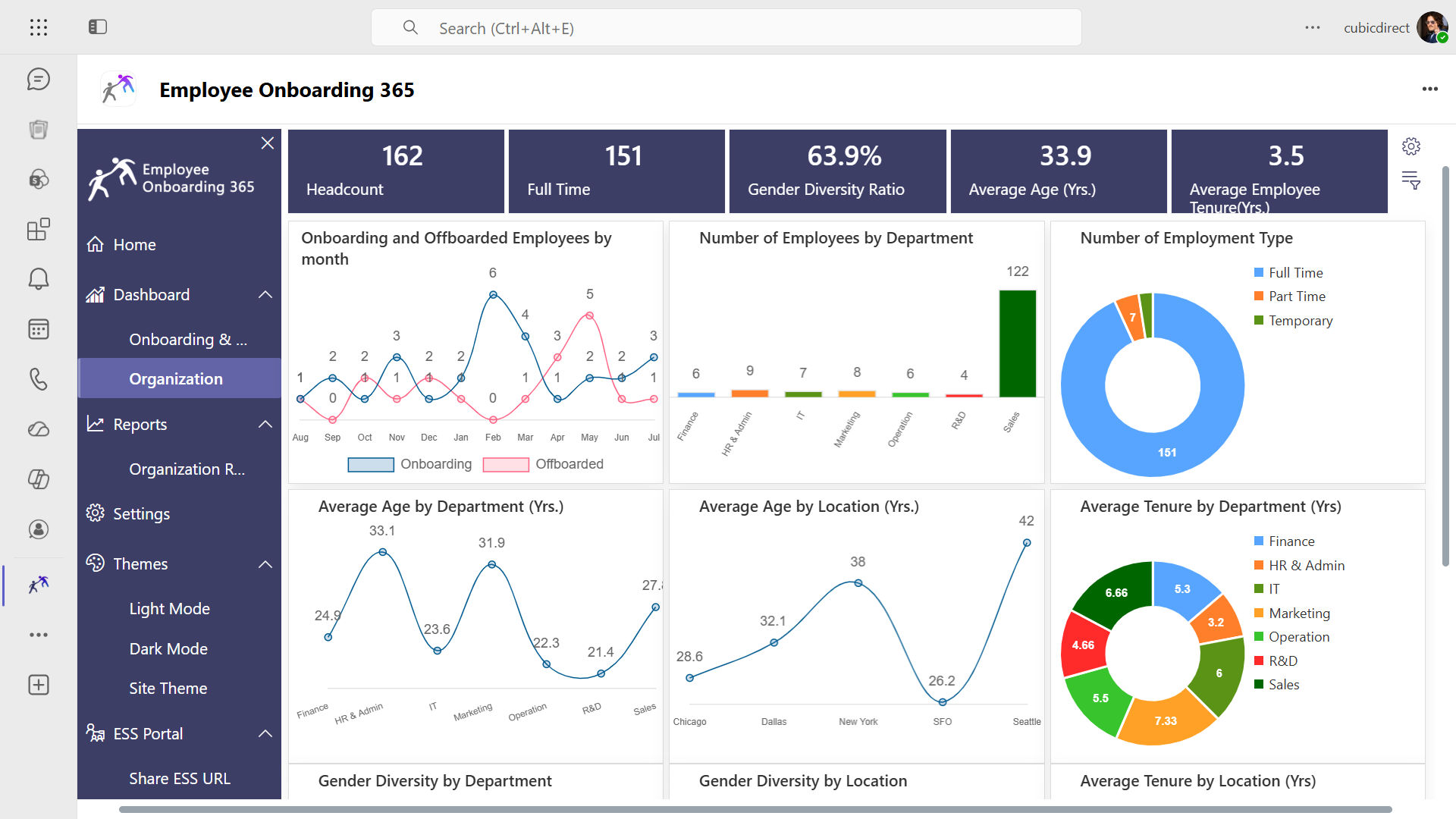
A good dashboard updates the moment someone completes a task. HR no longer waits for weekly reports to know where things stand. This helps teams act the same day when something stalls. Live data also gives leaders confidence when they ask for a quick status update.
Role-Based Views
HR, managers, IT, and new hires need different information. Role-based views show each person only what matters to them. This keeps the screen clean and protects private data such as salary or ID records. New hires feel less overwhelmed when they see only their own next steps.
Automated Reminders and Alerts
Manual follow-ups waste hours every week. Automated reminders nudge task owners before a due date and alert HR when something runs late. Your team spends less time chasing and more time helping people settle in. Reminders can go through email or Teams, so people see them where they already work.
Checklists and Task Templates
Templates let you reuse the same plan for each role or location. Add steps once, and the dashboard assigns them to every new hire. This keeps the experience fair and cuts setup time for each hire. You can still edit one hire’s plan when a role needs something special.
Simple Integrations
The dashboard should connect with the tools your team already uses, such as Microsoft Teams, Outlook, and SharePoint. Data then flows without copy and paste. Fewer manual steps also mean fewer errors. Ask your vendor which tools connect out of the box before you decide.
Custom Reports and Exports
Leaders often need numbers for meetings. Custom reports let you filter by department, date, or manager and export the results in a few clicks. This makes it easy to show the value of your onboarding work. Saved report views also help you repeat the same check every month.
Check what Employee Onboarding 365 includes.
How to Build an Onboarding Dashboard Step by Step
You do not need a big project to get started. A simple plan, a clear owner, and a few weeks of testing are enough. Follow the steps below to build a dashboard that people actually use.
Set Clear Onboarding Goals
Start by deciding what success looks like. You might want faster setup, higher satisfaction, or fewer missed forms. Clear goals help you choose the right metrics and avoid cluttered screens. Write each goal as a number, such as cutting setup time from ten days to five.
List Every Onboarding Task
Write down all steps from offer acceptance to day 90. Include HR forms, IT setup, training, and team introductions. Mark who owns each task and when it is due, so the dashboard has real data from the start. Ask recent hires what they wished they had known, then add those steps too.
Choose Your Data Sources
Decide where the numbers will come from, such as your HR system, ticket tool, or learning platform. Pick the sources that are already reliable. Fewer sources make the dashboard faster to build and easier to trust.
Design a Clean Layout
Place the most important numbers at the top, such as active new hires and overdue tasks. Use simple charts and clear colors for status. Keep the page easy to scan in under a minute. Use the same colors for the same status across every chart, so people read it fast.
Test With a Small Group
Run the dashboard with one team or a few new hires first. Ask HR, managers, and new hires what is confusing or missing. Small fixes at this stage save a lot of effort later. Collect feedback in a short form so you can compare answers across users.
Review and Improve Every Week
Check the numbers weekly in the first month, then monthly after that. Look for slow tasks, low scores, and repeated questions. Update steps and reminders based on what you find. Share a short summary with managers so they see the progress too.
Ready to launch without starting from scratch?
Employee Onboarding 365 gives you ready-made workflows and live tracking from day one.
Common Onboarding Dashboard Challenges
Even a well-planned dashboard can fall short if a few common problems are ignored. Knowing them early helps you avoid wasted effort and low adoption.
Poor Data Quality
If task updates are late or wrong, the dashboard shows a false picture. Make owners update tasks in the same place where they do the work. Clean, timely data builds trust, and people stop relying on side spreadsheets. Set simple rules, such as required fields, to stop incomplete entries.
Too Many Metrics on One Screen
Teams often add every chart they can think of. The result is a cluttered view that nobody reads. Keep only the numbers tied to your goals, and move the rest into separate reports.
Low Adoption by Managers
Managers are busy, and they skip tools that feel like extra work. Show them a simple view of only their own hires, with reminders sent to email or Teams. When it saves them time, they start using it.
Disconnected Tools
When HR, IT, and training systems do not share data, someone must copy updates by hand. This causes delays and mistakes. Choose a dashboard that connects with your current tools, so information flows on its own. This also gives HR one reliable source when leaders ask questions.
Unclear Ownership
When no one owns a task, it stays open for days. Assign one named owner and one due date to every step. The dashboard then shows exactly who needs a nudge, and blame games stop.
No Plan for Changes
Roles, tools, and policies change often, and old checklists quickly go out of date. Review your templates every quarter and remove steps nobody needs. A fresh dashboard keeps new hires from facing confusing or repeated tasks
Tired of fighting these problems with spreadsheets?
Conclusion
An onboarding dashboard turns a scattered process into a clear, trackable path. It helps HR see progress, helps managers support their people, and helps new hires know what comes next. When you track the right Onboarding metrics and use automation, delays shrink and the first impression improves.
You do not need a complex tool to begin. Start with clear goals, a simple task list, and a few key numbers, then improve each week. Over time, the dashboard becomes your best source for making onboarding faster, fairer, and more welcoming.
Want a dashboard that is ready to use inside Microsoft 365?
Try Employee Onboarding 365 and keep every new hire on track from offer to day 90.
Frequently Asked Questions
What is an onboarding dashboard?
An onboarding dashboard is a single screen that shows each new hire’s tasks, documents, training, and progress. It helps HR, managers, and IT see what is done and what is late without checking many tools
What metrics should an onboarding dashboard include?
Include time to complete onboarding, task completion rate, time to productivity, new hire satisfaction, early turnover, and document status. These give a balanced view of speed, quality, and risk.
Who uses an onboarding dashboard?
HR teams use it to track all hires, managers use it to follow their own team members, and IT uses it to manage access and equipment. New hires can also see their own checklist and next steps.
Can I build an onboarding dashboard in Excel or SharePoint?
Yes, you can start with Excel or SharePoint lists for a small team. As hiring grows, a dedicated tool with automation, reminders, and role-based views saves time and lowers errors.
How often should I review onboarding dashboard data?
Yes. Software automates forms, reminders, and task tracking, and gives HR a single view of progress. Tools like Employee Onboarding 365 work inside Microsoft 365, so teams can adopt them quickly.