_mVFFaHUZhS.webp)
Have you ever wondered whether your work laptop is quietly recording every click, keystroke, and website you visit? With hybrid and remote work now the norm, more companies are installing tools that track how employees spend their time. Some of these tools are fully disclosed, while others run silently in the background. Knowing how to spot them helps you understand your digital workplace and your rights within it.
- Employee monitoring software tracks activity, apps, screens, and time on work devices.
- Clues include unknown processes, slow performance, odd network traffic, and admin-locked settings.
- Monitoring must follow local privacy laws and company policy, and should be disclosed.
- Transparent tools like Timesheet 365 build trust while still giving managers clear insights.
For employers, the question looks different but matters just as much. Hidden or heavy-handed monitoring can damage trust, hurt morale, and even create legal risk. The smartest organizations are moving toward transparent tracking that employees understand and accept. In this guide, we explain what monitoring software is, how to detect it, and how a better approach can benefit everyone.
What Is Employee Monitoring Software?
Employee monitoring software is a set of tools that lets organizations observe and record how employees use company devices, networks, and apps. It ranges from simple time trackers to systems that capture screenshots and keystrokes.
IT usually installs it directly on devices, through mobile device management (MDM), or at the network level. Many tools run quietly in the background, and some offer a “stealth mode” that hides them from view.
Most tools fall into four broad types:
- Time and attendance trackers that record clock-in & clock-out, and hours spent on tasks or projects.
- Activity monitors that log active versus idle time, applications used, and websites visited.
- Surveillance tools that capture screenshots, screen recordings, keystrokes, or webcam images.
- Network and security monitors that inspect traffic, emails, and file transfers to prevent data leaks.
The line between insight and surveillance depends on what is collected and whether employees are told.
Why Companies Use Monitoring Software
Remote and hybrid work took away the casual visibility managers once had. Microsoft’s Work Trend Index called the result “productivity paranoia”, where leaders doubt hybrid teams are productive even when employees say they are.
Common Reasons for Monitoring
Organizations usually cite accurate payroll and billing, project costing, compliance, data protection, and spotting burnout. These goals are legitimate, but problems start when tools collect too much or run without disclosure.
The Hidden Cost to Employees
APA research found monitored workers were more likely to feel tense or stressed at work. That stress can lower engagement and retention, undercutting the productivity monitoring aims to improve.
What Monitoring Software Typically Tracks
Depending on the product and its configuration, monitoring software may capture:
- Login and logout times, along with active and idle periods
- Applications opened and the time spent in each
- Websites visited and search activity
- Screenshots at set intervals or full screen recordings
- Keystrokes, emails, chat messages, and file transfers
- Location data on mobile devices
Most employers do not use every feature, but knowing the full range helps you understand what might be running on your device.
How to Detect Employee Monitoring Software
Detecting monitoring software is mostly about spotting what is unusual on your device. On a company-owned device, never disable or uninstall IT software, as this can breach policy. The goal is awareness, not removal.
1. Check Your Company Policies First
Start with your employee handbook, IT acceptable use policy, and onboarding agreements. Many regions require employers to disclose monitoring, so the answer is often already written down. If anything is unclear, ask HR or IT.
2. Look at Running Processes on Windows
Press Ctrl + Shift + Esc to open Task Manager and review the Processes, Details, and Startup tabs for unfamiliar names, especially ones using CPU or network while you are idle. Also check Settings, then Apps, and the system tray. Searching an unknown process name online often reveals what it is.
3. Check Activity Monitor on Mac
Open Activity Monitor and sort by CPU or Network usage. Then go to System Settings, Privacy and Security, and check which apps have Screen Recording, Accessibility, Input Monitoring, or Full Disk Access. Monitoring tools need these permissions, so an unfamiliar app there is a strong clue.
4. Review Device Management Profiles
Many companies use MDM platforms like Microsoft Intune, Jamf, or Scalefusion. Windows MDM helps IT teams manage enrolled Windows devices, though enrollment doesn’t necessarily mean employee activity is being monitored.
5. Watch for Performance and Behavior Changes
Monitoring tools that capture screenshots or recordings can consume noticeable resources. Warning signs include:
- The laptop fan running loudly or the device feeling warm while idle
- Slower performance or shorter battery life than expected
- Your webcam light turning on briefly without reason
- Settings that are greyed out or locked by your administrator
These signs alone are not proof, since updates and scans cause similar effects, but a pattern is worth noting.
6. Inspect Network Activity
Monitoring tools regularly send data to a central server. Use Resource Monitor (search “resmon”) on Windows or the Network tab in Activity Monitor on Mac to see which processes are connecting. Company networks and VPNs may also inspect traffic in ways your device cannot show.
7. Check Browser Extensions
Some tools track web activity through browser extensions rather than desktop apps. Open your browser’s extensions page and review anything you did not install yourself, particularly extensions that are managed by your organization and cannot be removed.
What to Do If You Find Monitoring Software
Finding a monitoring tool is not a reason to panic, since most are installed for legitimate business reasons. A calm, practical response works best:
- Ask HR or IT what is tracked and how the data is used.
- Keep personal browsing, banking, and messaging on your own devices.
- Review your local privacy laws if monitoring seems undisclosed or excessive.
Legal and Ethical Considerations
Monitoring Laws by Region
In the US, employers can generally monitor company devices, though New York, Connecticut, and Delaware require written notice. In the EU and UK, GDPR requires monitoring to be necessary, proportionate, and transparent. US, Canada, and Australia have their own privacy rules.
Where the Ethical Line Sits
Disclosed, work-only monitoring used to improve processes is usually accepted. Covert surveillance, keystroke logging, and tracking personal devices often backfire once discovered. This is general information, not legal advice, so confirm requirements with local counsel.
A Better Approach: Transparent Time Tracking
If employees are searching their laptops for hidden trackers, trust is already lost. Leading organizations track time against projects, tasks, and clients instead of keystrokes, giving managers what they need for billing, payroll, and planning.
Transparent tracking turns monitoring into something done with people, not to them.
- Publish a clear monitoring policy and share it during onboarding.
- Collect only the data you need for business purposes.
- Let employees see their own data.
- Choose tools that work inside the apps your teams already use.
How Timesheet 365 Helps You Track Time Without Losing Trust
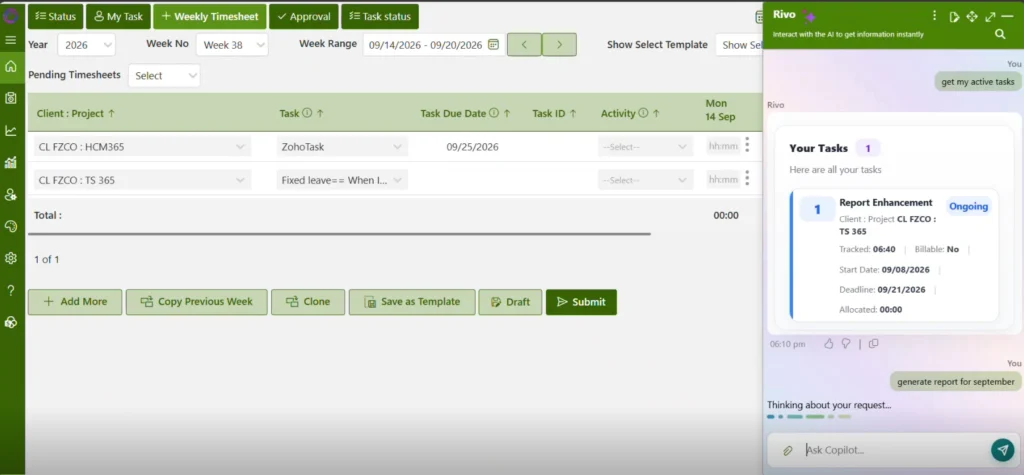
Timesheet 365 gives you accurate time data without hidden surveillance. It runs inside Microsoft 365, so employees log time against projects, managers approve it, and leaders see where effort goes.
Key Features of Timesheet 365
- AI agents that do the heavy lifting: Timesheet 365 AI agents help employees fill and submit timesheets faster, flag missing or unusual entries, and answer questions in plain language. Instead of digging through filters, managers can simply ask for a report, such as hours by project last month or team utilization this quarter, and get it in seconds.
- Effortless reporting for everyone: From payroll and client billing to project costing and capacity planning, reports are generated in an easy, readable format. Leaders get the visibility they need, and employees can see exactly what is being recorded about their own work.
- Built into Microsoft Teams: Employees can log time, submit timesheets, and receive approval requests right inside Teams, without switching apps. This keeps adoption high and makes time tracking part of the daily flow of work.
- Powered by SharePoint: Timesheet 365 runs on SharePoint within your own Microsoft 365 tenant, so your data stays in your environment, governed by the security, permissions, and compliance controls your IT team already trusts.
- Approvals and policies that fit your organization: Configurable approval workflows, projects, clients, and rules let you match the way your business actually operates.
Why Teams Choose Timesheet 365
It answers the questions monitoring tools try to answer, such as who is working on what and where budgets go, while keeping trust intact. Employees control their entries, and managers get real-time insight without screenshots or keystroke logs.
Conclusion
Detecting employee monitoring software starts with reading company policies and then checking running processes, privacy permissions, device management profiles, and network activity. Knowing these signs helps employees understand their digital workplace and their rights. For employers, the lesson is clear: hidden tracking erodes trust faster than it builds productivity. Transparent tools like Timesheet 365, with AI agents, Teams integration, and SharePoint security, deliver the insights you need while keeping your people on your side.
Join Our Creative Community
Frequently Asked Questions
Can my employer monitor my work laptop without telling me?
In many regions employers can monitor company devices, but laws such as GDPR and some US state rules require notice. Always check your local laws and employee handbook.
Will an antivirus detect employee monitoring software?
Usually not, because legitimate monitoring tools are signed commercial software installed by IT. Antivirus tools are designed to catch malware, not approved business applications.
Does incognito mode stop my employer from tracking me?
No. Incognito only hides history on your device, while monitoring software and network tools can still see your activity.
Is it safe to uninstall monitoring software from a work device?
No. Removing or tampering with company-installed software can violate your IT policy and employment agreement, so raise concerns with HR or IT instead.
How is Timesheet 365 different from monitoring software?
Timesheet 365 tracks time against projects transparently within Teams and SharePoint, without screenshots or keystroke logging. Its AI agents make timesheets and reports easy for both employees and managers.