

How to Track Internal IT Requests in SharePoint (Step-by-Step Guide)
_eH2jDg7dZ.png)
Every company deals with IT requests. A laptop stops working. A password needs a reset. A new employee needs software access. If these requests land in random emails or chat messages, your IT team loses track fast. SharePoint is one tool many teams already have, so it’s a natural place to start tracking internal IT requests. This guide shows you exactly how to set it up, where it falls short, and what to do when your team outgrows it.
- SharePoint lists can track internal IT requests using custom columns, views, and Power Automate flows.
- Set up ticket categories, priority levels, and status columns before you launch the list to your team.
- SharePoint works for small teams but struggles with SLAs, automation, and reporting as request volume grows.
- A dedicated IT helpdesk tool like Helpdesk 365 keeps SharePoint’s simplicity while adding ticketing features SharePoint lacks.
Whether you’re an IT manager setting up a process for the first time, or you’ve been juggling requests through a shared inbox and want something more organized, you’ll find a clear path here. We’ll walk through building a SharePoint IT request tracker step by step, cover the common pain points teams run into as request volume grows, and show where a purpose-built helpdesk tool like Helpdesk 365 fits into the picture.
Why Tracking Internal IT Requests Matters
When IT requests aren’t tracked properly, small problems turn into big ones. An employee’s laptop issue that could have been fixed in ten minutes sits unread in an inbox for two days. A password reset request gets sent twice because no one confirmed it was received. Multiply this across a company of fifty, two hundred, or a thousand employees, and the lost hours add up fast.
A proper tracking system solves three problems at once: it gives employees a clear place to submit requests, it gives IT teams visibility into what’s urgent versus what can wait, and it gives managers the data to show how the IT function is actually performing. This is exactly why so many companies start with what they already have, SharePoint, before deciding whether they need something more specialized.
What Are Internal IT Requests?
An internal IT request, often called an IT ticket, is any task an employee sends to the IT team. This includes hardware issues, software bugs, access requests, network problems, and onboarding setup. Unlike customer support tickets, internal IT requests come from people inside your own company, so response speed and clear tracking directly affect everyone’s productivity, not just customer satisfaction scores.
Internal IT requests generally fall into a few recurring buckets: hardware (laptops, monitors, printers), software (installs, licenses, bugs), access (new accounts, permission changes, password resets), network (Wi-Fi, VPN, connectivity), and onboarding or offboarding (setting up or closing accounts for employees). Recognizing these categories early makes it much easier to build columns, views, and reports around them, whether you’re using SharePoint or a dedicated helpdesk tool.
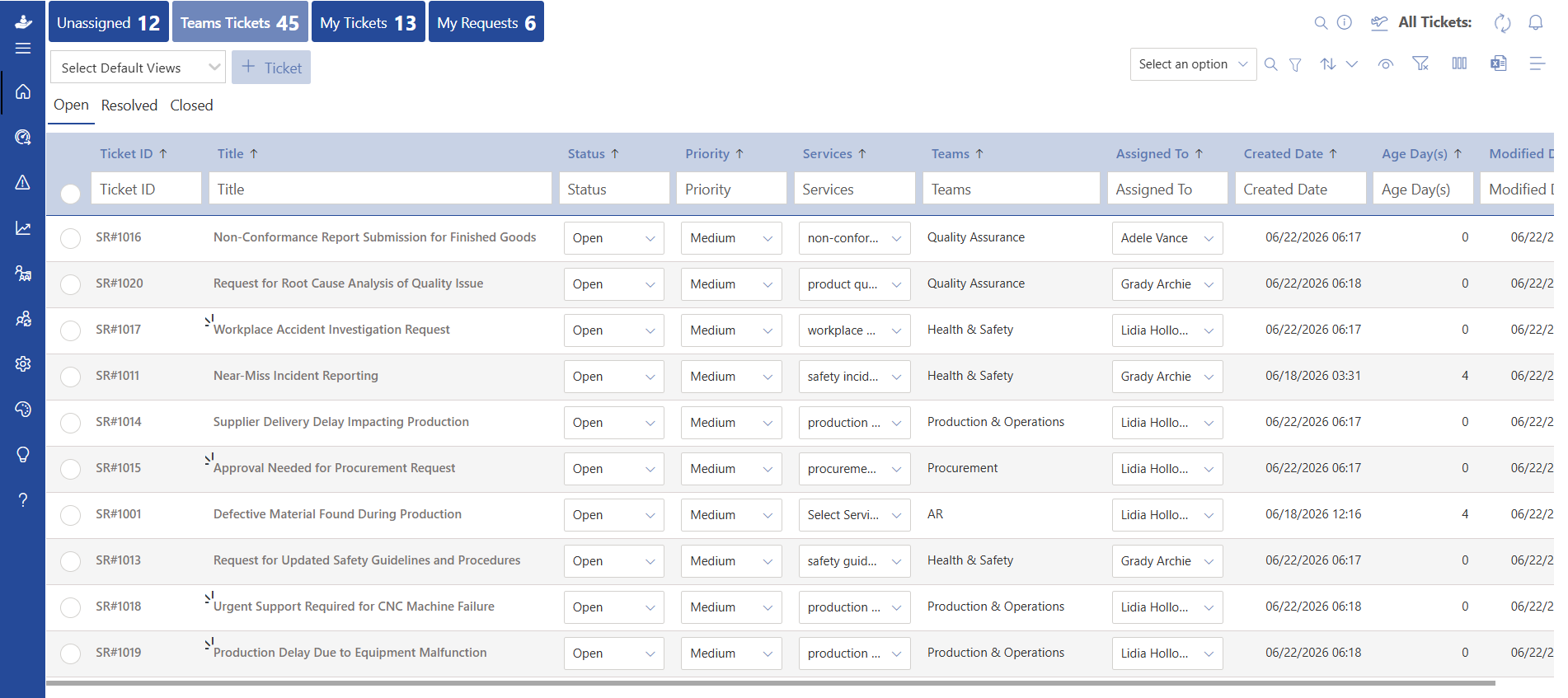
Without a system to track internal IT requests, tickets get lost in inboxes, employees chase updates over chat, and IT teams cannot see which issues are urgent. That’s where a structured tracking system, like a SharePoint list or a helpdesk tool, becomes essential.
Why Use SharePoint to Track IT Tickets?
SharePoint is already part of the Microsoft 365 suite that most businesses use. That makes it a low-cost, familiar starting point for tracking internal IT requests, especially for small teams or companies just formalizing their IT process.
Benefits of SharePoint for IT Request Tracking
- No extra cost if your company already has a Microsoft 365 license.
- Familiar interface for employees who already use SharePoint or Teams.
- Flexible custom columns to capture ticket details like device type or urgency.
- Easy integration with Power Automate, Outlook, and Microsoft Teams.
Limitations of SharePoint for IT Request Tracking
- No built-in SLA timers or automatic escalation for urgent tickets.
- Limited reporting and analytics compared to dedicated helpdesk software.
- No native customer-facing ticket status page for employees to self-track requests.
- Automation requires building and maintaining separate Power Automate flows.
How to Track Internal IT Requests in SharePoint: Step-by-Step
Follow these steps to set up a working IT ticket tracker inside SharePoint. This setup works well for small to mid-size IT teams handling a moderate volume of internal requests.
Step 1: Create a SharePoint List for IT Requests
Start by creating a new SharePoint list from a blank list or the built-in “Issue tracker” template. Name it something clear, like “IT Request Tracker,” so employees immediately know where to submit and check tickets.
Step 2: Add Columns for Ticket Details
Set up columns that capture the information your IT team needs to act quickly:
- Request Title — a short summary of the issue
- Category — hardware, software, network, access, or onboarding
- Priority — low, medium, high, or critical
- Status — new, in progress, waiting on user, resolved, closed
- Assigned To — the IT team member handling the ticket
- Date Submitted and Date Resolved — to measure response time
Step 3: Build Views for Better Prioritization
Create separate views for “Open Tickets,” “My Assigned Tickets,” and “Critical Priority.” Group by status or priority so your IT team can scan the list and immediately see what needs attention first, instead of scrolling through every request in one long list.
Step 4: Set Up Alerts and Notifications
Turn on SharePoint alerts so IT staff get an email or Teams notification the moment a new ticket is submitted, or when a ticket assigned to them changes. This closes the gap between a request being logged and someone actually seeing it.
Step 5: Automate Workflows with Power Automate
Use Power Automate to build simple flows: notify the assigned technician when a ticket is created, send the employee a confirmation email, or move a ticket to “Overdue” if it sits untouched for more than 24 hours. This adds a layer of automation SharePoint doesn’t offer out of the box.
Step 6: Create a Reporting Dashboard
Add a Power BI report or a simple SharePoint page with charts pulled from your list. Track metrics like tickets resolved per week, average resolution time, and ticket volume by category. This gives IT managers visibility without exporting data manually.
Common Challenges with Tracking IT Requests in SharePoint
SharePoint works well for small teams, but as your company grows, a few problems tend to show up:
- No SLA enforcement: Critical tickets don’t automatically escalate if no one responds in time.
- Manual maintenance: Views, flows, and columns need ongoing upkeep as your process changes.
- Limited self-service: Employees can’t easily browse a knowledge base before raising a ticket.
- Weak reporting: Building dashboards requires Power BI knowledge most IT teams don’t have time for.
- No omni-channel intake: Requests still arrive through email and chat outside the list, splitting your data.
When to Consider a Dedicated IT Helpdesk Tool
If your team is spending more time maintaining the SharePoint list than resolving tickets, it’s a sign you’ve outgrown it. Common triggers include handling more than a few dozen tickets a week, needing SLA-based escalation, wanting a self-service portal for employees, or needing clear reports for management without manual work.
This is exactly the gap a dedicated helpdesk platform like Helpdesk 365 fills. It keeps the simplicity your team is used to, while adding the ticketing features SharePoint was never built to handle.
How Helpdesk 365 Makes IT Request Tracking Easier
Helpdesk 365 is built for teams that want ticketing power without the complexity of enterprise ITSM tools. It picks up where SharePoint tracking leaves off:
- Omni-channel ticket intake — email, Microsoft Teams, and a self-service portal all flow into one queue.
- SLA timers with automatic escalation — critical requests reach the right technician before deadlines slip.
- Built-in reporting dashboards — see resolution time, ticket volume, and agent performance without building anything yourself.
- Native Microsoft Teams integration — technicians can update tickets without leaving Teams.
- A branded self-service portal — employees submit and track requests without emailing IT directly.
For teams already living inside Microsoft 365, Helpdesk 365 feels familiar to set up but removes the manual maintenance that comes with stretching SharePoint into a full ticketing system.
SharePoint vs. Helpdesk 365 for IT Request Tracking
Here’s a quick side-by-side look at how the two approaches compare once your IT team is handling requests at scale.
Capability | SharePoint | Helpdesk 365 |
Setup cost | Free with Microsoft 365 | Free trial, paid plans |
SLA escalation | Manual, via Power Automate | Built-in, automatic |
Self-service portal | Not native | Included |
Reporting dashboards | Needs Power BI setup | Built-in |
Microsoft Teams integration | Basic | Native |
Best Practices for Tracking Internal IT Requests
- Standardize ticket categories so reporting stays consistent across the team.
- Set clear priority definitions everyone agrees on, so “urgent” means the same thing to every employee.
- Review open tickets daily to catch anything close to breaching its response time.
- Send employees a confirmation the moment their request is logged, so they’re not left guessing.
- Revisit your tracking system every few months as ticket volume and team size change.
Conclusion
SharePoint is a solid starting point for tracking internal IT requests, especially if your company already uses Microsoft 365 and your ticket volume is low. But as requests grow in number and urgency, the gaps, no SLA enforcement, weak reporting, and manual upkeep — start to slow your IT team down. Helpdesk 365 keeps everything you like about a Microsoft-native tool while adding the automation, reporting, and self-service features SharePoint can’t offer on its own.
The right choice depends on where your team is today. If you’re just formalizing your IT request process, build the SharePoint list from Step 1 above and revisit it in a few months. If you’re already feeling the strain of manual tracking, it’s worth seeing what a dedicated tool can take off your plate.
Frequently Asked Questions
Can SharePoint fully replace a helpdesk tool?
For very small teams with low ticket volume, yes. Once you need SLA tracking, automated escalation, or employee self-service, a dedicated helpdesk tool becomes more efficient.
Is it hard to move from SharePoint to Helpdesk 365?
No. Since Helpdesk 365 is built for Microsoft 365 teams, migrating existing ticket data and connecting Teams and Outlook typically takes a single onboarding session.
Do employees need training to submit IT tickets?
Minimal. Whether you use a SharePoint form or a helpdesk portal, employees only need a simple submission form with a title, category, and description field.
How many IT tickets per week means it's time to upgrade?
There’s no fixed number, but once a team is consistently handling more than 30 to 40 tickets a week, or juggling multiple locations and shifts, the manual upkeep of a SharePoint list usually starts costing more time than a dedicated helpdesk tool would.
Can I keep using SharePoint for other tasks after switching to a helpdesk tool?
Yes, arguably even more than in-office teams. Without hallway conversations, a searchable directory and a clear org chart are often the only ways remote employees learn who’s who.


_JiluXJRGNl.svg)























