

6 Best Desktop Time Tracking Software Before You Buy in 2027
_mVFFaHUZhS.webp)
Picking the wrong desktop time tracking software can quietly drain hundreds of hours a year from your team. This guide compares the six best options for 2027, so you can choose the right one the first time.
✓ Compare the 6 best desktop time tracking software options before choosing a tool.
✓ Look for Windows and Mac support, automatic tracking, reporting, approvals, and integrations.
✓ Choose Timesheet 365 for native time tracking within Microsoft Teams and SharePoint.
✓ Consider your team’s workflow, budget, monitoring needs, and data security before buying.
If you have ever stared at a messy spreadsheet at month-end wondering where the hours went, you know the problem. Manual timesheets are slow, easy to forget, and almost always underreport real work.
Desktop time tracking software fixes that. It runs quietly on your computer, logs hours in the background, and turns raw activity into clean, audit-ready timesheets. But not every tool works the same way, and the wrong pick creates more admin work than it saves.
Below, we compare six leading options: Timesheet 365, Hubstaff, Toggl Track, TimeCamp, Clockify, and DeskTime — with real features, pricing, pros, cons, and who each one fits best.
See it before you decide.
Timesheet 365 demo and watch how a native Microsoft 365 timesheet tool cuts admin time in half.
What Is Desktop Time Tracking Software?
Desktop time tracking software is a program installed on your computer — Windows, Mac, or sometimes Linux — that records how you spend your work hours. Most tools sit quietly in the system tray; some track automatically, others use a simple start-stop timer.
Unlike a browser-only timer, it keeps working after you close your browser tab — useful for teams living across many apps. A dependable time tracking app for desktop use gives you honest data without extra effort.
At its core, this software answers one question: where did the time actually go? For freelancers, that means accurate billing. For teams, it means fair payroll, sharper estimates, and real visibility into how work gets done.
Why Use a Desktop Time Tracker?
Manual timesheets rely on memory, and memory is unreliable. Hours get rounded, forgotten, or billed late and wrong. A desktop time tracker removes the guesswork.
Why teams switch to desktop time tracking software:
- Accurate billing — bill clients for exactly what was worked
- Sharper estimates — compare real vs. planned time so quotes hold up
- Payroll accuracy — pay hourly staff for actual hours
- Less admin work — automatic logs cut paperwork
- Clear accountability — everyone sees where hours go
- Remote visibility — real data on distributed teams, without micromanaging
Key Features to Look for in Desktop Time Tracking Software
Not every time tracking software for PC use is built for every team. Before you buy, check for these must-haves:
- Automatic and manual tracking — a one-click timer plus optional auto-tracking
- Cross-platform desktop apps — real Windows and Mac support, not just a browser extension
- Project and task mapping — time logged against clients, projects, and tasks
- Reporting and dashboards — clean reports you can export or share
- Approval workflows — managers review and sign off before payroll or billing
- Integrations — connects to software your team already uses, like Microsoft 365 or Teams
- Data security — critical in a regulated or compliance-heavy industry
- Mobile companion app — even a desktop-first tool should travel with your team
Keep this checklist close. It makes the comparison below much easier to use.
6 Best Desktop Time Tracking Software in 2027
We researched six of the most popular desktop time tracking software tools. Here is how they stack up.
1. Timesheet 365 - Best Time-Tracking Software for Desktop Users
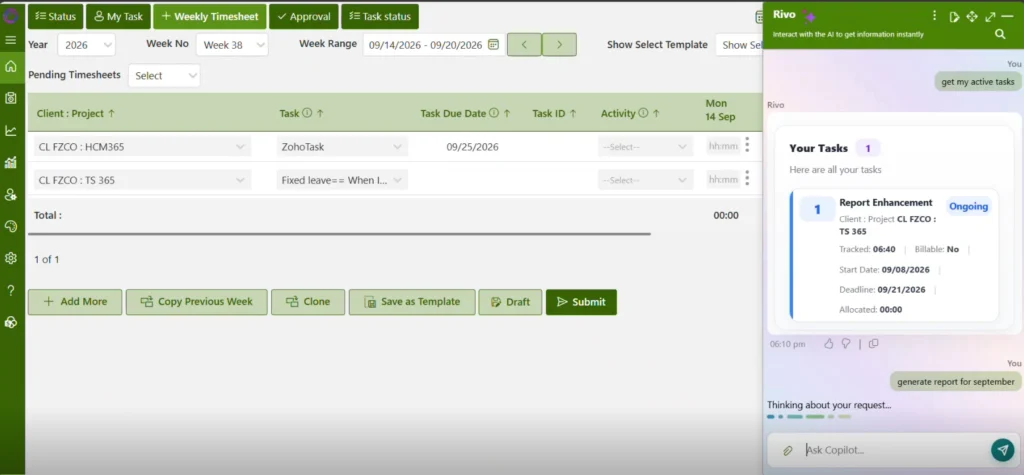
Best for: Mid-market and enterprise teams already running Microsoft 365.
Timesheet 365 is built natively on SharePoint, making it one of the only tools that lives entirely inside your existing Microsoft 365 environment. There is no separate login — your team logs time right inside Teams, where they already spend the day.
Key features:
- AI-Agent to
- Built-in approval workflows
- Power BI-ready reporting
Desktop tracking capabilities: Timesheet 365 reads activity across Microsoft 365 apps and suggests smart timesheet entries, cutting manual entry while keeping data inside your own Azure AD tenant.
Pros and cons:
✅ Zero data leaves your Microsoft tenant — real data sovereignty
✅ Fastest rollout for Microsoft 365 teams — no new login
✅ Built-in approvals and native Power BI reporting
❌ Built for organizations already on Microsoft 365
Pricing: Simple per-user, per-month subscription with a 14-day free trial, no credit card required. Enterprise pricing available on request.
Why consider it: If your company runs on Microsoft 365, Timesheet 365 is the only option that adds zero friction — no new login, no new place for sensitive data, no months-long rollout.
Ready to see it live?
Get a walkthrough built around your own SharePoint tenant.
2. Hubstaff
Best for: Remote and field teams that need activity monitoring.
Hubstaff pairs time tracking with workforce management. Its desktop app logs activity levels and, if enabled, periodic screenshots and app use.
Key features: Time tracking with optional screenshots, GPS tracking, built-in payroll, and shift scheduling.
Desktop tracking capabilities: The Hubstaff desktop client records active and idle time and can capture screenshots for closer oversight.
Pros and cons:
✅ Strong monitoring for remote and field staff
✅ Payroll calculation built in
❌ Screenshot monitoring can strain trust
❌ No native Microsoft 365 integration
Pricing: Paid plans start around $7–$12 per user, per month.
Why consider it: Good fit for agencies needing close oversight of hourly or field staff.
3. Toggl Track
Best for: Small teams and freelancers who want a fast, simple time tracker.
Toggl Track is loved for its one-click timer and clean design. Its desktop app includes a Timeline feature that records app and website use in the background.
Key features: One-click timer, Timeline auto-tracking, 100+ integrations, and exportable reports.
Desktop tracking capabilities: The desktop app sits in your system tray and can auto-track apps and sites, so you fill in gaps later with minimal effort.
Pros and cons:
✅ Excellent, low-friction UX
✅ Huge integration library
❌ Costs climb fast on premium tiers
❌ No native Microsoft 365 integration
Pricing: Free plan for small teams; paid tiers run $9–$20 per user, per month.
Why consider it: Best for small teams that value simplicity over deep enterprise controls.
4. TimeCamp
Best for: Teams that want fully automatic time tracking.
TimeCamp desktop app automatically logs the apps, documents, and sites used, then assigns time to projects with minimal manual input.
Key features: Automatic time capture, project budgets, invoicing, and a generous free plan.
Desktop tracking capabilities: TimeCamp’s desktop tracker records computer activity automatically, so staff don’t need to remember to hit start.
Pros and cons:
✅ Strong auto-tracking cuts manual entry
✅ Free plan holds up for small teams
❌ No native Microsoft 365 integration
❌ Deeper reporting sits behind paid tiers
Pricing: Free plan available; paid plans start around $3–$5 per user, per month.
Why consider it: Good for teams that want a PC time tracking tool without relying on staff to remember a timer.
5. Clockify
Best for: Budget-conscious teams that need unlimited free tracking.
Clockify offers unlimited users, projects, and core time tracking, completely free. The desktop app works alongside a browser extension for tracking time inside other tools.
Key features: Unlimited free tracking, a browser extension for 50+ apps, kiosk mode, and exportable reports.
Desktop tracking capabilities: The Clockify desktop app offers a one-click timer, manual entry, and a calendar view for missed hours.
Pros and cons:
✅ Free-forever plan, no user limits
✅ Clean, easy-to-read reports
❌ Approvals require a paid plan
❌ No native Microsoft 365 integration
Pricing: Free core plan; paid tiers run $3.99–$11.99 per user, per month.
Why consider it: A strong option for startups and small teams that want a reliable PC time tracking tool without a monthly bill.
6. DeskTime
Best for: Teams that want time tracking paired with productivity insight.
DeskTime tracks time automatically and layers in productivity scoring, showing which apps and sites count as productive for each role.
Key features: Automatic time tracking, URL/app productivity tracking, project tracking, and shift scheduling.
Desktop tracking capabilities: The DeskTime desktop app tracks active work time automatically and sorts app and site use by productivity level.
Pros and cons:
✅ Useful productivity insight beyond raw hours
✅ Free plan for solo users
❌ Monitoring depth may not suit every culture
❌ No native Microsoft 365 integration
Pricing: Free plan for one user; paid plans start around $7–$10 per user, per month.
Why consider it: Fits teams that want employee time tracking software paired with productivity analytics, not just hours logged.
Desktop Time Tracking Software Comparison
Software | Best For | Microsoft 365 Integration | Approval Workflow | Starting Price |
Timesheet 365 | Microsoft 365 teams | ✅ Native | ✅ Built in | Free trial, then per user/month |
Hubstaff | Remote & field teams | ❌ No | Limited | ~$7/user/month |
Toggl Track | Small teams & freelancers | ❌ No | Paid tiers only | Free, then ~$9/user/month |
TimeCamp | Automatic tracking | ❌ No | Paid tiers only | Free, then ~$3/user/month |
Clockify | Budget-conscious teams | ❌ No | Paid tiers only | Free, then ~$3.99/user/month |
DeskTime | Productivity insight | ❌ No | Paid tiers only | Free, then ~$7/user/month |
How to Choose the Best Desktop Time Tracker
There is no single best desktop time tracking software for every team. The right pick depends on your tools and how your people already work. Ask yourself:
- What software does your team run on? If it’s Microsoft 365, a native option avoids a whole new system.
- Do you need monitoring, or just accurate tracking? Screenshot tools suit oversight-focused teams but can feel invasive to knowledge workers.
- How important is compliance? Regulated industries need built-in approvals and an audit trail.
- What is your real budget per user? Free plans suit solo users; growing teams should model per-user costs at scale.
- Where does your data live? For enterprise and government buyers, data sovereignty is often the deciding factor.
Match your answers to the comparison table above, and the right choice becomes obvious fast.
Who Needs Desktop Tracking Software?
Desktop time tracking software is not built for one type of user. Here is who gets the most value:
- IT Directors & SharePoint Admins — need a tracker that fits Microsoft 365 governance without new security risk
- Finance & Operations Leaders — need auditable timesheets for payroll and billing
- Project Managers — need real time spent vs estimated time, so quotes hold up
- Consultants & Agencies — need to prove billable hours and protect margins
- HR Directors — need dependable attendance data for compliance
- Remote Team Managers — need visibility into distributed teams without hovering
If your role is on that list, a desktop time tracker isn’t optional — it’s how modern teams stay accountable and audit-ready.
How Much Does Desktop Time Tracker Cost?
Pricing varies widely. Free plans exist for solo users, usually with basic tracking and limited reporting.
Paid plans typically range from $3 to $20 per user, per month, depending on features like approvals, GPS tracking, payroll, and reporting. Enterprise platforms like Timesheet 365 price per user, with volume discounts and a free trial to test the fit.
When comparing cost, look past the sticker price:
- Time saved on manual timesheet admin
- Fewer billing errors and client disputes
- Onboarding overhead — a tool needing a new login costs more than the invoice shows
- Compliance and audit-readiness for regulated industries
A cheap tool that does not fit your workflow can cost more in wasted admin hours than a pricier, better-integrated one.
Which Desktop Time Tracking Software Is Right for You?
If your organization runs on Microsoft 365, Timesheet 365 is the clear choice — the only tool here built natively on SharePoint, with data inside your own tenant and adoption measured in days, not months.
Need field-team GPS tracking? Hubstaff. Simplest one-click timer? Toggl Track. Team forgets to start timers? TimeCamp’s automatic capture helps. Tight budget? Clockify’s free plan is hard to beat. Want productivity scoring too? DeskTime delivers that.
But for teams already invested in Microsoft’s ecosystem, no other tool removes as much friction and manual admin as Timesheet 365.
Conclusion
Choosing the right desktop time tracking software comes down to fit, not feature count. The best tool is the one that matches how your team already works — not the one with the longest spec sheet.
For Microsoft 365 organizations, Timesheet 365 offers the fastest adoption, the strongest data security, and the least added admin work of any option on this list. Spreadsheets and guesswork cost real money every single month. A better desktop time tracker pays for itself fast.
Start Tracking Time the Way Your Team Already Works.
See exactly how much admin time your team gets back — no credit card, no obligation, just a real walkthrough of your own environment.
Join Our Creative Community
Frequently Asked Questions
What is the best desktop time tracking software for Microsoft 365 teams?
Timesheet 365 is built natively on SharePoint and Teams, making it the strongest fit. There is no separate login, and data stays inside your own Microsoft tenant.
Is desktop time tracking software the same as employee monitoring?
Not always. Timesheet 365 focuses on accurate timesheets and approvals, not surveillance. Others, like Hubstaff or DeskTime, add optional screenshots and activity scoring.
How much does desktop time tracking software cost?
Most tools range from free for solo users to about $20 per user, per month. Enterprise tools like Timesheet 365 offer per-user pricing with a free trial included.
Can desktop time tracking software work with remote teams?
Yes. Many desktop time tracking software solutions support remote teams and work across Windows PCs and Macs. Timesheet 365 also helps remote teams track work hours, manage timesheets, and access reports within Microsoft 365.
Do I really need approval workflows in my time tracker?
If you bill clients, run payroll, or work in a regulated industry, yes — approvals build an audit trail and cut billing disputes.


_JiluXJRGNl.svg)























