

_eH2jDg7dZ.png)
- An Outlook ticketing system turns your shared inbox into organised, trackable tickets — so nothing gets missed.
- Native Outlook folders and rules can work for very small teams, but they break down fast as ticket volume grows.
- A dedicated Microsoft Outlook ticketing system like Helpdesk365 adds SLAs, automation, and reporting without changing how your team already works in Outlook.
- Switching from a shared inbox to a proper ticketing system typically cuts response time and improves customer satisfaction within weeks.
Your support team lives in Outlook. Customer emails come in, questions pile up, and everyone tries to keep track using folders, flags, and “reply all” threads. It works, until it doesn’t. As ticket volume grows, things start slipping through the cracks: duplicate replies, missed follow-ups, and no clear owner for each request.
This is exactly the problem an Outlook ticketing system solves. Instead of replacing the inbox your team already knows, it turns every email into a tracked ticket, with clear ownership, deadlines, and a full history. In this guide, you’ll learn what an Outlook ticketing system is, how to set one up, why native Outlook eventually falls short, and why more support teams are moving from a shared inbox to a dedicated Microsoft Outlook ticketing system like Helpdesk365.
Whether you’re a small team fielding a few dozen emails a day or a larger support operation juggling hundreds of requests across multiple product lines, the core problem is the same: an inbox alone can’t tell you who owns what, how urgent it is, or how you’re performing over time. A ticketing system adds that layer of structure without asking your agents to abandon the tool they already know.
What Is an Outlook Ticketing System?
An Outlook ticketing system is a tool that connects to your Outlook inbox and converts incoming emails into support tickets. Each ticket gets a unique ID, an assigned agent, a status (open, pending, resolved), and a timeline of every action taken.
Unlike a plain shared mailbox, a ticketing system gives you structure. You can see at a glance which tickets are overdue, who is handling what, and how long each request has been open. Agents keep replying from Outlook, but behind the scenes, every message is organised, searchable, and reportable.
Common Email Support Problems Without a Ticketing System
Most teams don’t plan to outgrow their shared inbox, it just happens. Here are the problems that show up first:
- Duplicate replies: Two agents answer the same email because there’s no way to see who’s already working on it.
- Lost emails: Requests get buried under new messages and are never answered.
- No accountability: Without an assigned owner, tickets sit untouched for days.
- Zero visibility: Managers can’t see response times, backlog size, or agent workload.
- Messy history: When a customer replies weeks later, agents have to scroll through long email chains to find context.
These issues don’t just frustrate your team, they directly affect customer experience. A missed warranty request or a delayed reply can cost you a customer relationship. And as more people join the support team, the shared inbox gets noisier, not clearer, making the underlying problems worse rather than better.
How an Outlook Ticketing System Solves These Problems
A ticketing system fixes each of these problems at the root:
- Automatic ticket creation: Every incoming email becomes a ticket instantly, so nothing is missed.
- Clear ownership: Tickets are assigned to a specific agent or team, removing confusion over who should reply.
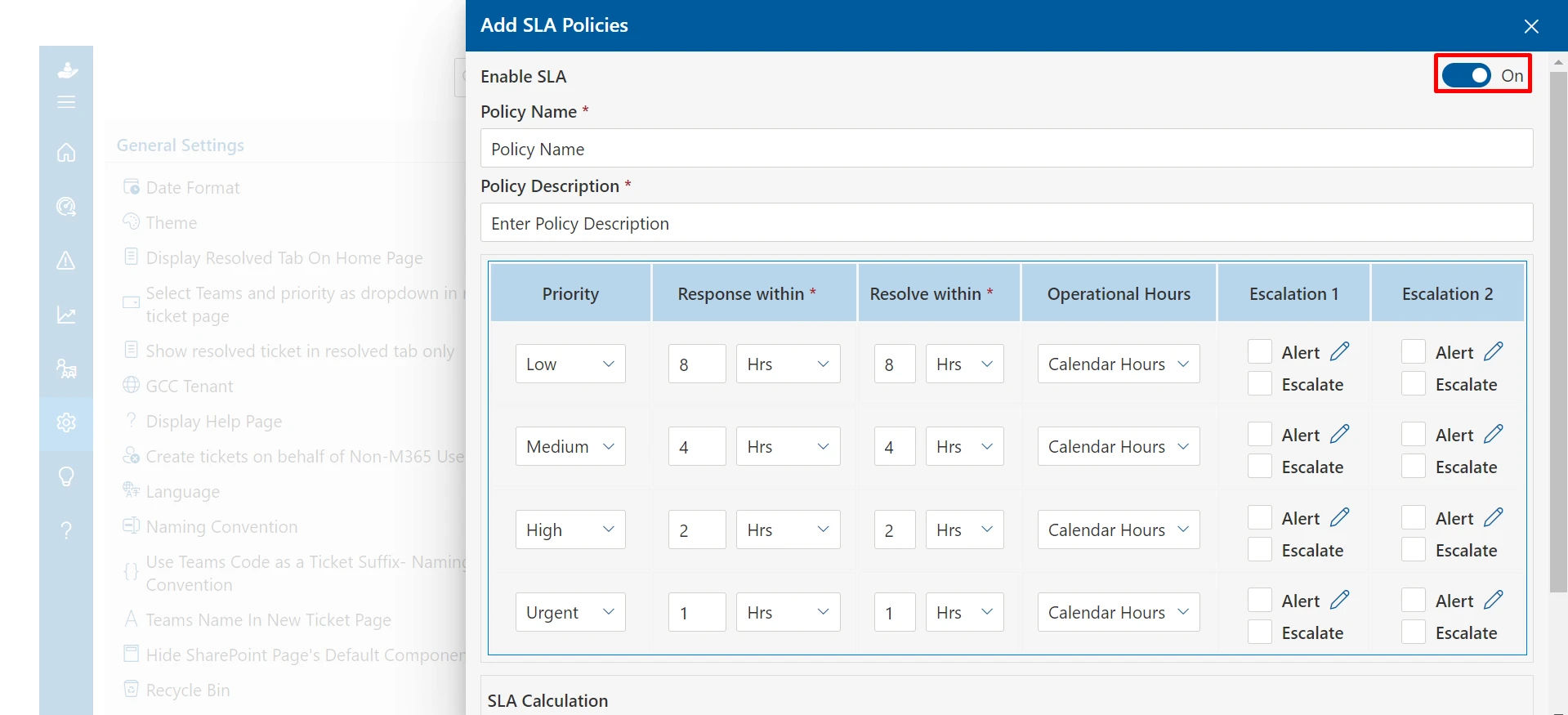
- SLA tracking: Deadlines are set automatically based on priority, and the system flags tickets before they breach.
- Full ticket history: Every reply, note, and status change lives in one thread, so context is never lost.
- Reporting: Dashboards show response times, resolution rates, and agent performance in real time.
Because the system works on top of Outlook, agents don’t need to learn a new tool. They keep working from the inbox they already use, while the backend keeps everything organised.
Want to see this in action on your own inbox?
How to Create a Ticketing System in Outlook
There are two ways to set up a ticketing system in Outlook: a basic manual method using built-in features, and a dedicated ticketing add-in that automates the process. Here’s how both work.
Option 1: Manual Setup With Outlook Folders and Rules
For very small teams handling only a handful of emails a day, you can create a basic structure using native Outlook tools:
- Create folders for each ticket status: New, In Progress, Waiting on Customer, Resolved.
- Set up Outlook rules to move incoming support emails into a shared “Support” folder automatically.
- Use categories or flags to mark priority level (urgent, normal, low).
- Manually move emails between folders as their status changes, and track ownership in the subject line.
This approach costs nothing extra, but it’s entirely manual. There are no SLA timers, no automatic assignment, and no reporting, someone has to update every folder and flag by hand, which breaks down quickly once volume increases.
Option 2: Add a Dedicated Outlook Ticketing System
A tool like Helpdesk365 installs directly inside Outlook as an add-in. Setup typically takes under an hour:
- Connect your support mailbox, no email forwarding or migration needed.
- Define ticket categories (for example: billing, technical issue, general query).
- Set SLA policies so tickets are automatically prioritised and escalated.
- Invite your team, agents keep using Outlook, with ticket controls built into the same screen.
This option automates everything the manual method requires by hand, and it scales with your team as ticket volume grows.
Where Native Outlook Falls Short for Growing Teams
Outlook is an excellent email client, but it was never built to be a support system. As your team and ticket volume grow, these gaps become hard to ignore:
- No SLA enforcement: Outlook can’t automatically escalate a ticket that’s about to breach its deadline.
- No workload balancing: There’s no way to auto-assign tickets evenly across available agents.
- Limited reporting: Outlook can’t tell you your average first-response time or agent-level performance.
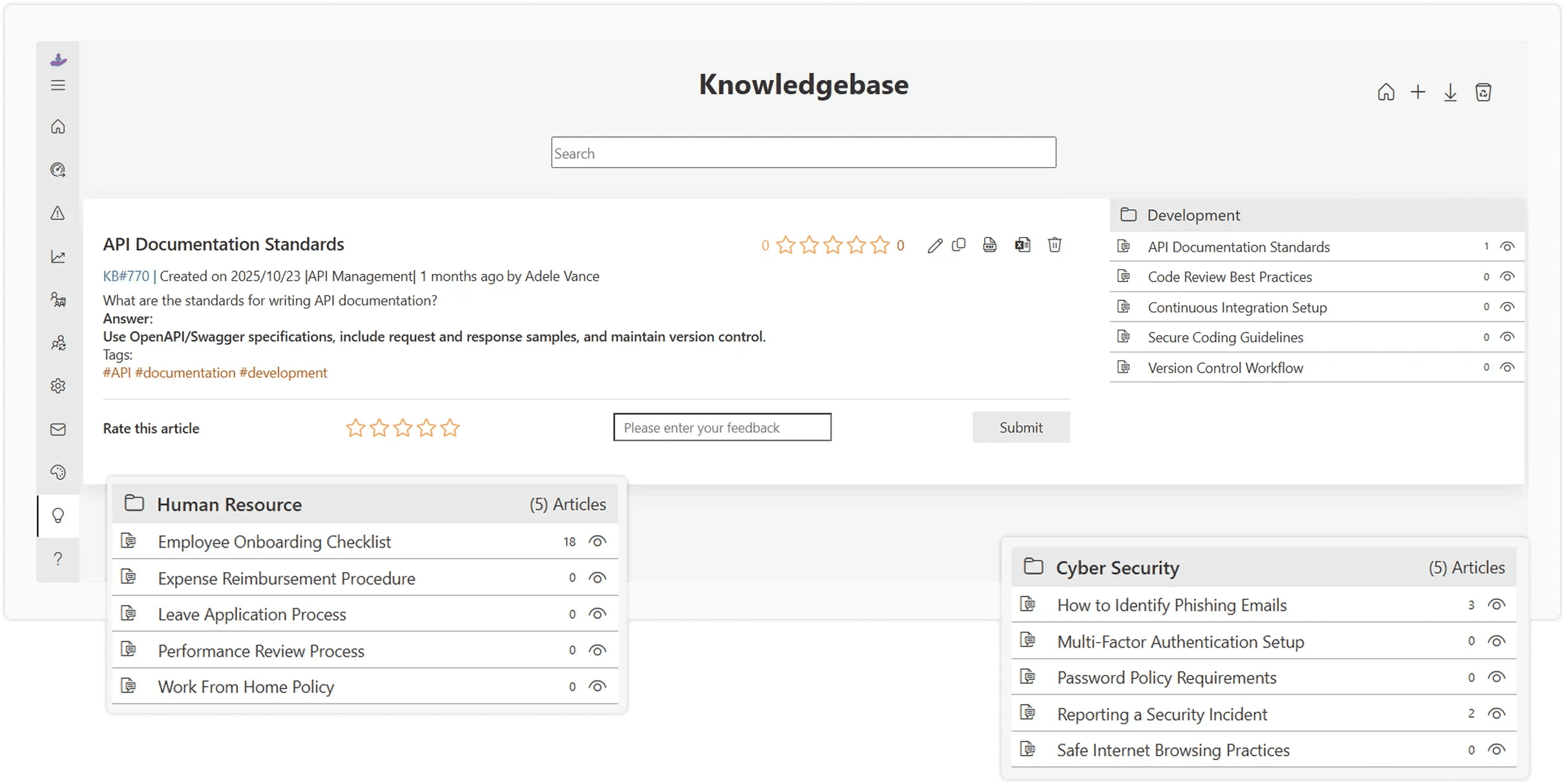
- No customer self-service: There’s no knowledge base or portal where customers can check ticket status themselves.
- No audit trail: Compliance-heavy industries need a documented record of every action — something a standard inbox can’t provide.
Why Choose a Microsoft Outlook Ticketing System Like Helpdesk365
Helpdesk365 is built specifically to work inside Outlook and Microsoft Teams, so your agents don’t have to switch tools or change their daily habits. It adds the structure a growing support team needs, without adding complexity.
- Native Outlook and Teams integration, not a clunky add-on.
- Automatic ticket creation from every inbound email.
- SLA timers with automatic escalation for urgent requests.
- Custom fields to capture the details that matter to your business.
- Built-in reporting so managers always know where things stand.
Because it sits on top of the tools your team already trusts, adoption is fast, most teams are fully set up and taking tickets within a single business day.
Ready to stop losing track of support emails?
Key Features to Look For in an Outlook Ticketing Solution
Not all ticketing tools are built the same. When evaluating a Microsoft Outlook ticketing system, look for these core features:
- Omni-channel inbox: Combine email, web forms, and chat into one ticket queue.
- SLA management: Automatic timers, escalation rules, and breach alerts.
- Automation and rules: Use inbound email routing to direct tickets by keyword, category, sender, or priority without manual sorting.
- Reporting dashboards: Real-time visibility into response times and team performance.
- Knowledge base: Let customers find answers before they even raise a ticket.
- Security and compliance: Look for audit trails, SSO, and data encryption if you operate in a regulated industry.
Benefits of Using Helpdesk365 With Outlook
Teams that move from a shared inbox to Helpdesk365 typically see results within the first few weeks:
- Faster response times, since tickets are prioritised and assigned automatically.
- Fewer missed emails, because every message becomes a tracked ticket.
- Better teamwork, with shared visibility into who is handling what.
- Clear reporting, so managers can spot bottlenecks before they become bigger problems.
- Happier customers, thanks to quicker, more consistent replies.
None of this requires a lengthy rollout. Because Helpdesk365 runs inside Outlook and Microsoft Teams from day one, there’s no separate login for agents to remember and no steep learning curve for new hires to work through.
Best Practices for Managing Your Outlook Ticketing System
Setting up the system is only the first step. To get the most out of it, keep these best practices in mind:
- Define clear ticket categories early: Decide on a short, consistent list (billing, technical, general) so reporting stays clean as volume grows.
- Set realistic SLAs by priority: Not every ticket needs a one-hour response. Match your SLA tiers to how urgent each category genuinely is.
- Review reports weekly: A quick look at response times and backlog each week helps you catch problems before customers notice them.
- Use canned responses for common questions: This keeps replies consistent and frees up agent time for more complex issues.
- Keep your knowledge base updated: Every time an agent answers a new type of question, consider turning it into a self-service article.
These habits turn a ticketing system from a tool you switched on into a process your whole team actually relies on.
Conclusion
A shared Outlook inbox can carry a small support team for a while, but it wasn’t designed to scale. Missed emails, unclear ownership, and zero reporting all catch up eventually. An Outlook ticketing system like Helpdesk365 keeps your team working exactly where they already are, while adding the structure, automation, and visibility a growing support operation needs.
If email support is starting to feel unmanageable, it may be time to add a ticketing layer to Outlook rather than replace it.
Frequently Asked Questions
Do agents need to leave Outlook to use a ticketing system?
No. Tools like Helpdesk365 work inside Outlook, so agents keep replying from the same screen they already use every day.
Can I set up an email ticketing system in Outlook for free?
You can build a basic manual version using folders, rules, and flags. It works for very small volumes, but it lacks automation, SLA tracking, and reporting.
How long does it take to set up a Microsoft Outlook ticketing system?
Most teams are fully configured and taking tickets within a single business day, with no email migration required.
Is an Outlook ticketing system suitable for larger support teams?
Yes. It’s especially valuable for larger or growing teams that need SLA tracking, automatic routing, and reporting that native Outlook folders can’t provide.


_JiluXJRGNl.svg)























