Email Ticketing System: A Complete Guide for Internal IT Support Teams
_eH2jDg7dZ.png)
Picture this: a Monday morning in your IT department. Thirty new support emails sit in a shared inbox, password resets, software installation requests, a broken printer on the third floor, and an urgent VPN access issue from a remote employee. Two team members reply to the same ticket by mistake. Three emails from last Friday are still sitting unread. And nobody knows who owns what.
- An email ticketing system converts support emails into structured tickets, eliminating the chaos of shared inboxes.
- ITteams gain full visibility into ticket status, ownership, and SLA compliance — all in one place.
- Automationhandles routine tasks like routing,prioritisation, and acknowledgements, freeing IT staff for real work.
- Centralised data and dashboards enable smarter, data-driven decisions for resource planning and performance improvement.
If this sounds familiar, you are not alone. Managing IT support through a regular email inbox is one of the most common pain points for internal IT teams. As organisations grow, the volume and complexity of IT requests grow with them, and a simple inbox just cannot keep up.
That is exactly why email ticketing systems exist. They bridge the gap between the convenience of email (a communication channel employees already use) and the structure and accountability of a professional IT service desk.
This guide covers everything your IT team needs to know about email ticketing systems, what they are, how they work, the problems they solve, the features to look for, and how to choose the right one for your organisation.
What Is an Email Ticketing System?
An email ticketing system is a software tool that automatically converts incoming support emails into structured tickets. Each ticket represents a single support request and contains a complete record of the request, including the original email, all follow-up messages, internal notes, status updates, assigned agent, priority level, and resolution details.
Instead of IT support requests disappearing into a shared inbox, they become organised, trackable units of work inside a centralised system. Every ticket has a unique ID, a clear owner, a defined status, and an audit trail.
Why IT Teams Still Rely on Email for Support Requests
Despite the rise of self-service portals and chat tools, email remains the dominant channel for internal IT support requests, and for good reason:
- Employees are already comfortable with email. There is no learning curve.
- Email is accessible from any device, anywhere.
- It creates an automatic written record of the request.
- It works for both simple and complex requests.
- No additional software is needed on the employee’s side.
The challenge is not the channel itself, it is the lack of structure on the receiving end. Email ticketing systems solve exactly that.
Challenges of Managing IT Requests Directly from Inboxes
When IT teams rely purely on a shared email inbox to manage support requests, the problems compound quickly:
- Requests get lost, especially during peak periods.
- Multiple agents respond to the same email, causing confusion.
- There is no visibility into who is handling what.
- Follow-up emails create clutter and duplicate threads.
- There is no way to measure response times or resolution rates.
- Institutional knowledge is locked inside individual inboxes.
Email Ticketing System vs Shared Mailbox
Many organisations start with a shared mailbox, a single email address, that multiple IT agents can access. While this is better than individual inboxes, it falls short compared to a proper email ticketing system.
Ticket ownership | Manual, often unclear | Assigned automatically or manually |
Status tracking | Read/unread only | Open, In Progress, Resolved, Closed |
SLA management | Not available | Built-in with alerts |
Reporting & analytics | Minimal or none | Comprehensive dashboards |
Collaboration (internal notes) | Not possible | Yes, without emailing the requester |
Duplicate prevention | Not available | Automatic collision detection |
Audit trail | Email thread only | Complete history per ticket |
How an Email Ticketing System Works for IT Teams
Understanding the mechanics of an email ticketing system helps IT managers appreciate why the shift from inbox to platform is so impactful. Here is a step-by-step look at the full ticket lifecycle
Step 1: Converting Emails into Tickets Automatically
When an employee sends an email to your IT support address, the email ticketing system intercepts it and automatically creates a ticket. The employee’s email becomes the ticket description. The subject line often becomes the ticket title. Attachments, screenshots, and metadata are all preserved.
The employee receives an automatic acknowledgement with a unique ticket ID, reassuring them that their request has been received and is being tracked.
Step 2: Tracking Incidents, Service Requests, and Access Requests
Not all IT requests are the same. A well-designed email ticketing system categorises incoming requests automatically or allows agents to classify them manually:
- Incidents — unexpected disruptions such as system outages, application errors, or hardware failures.
- Service requests — standard requests such as software installations, password resets, or new user account creation.
- Access requests — requests for permissions, VPN access, or shared drive access.
- Change requests — requests to modify existing IT configurations or infrastructure.
- Categorisation is critical because it determines routing, priority, and SLA rules.
Step 2: Tracking Incidents, Service Requests, and Access Requests
Not all IT requests are the same. A well-designed email ticketing system categorises incoming requests automatically or allows agents to classify them manually:
- Incidents — unexpected disruptions such as system outages, application errors, or hardware failures.
- Service requests — standard requests such as software installations, password resets, or new user account creation.
- Access requests — requests for permissions, VPN access, or shared drive access.
- Change requests — requests to modify existing IT configurations or infrastructure.
- Categorisation is critical because it determines routing, priority, and SLA rules.
Step 3: Ticket Ownership and Assignment
Once a ticket is created, it needs an owner. This can happen in two ways:
- Automated assignment — the system routes the ticket to the right agent or team based on rules (for example, all printer-related tickets go to the hardware team).
- Manual assignment — a team lead reviews unassigned tickets and manually assigns them.
Clear ownership eliminates the common problem of tickets being ignored because everyone assumes someone else is handling them.
Step 4: Managing the Complete Ticket Lifecycle
A ticket moves through defined stages from creation to closure. A typical lifecycle looks like this:
- New — ticket just created, not yet assigned.
- Open / Assigned — ticket assigned to an agent who is actively working on it.
- Pending — waiting for a response from the requester or a third party.
- Resolved — the issue has been fixed; waiting for confirmation from the requester.
- Closed — confirmed resolved and archived.
Each status change is logged with a timestamp, creating a complete audit trail.
Step 5: Maintaining Communication History
Every reply sent or received through the ticket is stored within the ticket record. IT agents can see the full conversation history without scrolling through email threads. Requesters can reply directly to the ticket notification email, and their response is automatically added to the ticket, no need to log in to a portal.
Common IT Support Challenges Solved by Email Ticketing Systems
Let us look at the specific pain points that internal IT teams face and how an email ticketing system addresses each one.
Lost or Overlooked Support Requests
In a busy shared inbox, it is easy for emails to get buried under newer messages. An email ticketing system ensures every incoming request becomes a ticket that remains visible until it is explicitly resolved or closed. Nothing falls through the cracks
Duplicate Emails and Follow-ups
When an employee does not hear back, they often send a follow-up email, which creates a second thread and adds to the confusion. Email ticketing systems automatically link follow-up emails to the original ticket, keeping everything in one place. They also send automatic acknowledgements so employees know their request is being handled.
Lack of Visibility into IT Workload
Without a ticketing system, IT managers have no clear view of how many requests are open, who is working on what, or where the bottlenecks are. A ticketing dashboard gives real-time visibility into team workload, ticket distribution, and backlog size.
Difficulty Tracking Request Status
Employees often have no idea what is happening with their IT request after sending the email. Ticketing systems solve this in two ways, employees can check ticket status via a self-service portal, and agents can send status updates directly from within the ticket.
No Centralised Record of IT Issues
When IT issues are handled via email, there is no structured record of what went wrong, how it was resolved, or how long it took. An email ticketing system creates a searchable knowledge base of past issues, making it easier to spot recurring problems and build solutions.
SLA and Compliance Challenges
Service Level Agreements (SLAs) define how quickly IT must respond to and resolve different types of requests. Without a system tracking these timelines, SLA compliance is impossible to measure or enforce. Email ticketing systems have built-in SLA timers, colour-coded warnings, and escalation rules to ensure compliance.
Essential Features of an Email Ticketing System
Not all email ticketing systems are created equal. When evaluating options for your IT team, look for these core features.
Email-to-Ticket Conversion
This is the foundational feature. The system must be able to connect to one or more support email addresses and automatically convert every incoming email into a ticket, without any manual intervention. Replies to the ticket should also update the email thread automatically.
Automated Ticket Routing
The system should be able to route tickets to the right team or agent automatically based on configurable rules, such as keywords in the subject line, the sender’s department, or the type of request. This reduces triage time significantly.
Priority and Category Management
IT teams deal with requests of very different urgency. A complete server outage is not the same as a request for a new mouse. Good ticketing systems allow you to assign priority levels (Critical, High, Medium, Low) and categories (Hardware, Software, Network, Access, etc.) to tickets, either manually or through automation rules.
SLA Tracking and Escalation
The system should allow you to define SLA policies for different ticket types and priorities, track compliance in real time, and automatically escalate tickets that are approaching or breaching their SLA deadlines. Visual indicators (such as colour-coded timers) help agents prioritise accordingly.
Internal Notes and Collaboration
IT agents often need to discuss a ticket among themselves without the requester seeing the conversation. Internal notes (visible only to agents) enable this. Some systems also support @mentions to loop in specific colleagues.
Asset and User Association
For internal IT teams, being able to link a ticket to a specific device, software licence, or employee record is extremely valuable. This provides context and helps identify patterns, for example, if the same laptop is generating repeated tickets.
Reporting and Dashboards
A good email ticketing system provides dashboards showing key metrics: ticket volume by category, average response and resolution times, SLA compliance rates, agent workload, and backlog trends. These insights are essential for IT managers to make informed staffing and process decisions.
Benefits of Using an Email Ticketing System for Internal IT Support
Faster Incident Resolution
With clear ownership, automated routing, and priority management, tickets reach the right person faster. Agents are not wasting time figuring out what they should be working on, the system tells them. The result is shorter resolution times across the board.
Better Workload Management
IT managers can see at a glance how many tickets each agent has and redistribute work when one team member is overloaded. This prevents burnout and ensures no single agent becomes a bottleneck
Improved Accountability
When every ticket has an assigned owner and a timestamped audit trail, accountability is built into the system. Agents know their performance is visible, which naturally drives better behaviour. Managers can identify high performers and those who need additional support or training.
Enhanced Employee Experience
From an employee’s perspective, a ticketing system means they get an immediate acknowledgement, a reference number, and visibility into the progress of their request. This is far better than sending an email into a void and wondering if anyone saw it.
Centralised IT Support Operations
All IT support activity, regardless of how the request came in, is centralised in one platform. Managers get a single source of truth for all IT issues, conversations, and resolutions. This is particularly valuable for compliance, audits, and knowledge sharing.
Data-Driven Resource Planning
Over time, ticket data reveals patterns. You can see which categories generate the most tickets, which times of the week are busiest, and which issues take longest to resolve. This data is invaluable for planning team size, scheduling, and identifying training needs.
Best Practices for Managing IT Requests Through Email
Create Dedicated Support Email Addresses
Use clear, functional email addresses for different types of IT support. Connect these directly to your ticketing system. Dedicated addresses make it easy for employees to know where to send requests and help with automatic routing.
Define Ticket Categories and Priorities
Before going live, define a clear taxonomy of ticket categories and priority levels that reflects how your team actually works. Review and refine these periodically as your IT environment evolves
Automate Repetitive Workflows
Identify your most common, predictable ticket types and create automation rules for them. For example, all password reset requests can be automatically assigned to Level 1 support with a Low priority and a 4-hour SLA. Automation reduces manual triage and speeds up resolution for routine requests.
Establish SLA Policies
Define clear SLA targets for each ticket priority level. A common framework looks like this:
Priority | First Response Time | Resolution Time |
Critical | 15 minutes | 2 hours |
High | 30 minutes | 4 hours |
Medium | 2 hours | 1 business day |
Low | 4 hours | 3 business days |
Communicate these SLAs to your team and to employees so expectations are aligned.
Use Templates for Common Requests
Create response templates for frequently asked questions and common resolutions, password resets, VPN setup instructions, software installation guides, and so on. Templates save time, ensure consistency, and reduce the chance of missing key information.
Monitor Ticket Trends and Performance Metrics
Set a regular cadence, weekly or monthly, to review your ticketing data. Look at ticket volume trends, SLA compliance, resolution times, and category breakdowns. Use these insights to adjust staffing, update automation rules, and identify areas for process improvement.
Email Ticketing System vs Traditional Email Management
Shared Inboxes vs Structured Ticketing
A shared inbox is a starting point, not a solution. It allows multiple people to see the same emails, but it provides no structure, no ownership model, and no lifecycle management. A ticketing system transforms that raw email flow into organised, actionable work items
Visibility and Accountability Comparison
In a shared inbox, nobody truly knows who is responsible for what. A ticketing system assigns every request to a specific owner and tracks every action taken, creating genuine accountability without the need for constant check-ins or status meetings.
Reporting and Analytics Capabilities
Shared inboxes offer no meaningful reporting beyond basic email metrics. An email ticketing system provides rich analytics, ticket volume over time, agent performance, SLA compliance rates, average handle times, and more. These reports are essential for IT leadership to justify headcount, demonstrate value, and plan strategically.
Scalability for Growing IT Teams
A shared inbox that works for a 3-person IT team starts to buckle under a 10-person team handling hundreds of tickets per week. Email ticketing systems are built to scale, supporting multiple teams, multiple locations, and multiple support tiers without adding operational complexity.
Security and Audit Trail Benefits
For organisations with compliance requirements, GDPR, ISO 27001, SOC 2, and so on — a complete audit trail is not optional. An email ticketing system provides a tamper-evident record of every request, every action, and every communication, making compliance audits far simpler.
How to Choose the Right Email Ticketing System for Your IT Department
With dozens of options available, the choice can be overwhelming. Here is a framework to guide your evaluation.
Team Size Considerations
Start with your team’s current size and projected growth. Some tools are built for small teams (under 10 agents) and become expensive or limited at scale. Others are enterprise-grade from day one but may be overkill for a small IT team. Choose a tool that fits where you are now and where you will be in two to three years.
Automation Requirements
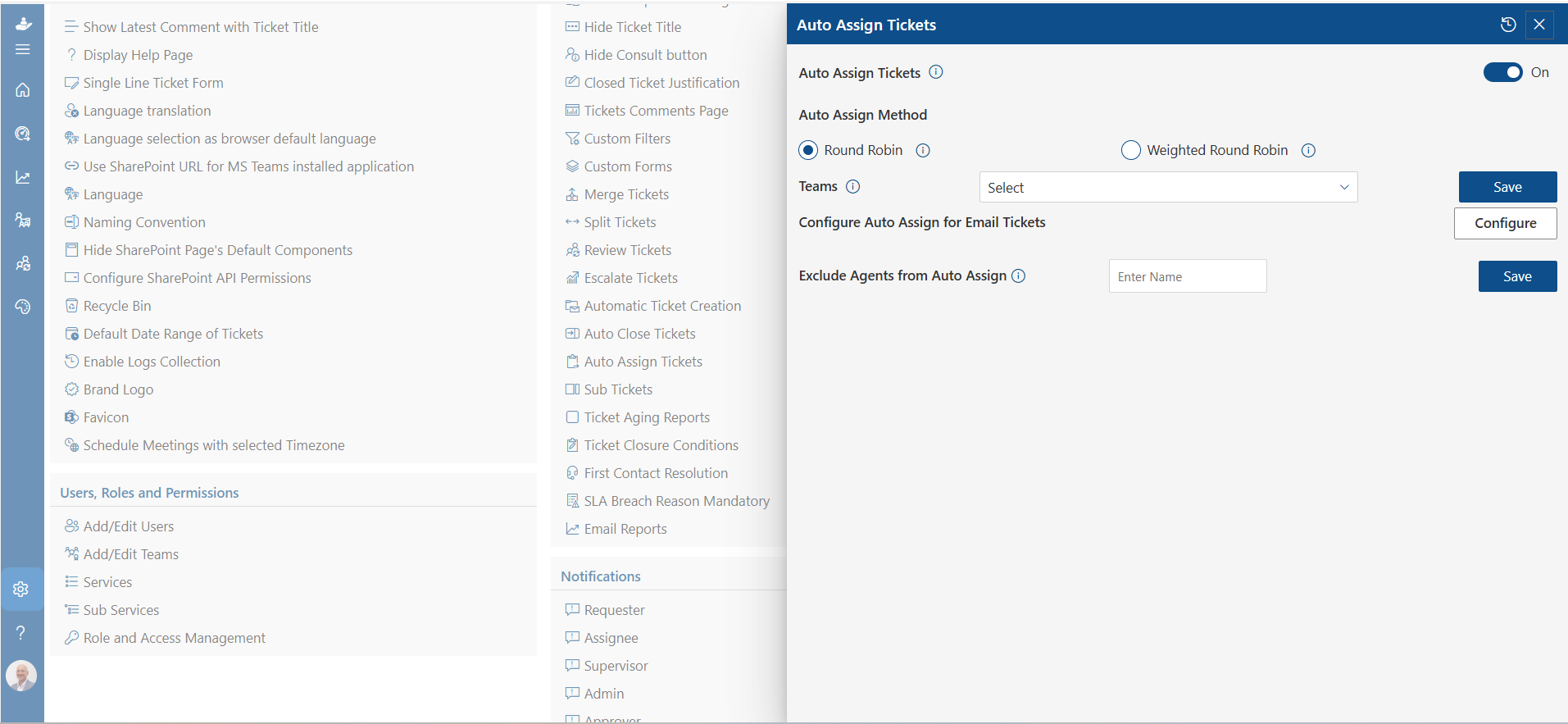
Think about the workflows you want to automate. Most platforms offer basic automation (routing, auto-acknowledgement, SLA alerts), but more advanced automation, such as AI-assisted categorisation, multi-step workflows, or integration with Active Directory, requires more capable platforms. Map out your automation wishlist before evaluating tools.
Microsoft 365 and SharePoint Integration
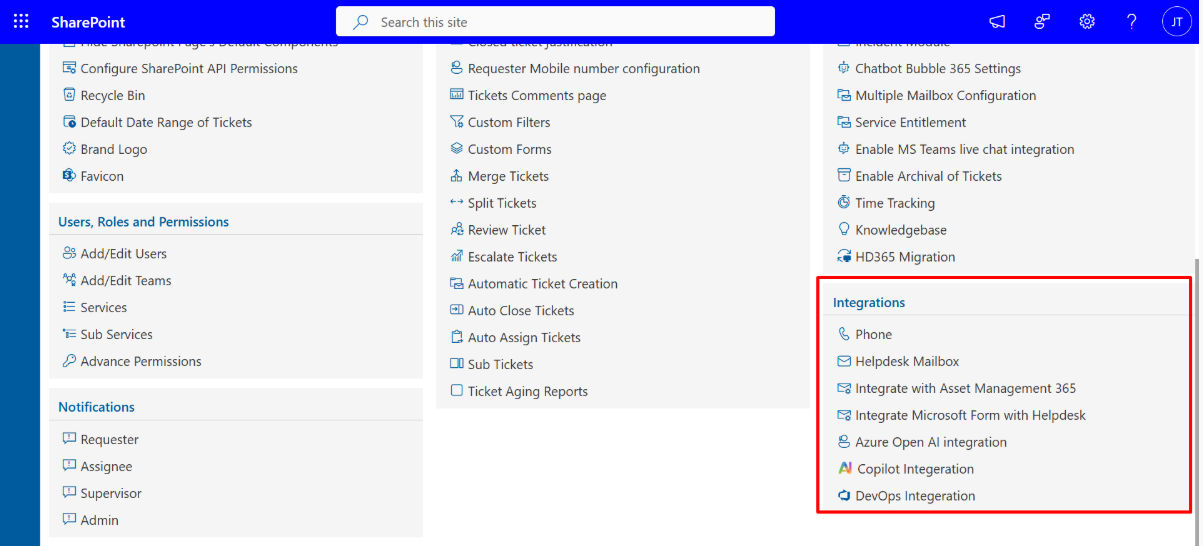
Most corporate IT environments are built around Microsoft 365. Look for a ticketing system that integrates natively with Outlook, Teams, SharePoint, and Azure Active Directory. Native integration means tickets can be created from Teams messages, agents can work from within Outlook, and user data can be pulled directly from your directory, without manual data entry.
Reporting and Analytics Needs
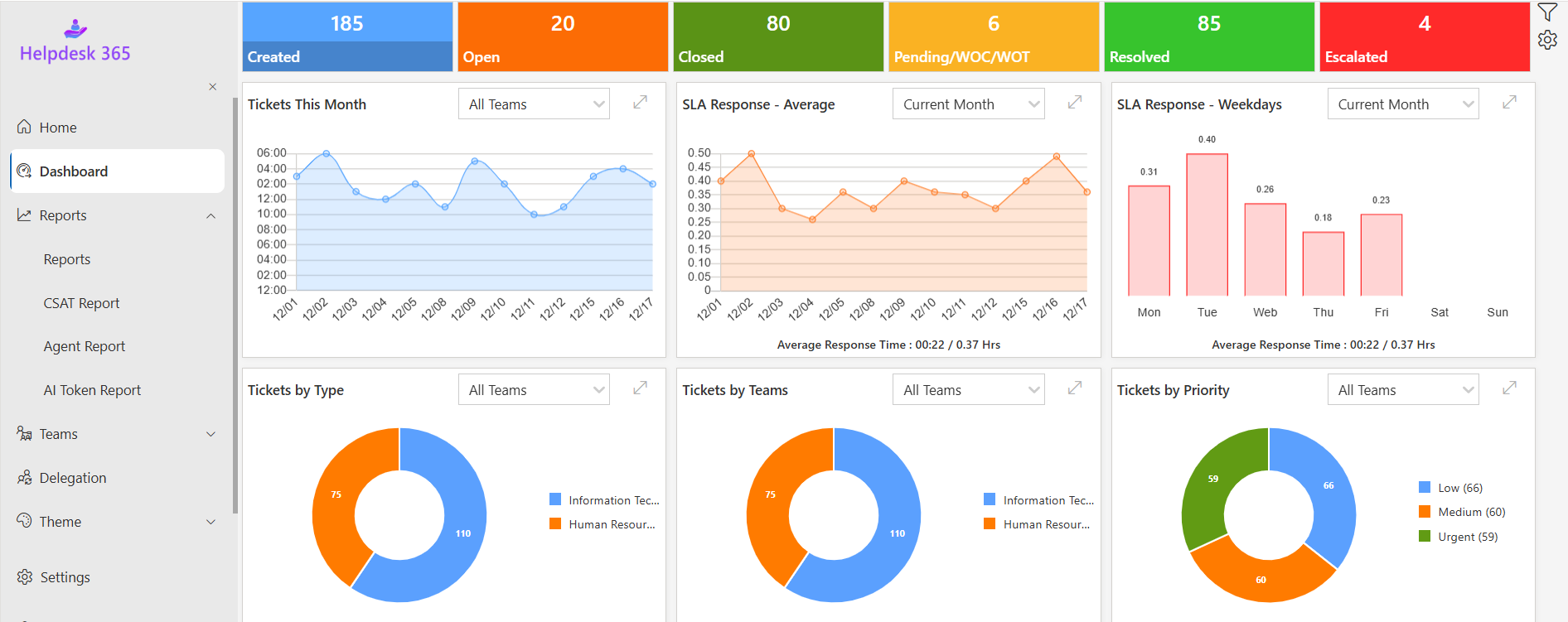
Consider what metrics matter most to your IT leadership and stakeholders. Basic tools offer pre-built dashboards; advanced tools allow custom reports, data exports, and integration with BI platforms like Power BI. If you need to report to senior management or board level, choose a system with flexible, professional reporting capabilities.
Scalability and Future Growth
Your IT team and the organisation it supports will evolve. Choose a system that can grow with you, adding agents, new ticket categories, additional integrations, and more complex workflows without requiring a platform migration.
Total Cost of Ownership
Look beyond the per-agent per-month licence fee. Consider implementation costs, training time, ongoing administration, and integration costs. A cheaper tool that requires heavy customisation or a dedicated admin may end up costing more than a higher-priced tool that works out of the box.
|
Evaluation Criterion |
Questions to Ask |
|
Team Size |
How many agents now? What is our 2-year growth plan? |
|
Automation |
What workflows can be automated? Is AI categorisation available? |
|
Integrations |
Does it connect with M365, Teams, AD, SharePoint? |
|
Reporting |
Can we build custom reports? Export data? Connect to Power BI? |
|
Scalability |
Can we add teams, tiers, and categories without re-platforming? |
|
Cost |
What is the total cost including setup, training, and admin? |
|
Support |
What level of vendor support is included? |
Conclusion
An email ticketing system helps IT teams move from managing scattered inboxes to running a structured, efficient support process. It improves response times, balances workloads, increases visibility into team performance, and enhances the employee support experience.
Whether supporting a small business or a large enterprise, the right solution helps standardize processes, automate routine tasks, and provide the insights needed to continuously improve IT service delivery.
Transform Email-Based IT Support with Helpdesk 365 ?
See how email-to-ticket conversion, automated workflows, SLA tracking, workload visibility, and reporting can help your IT team deliver faster and more consistent support
Join Our Creative Community
Frequently Asked Questions
What is an email ticketing system?
An email ticketing system automatically converts incoming emails into trackable support tickets, helping IT teams manage and resolve requests efficiently.
How does an email ticketing system work for internal IT support?
It captures employee emails, creates tickets, assigns them to technicians, tracks progress, and sends status updates until resolution.
What are the benefits of using an email ticketing system for IT teams?
Benefits include centralized request management, faster response times, improved accountability, better visibility, and enhanced SLA compliance.
Can an email ticketing system automate ticket assignment and routing?
Yes, most systems use rules and workflows to automatically categorize, prioritize, and assign tickets to the appropriate support personnel.
How does an email ticketing system help improve SLA performance?
It tracks response and resolution times, sends alerts for approaching deadlines, and escalates overdue tickets to ensure SLA commitments are met.
What is the difference between shared inboxes and an email ticketing system?
Shared inboxes lack tracking, automation, and reporting capabilities, while email ticketing systems provide structured workflows, ownership, and performance monitoring.
What features should an internal IT email ticketing system include?
Key features include email-to-ticket conversion, automation, SLA management, ticket prioritization, reporting, knowledge base integration, and self-service options
Can small IT teams benefit from an email ticketing system?
Yes, email ticketing systems help small IT teams organize workloads, reduce manual effort, improve efficiency, and deliver consistent support experiences.


_JiluXJRGNl.svg)